Your Minecraft server is not running the right version? Want to try a new update or wipe everything and start fresh? No stress, you can handle everything directly from the Versions tab in your MineStrator panel.
In this guide, you will learn how to change your server version while keeping your data, and how to fully reinstall your server to get a clean setup. Both methods only take a few clicks and are fully managed from your control panel.
How server version changes work
The Versions tab in your panel lets you either switch version while keeping your files, or reinstall the version and delete all server data. The right choice depends on what you want to do with your current world.
If you only want to update your server to a newer Minecraft version, use the version change option. If you prefer to completely reset everything (world, plugins, mods, configs), you will need to use the full reinstall option instead.
🚨 Important: Always create a backup of your server before changing or reinstalling a version.
Change Minecraft server version without losing data
Changing the Minecraft server version from the panel lets you update to a newer version while keeping your worlds, plugins, mods and configuration files. It is perfect if you want to follow Minecraft updates without restarting your whole server.
However, Minecraft does not support safe downgrades of worlds. You cannot go from a newer version to an older one without a high risk of world corruption. Version changes should always go from an older version to a newer one.
💬 Good to know: After updating your Minecraft server version, always check that your plugins and mods are compatible with the new version.
Step 1: Open the Versions tab in the panel
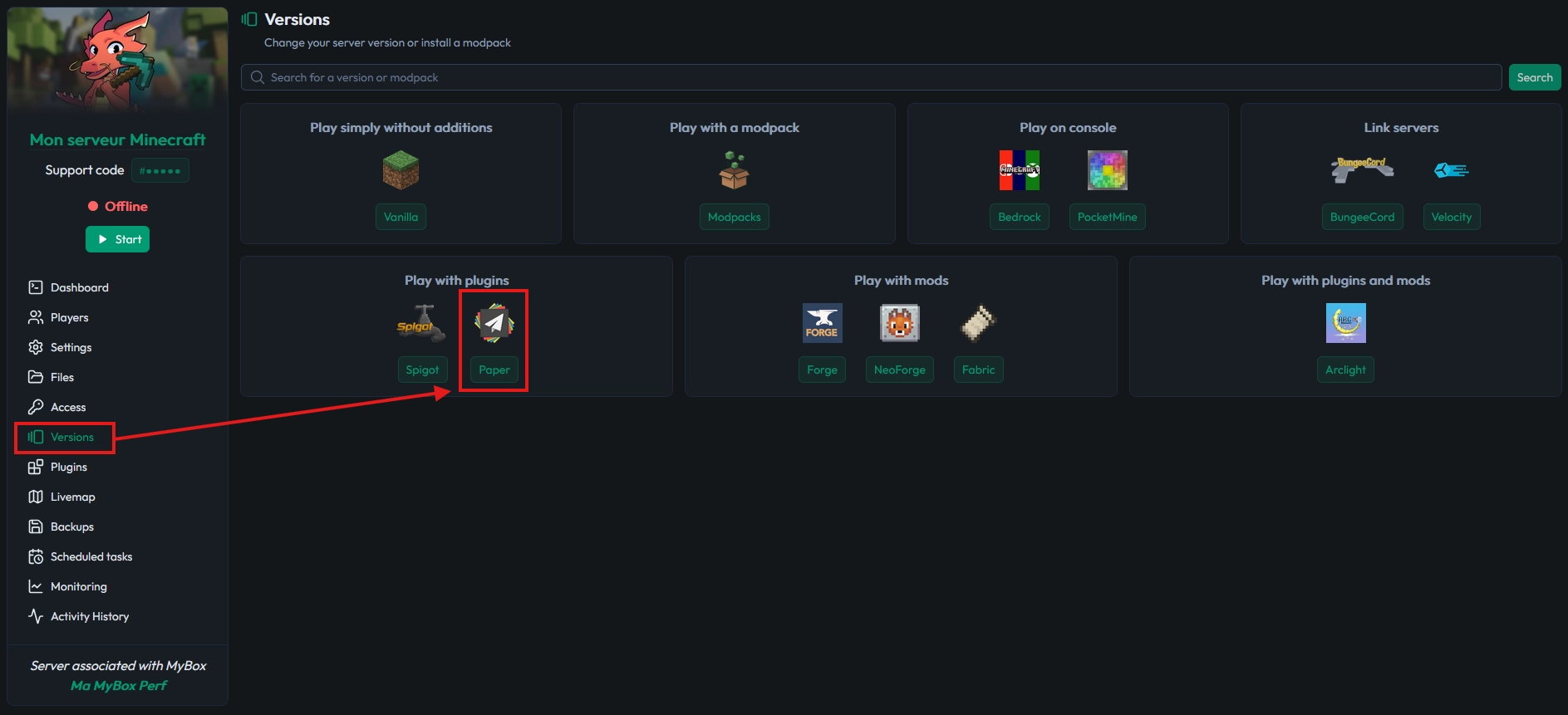
Log in to your MineStrator panel with your usual credentials. On your server management page, locate and click the Versions tab to access the version management tools.
From this tab, you can see the full list of available versions for your server type. You can then easily pick the Minecraft server version you want to run.
Step 2: Change the server version from the list
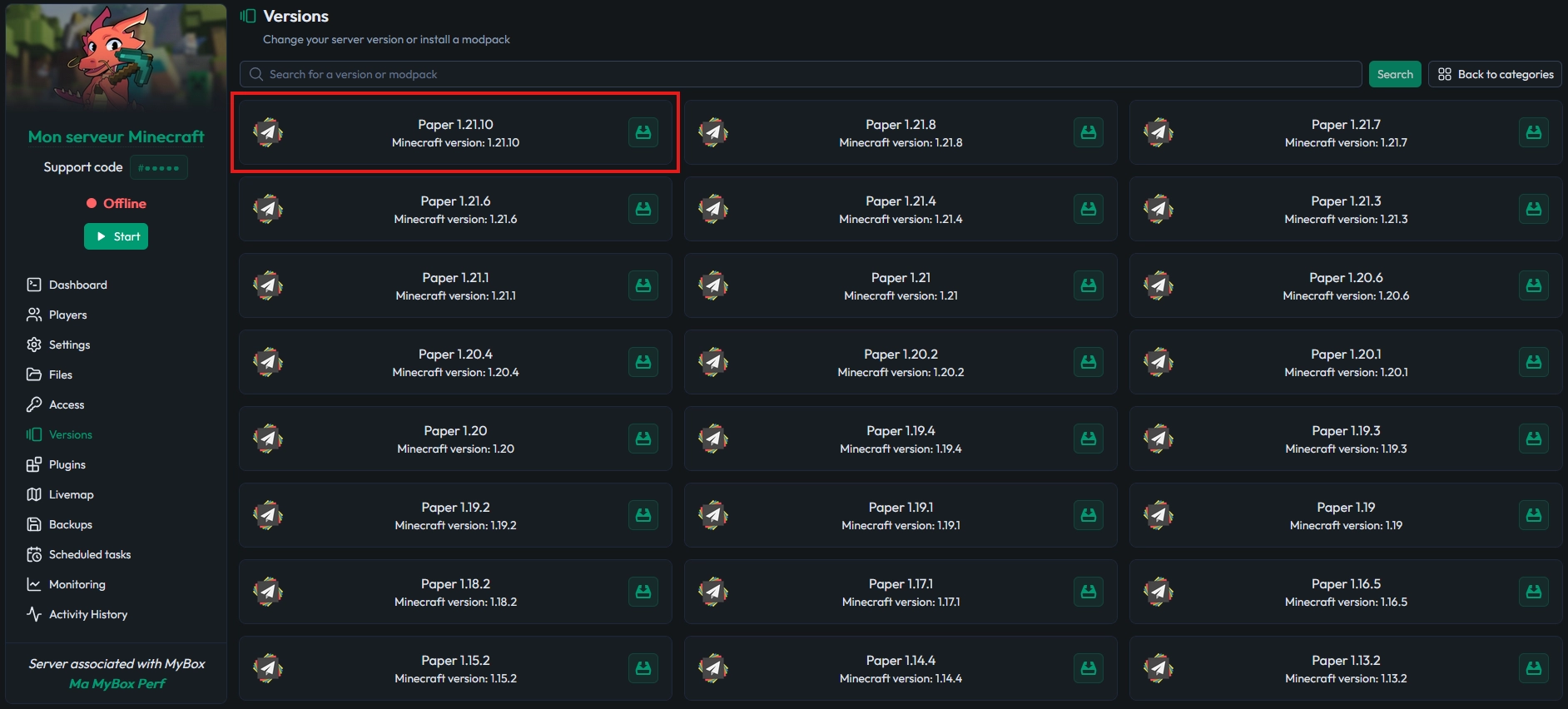
In the versions list, select the Minecraft server version you want to switch to. If you want to keep your current world, make sure you choose a version that is newer than the one you are currently using.
Once the version is selected, click the Change version button. The panel will prepare your server with this new version while keeping your existing files and configuration.
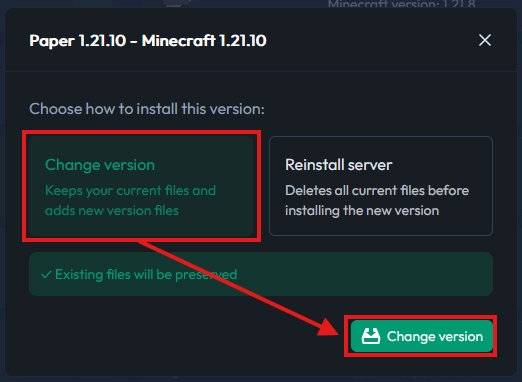
📝 Note: If the version you want is not listed, you can use an openmod by following the custom version installation tutorial.
If the version you need is missing, follow this guide: install a custom version (openmod).
Step 3: Finalize the Minecraft server version change
Wait while the panel applies the version change to your server. The process usually takes a short time, depending on the selected version and the size of your server files.
Once the operation is complete, simply start your server again from the panel. Your world will now load using the new Minecraft server version you selected.
💡 Tip: Use this restart to update your plugins and mods to versions compatible with your new Minecraft server version.
Fully reinstall your Minecraft server version
Reinstalling the version lets you start from a completely fresh server. This option deletes existing data (world, plugins, configurations) and installs a clean instance of the chosen Minecraft server version.
This is ideal if you want to launch a new map, switch server type, or fix a heavily broken installation. Be careful though: without a backup, deleted data cannot be recovered after the reinstall.
⚠️ Warning: Reinstalling the version erases all server data. Back up your files before continuing if you want to keep your worlds or configs.
Step 1: Select the version to reinstall
Just like for a simple version change, log in to your MineStrator panel and open the Versions tab. You will see the same list of available Minecraft server versions.
From this list, choose the version you want to start from. It can be the same version you currently use or a different Minecraft version, depending on your new project.
Step 2: Start the version reinstall
After selecting the desired version, click the Reinstall version button. The panel will then prepare a fresh, clean installation of this Minecraft server version on your machine.
This action resets your server as if it were newly created, deleting old data and recreating all required files for the selected version.
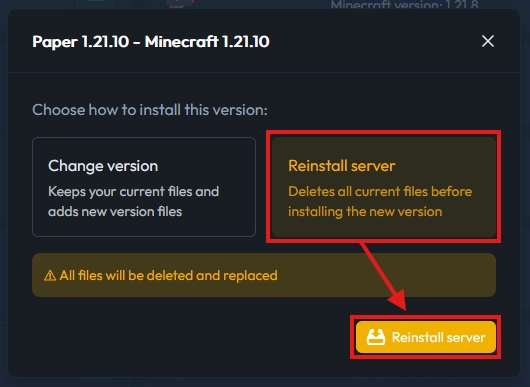
If the version you want is not available in the list, you can also use an openmod setup by following this tutorial: install a custom version on your server.
🚨 Important: When installing via openmod, stop the server and delete its content before uploading your custom files.
Step 3: Restart the server after reinstalling
Once the version reinstall is complete, your server is ready to be started again. Launch it from the panel to generate a brand-new world and initialize all fresh files.
You can then install your plugins, mods or upload a new map, just like you would on a newly created Minecraft server.
Frequently asked questions
Can I switch from a newer version to an older one?
No, Minecraft does not handle world downgrades correctly. You can technically install an older Minecraft server version, but your existing world is very likely to be corrupted. For a downgrade, it is safer to start on a new map.
Will my plugins and mods still work after changing version?
Not always. Each plugin or mod only supports specific Minecraft versions. After changing your server version, you should always check and update your plugins and mods to compatible releases to avoid errors and crashes.
Does reinstalling the version permanently delete my data?
Yes, reinstalling resets your server to a fresh state for the chosen version. All existing files can be deleted during the process. If you want to keep your world or configuration, create a backup via FTP or with backup tools before starting the reinstall.
What if the version I want is not listed in the panel?
If the version you need is missing, you must use an openmod. This lets you manually install a custom jar by following the custom version installation tutorial.
Conclusion
You now know how to change your Minecraft server version or fully reinstall your instance using the Versions tab in the MineStrator panel. Whether you want to follow the latest updates or start a brand-new adventure, everything is handled in just a few clicks.
Do not have a server yet, or want a separate one to test another Minecraft version safely? Try a free Minecraft server for 12 hours, no credit card required, and launch your new world in just a few minutes.

 15 December 2025
  Enjoy 10% off your first month of server with MineStrator using the code ACTU10!