
Want to host Star Rupture on your MineStrator MyBox and manage it cleanly without getting lost in Steam menus? You’re in the right place. Between Steam install (hello Steam Guard), the first boot, and creating your first session, there are a few steps to follow—and a couple of classic traps to avoid.
In this 2026 tutorial, you’ll learn how to install and manage a Star Rupture dedicated server on MyBox, find your IP, set the right passwords (admin vs players), launch a session, and apply the correct workaround after a restart to avoid the infamous “empty session” issue.
Prepare your MyBox for Star Rupture
From your client area, open your MyBox management page. Before creating the server, make sure you have enough resources available—especially if you’re playing with friends and planning to reach mid/late game.
Minimum: 4 GB RAM, 1 CPU core
Recommended: 8 GB RAM (or more)
💡 Tip: Planning 4 players and a busy mid/late game? Go straight for 8 GB RAM to avoid micro-freezes—or a lovely memory crash.
Create your Star Rupture server
In the MyBox panel, you’ll see one of two flows. If you already have a server, click Create a new server. If it’s your first one, the creation window usually opens automatically with a search bar.
Type Star in the search bar and select Star Rupture (it’s often the first result). You’ll then enter the creation wizard.
The wizard shows:
4 steps if it’s your first server on this MyBox
5 steps if you already have another server
This is normal: the first server on a MyBox automatically takes all available resources. Resource customization only appears when you create an additional server.
Enter Steam details and install
At the Steam step, enter your Steam User and Steam Password. Your Steam account must own Star Rupture, because the download doesn’t work in anonymous mode.
Choose the closest location (France, United States, or other), validate the summary, then click Create the server. Creation takes about 5–6 seconds, and then you can open Manage the server.
On the management page, a banner confirms the installation is running and logs will scroll in the console. Let the process finish completely before doing anything else.
📝 Note: The full download usually takes 2–3 minutes, depending on region and platform load.
During installation, Steam Guard may ask for validation:
Steam Guard Mobile: approve the notification
Steam Guard Email: copy/paste the code
Once it’s done, the Start button will appear.
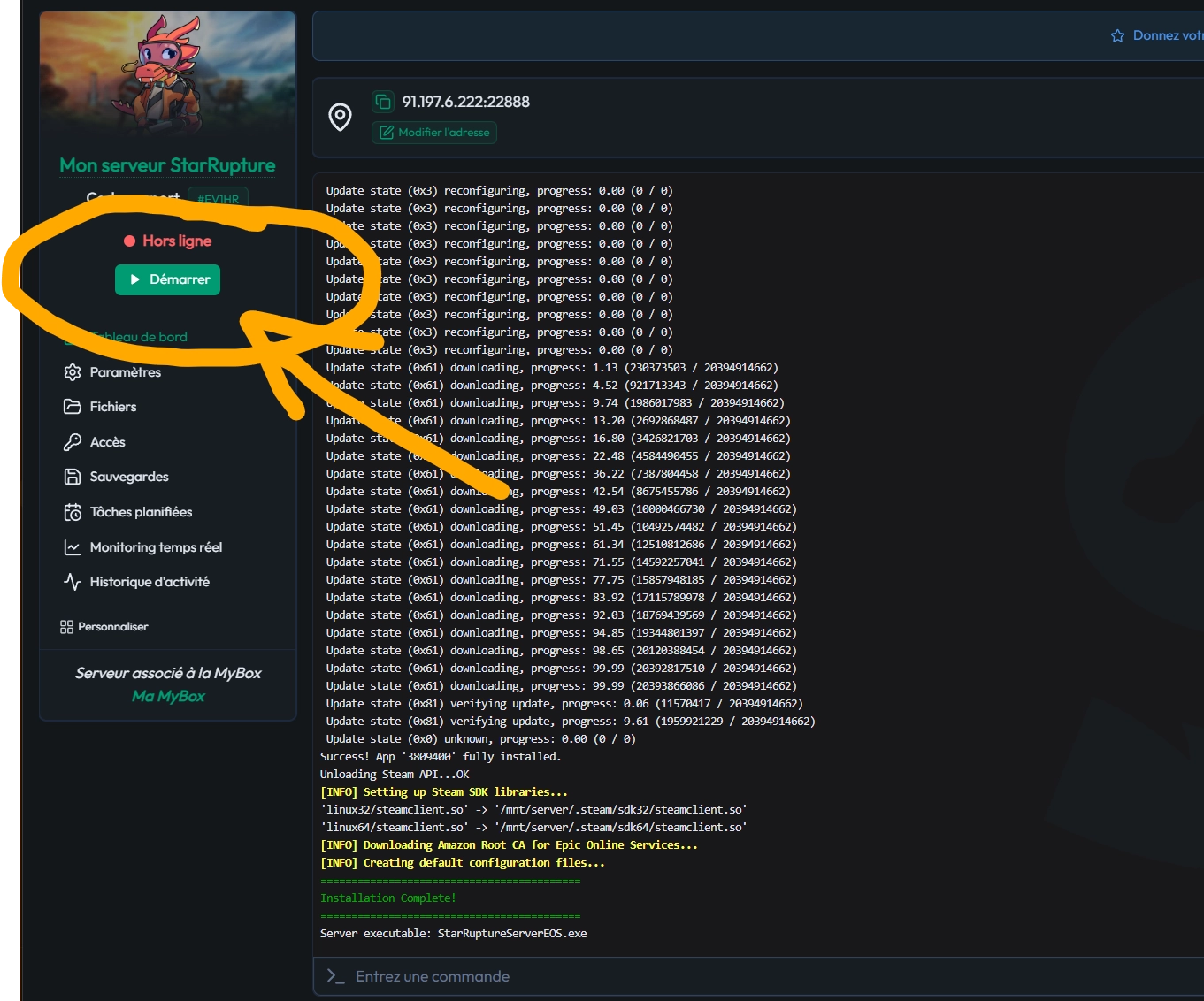
Start the server and copy the IP
Click Start. A Steam check runs, and Steam Guard may be requested again. If you want to avoid Steam Guard prompts on every start, disable auto-update in the Settings tab.
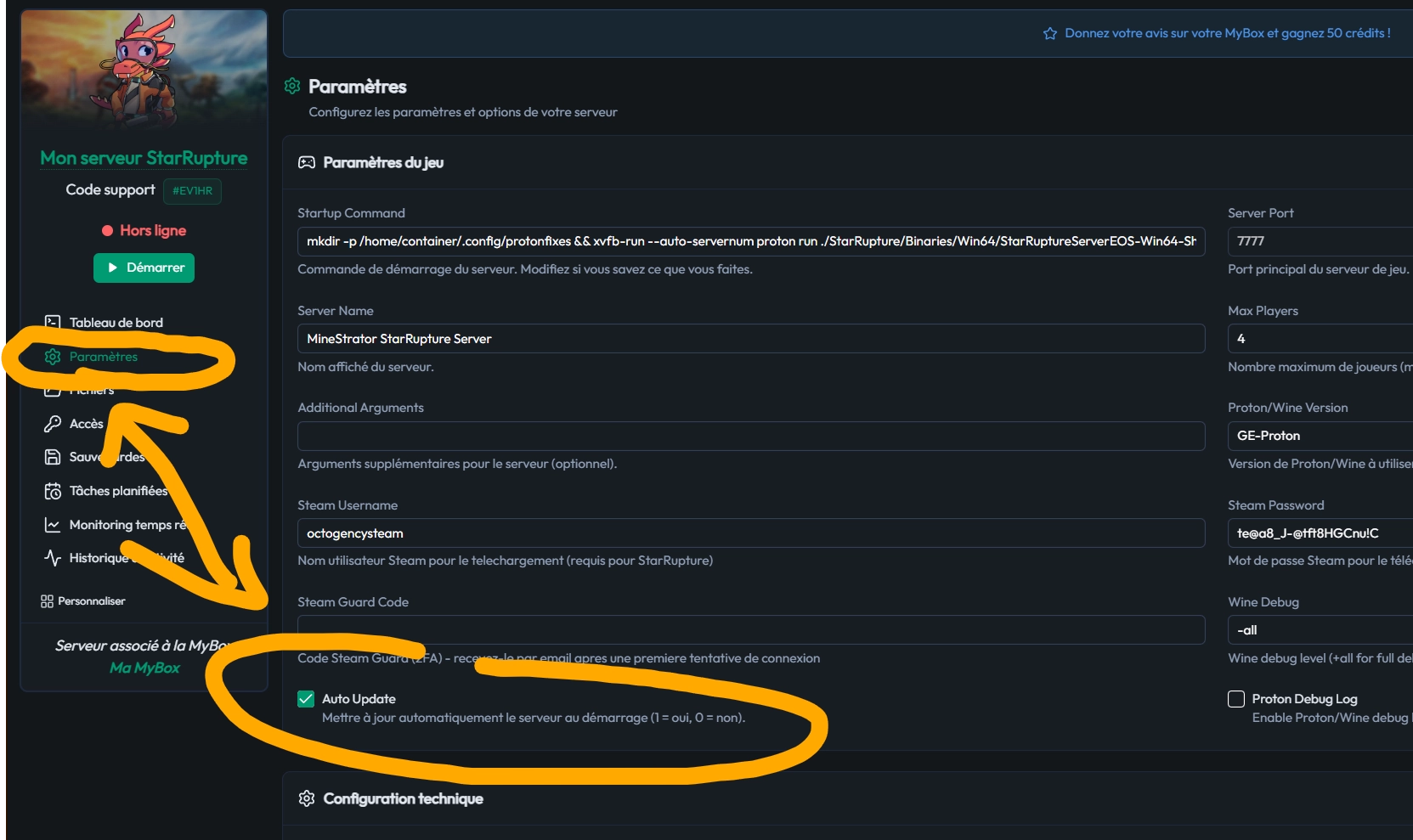
⚠️ Warning: Disabling auto-update reduces repeated validations, but remember to update manually when a stable version is available.
Wait until the status becomes Online. At that point, your Star Rupture server is running and ready to host a session.
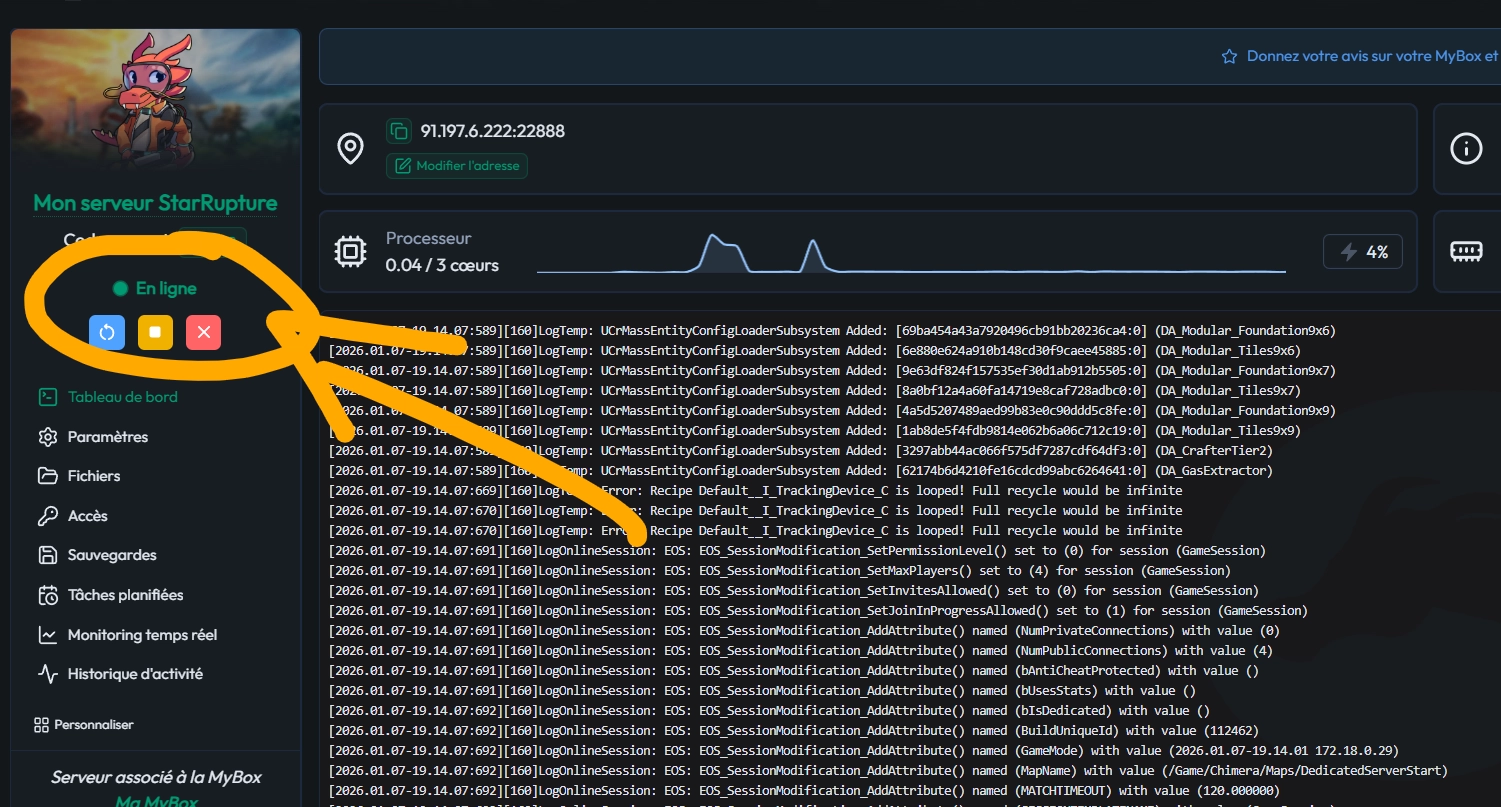
Now copy the IP address shown in the panel. You’ll use it both for server administration and for player connection in-game.
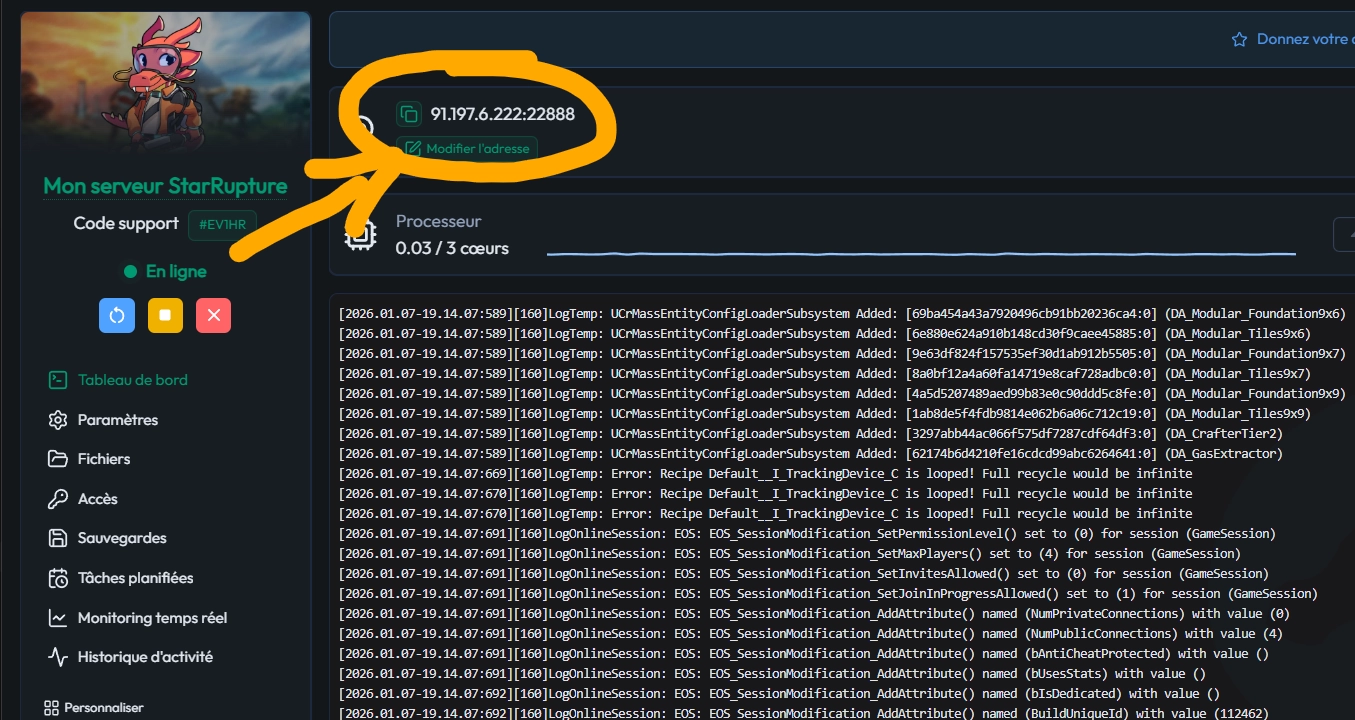
Manage the server in Star Rupture
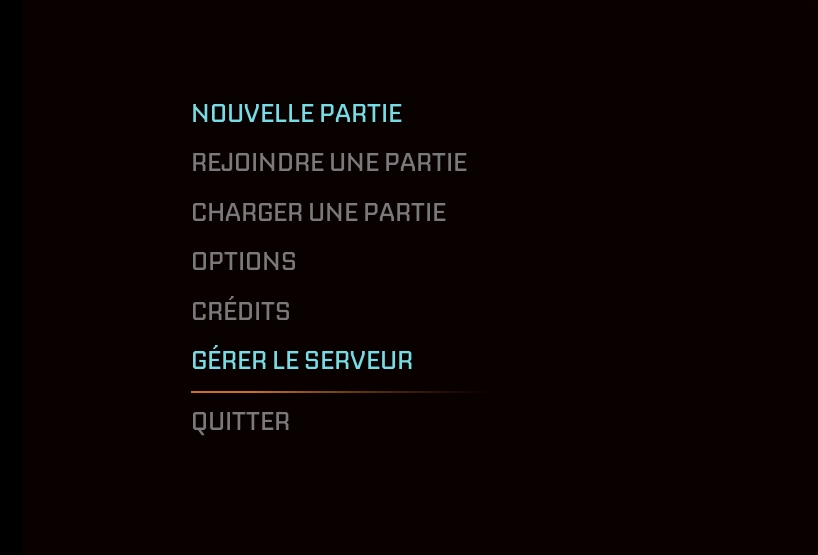
Launch Star Rupture. From the main menu, click Manage Server, then paste the server IP when the game asks for it.
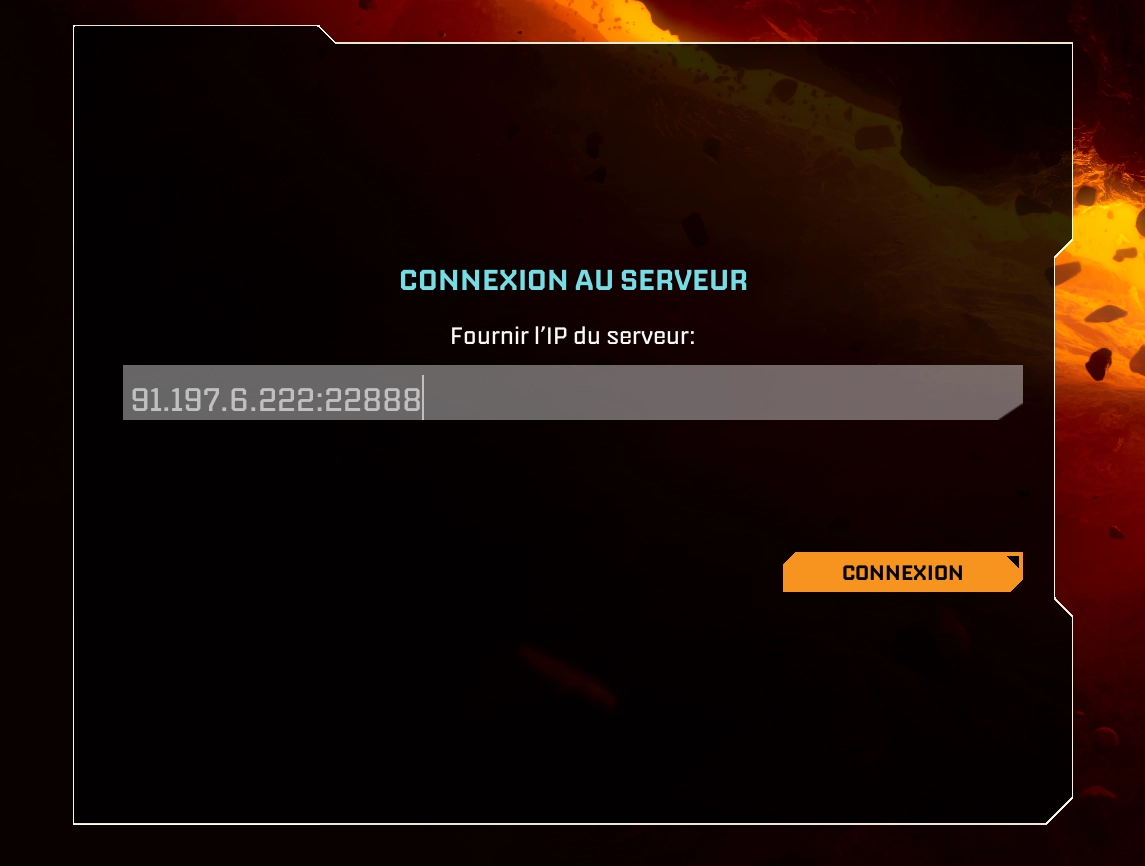
Next, set the administration password. This password is for admins only and is different from the password you’ll share with players.
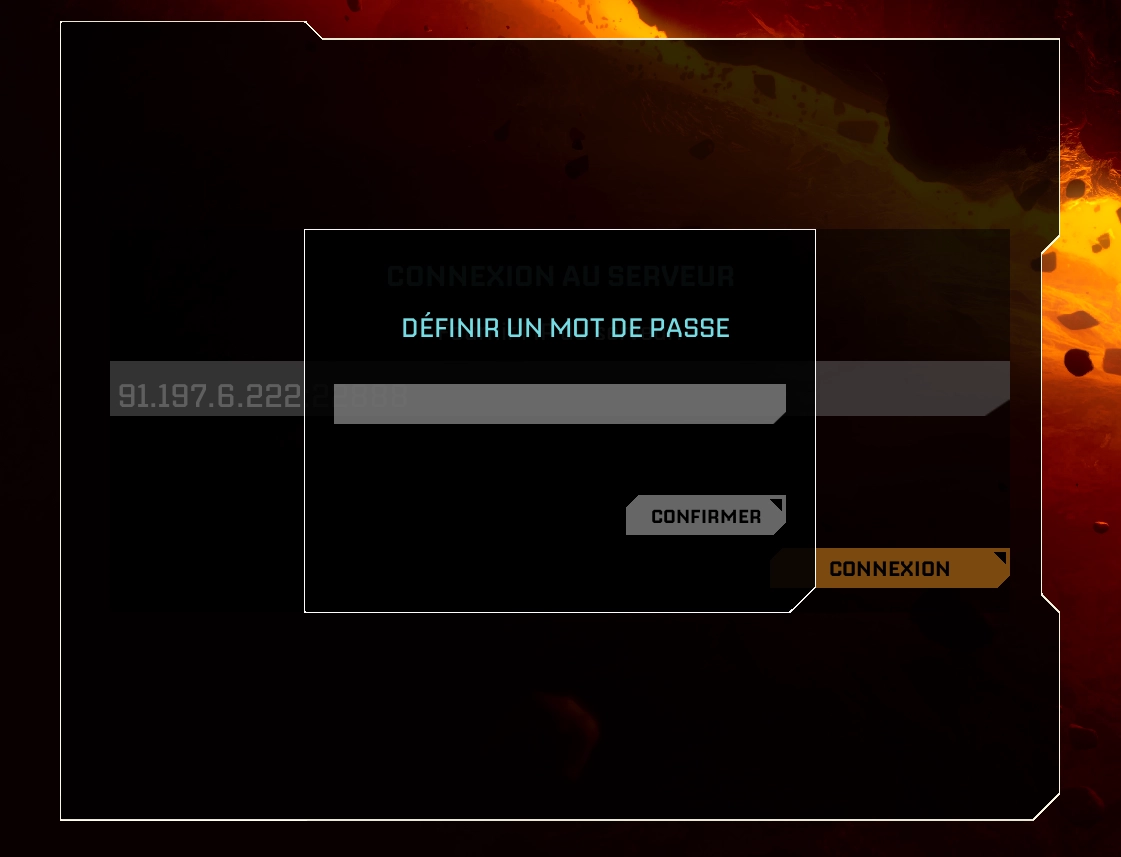
You’ll then reach the management interface, where you can handle sessions and saves.
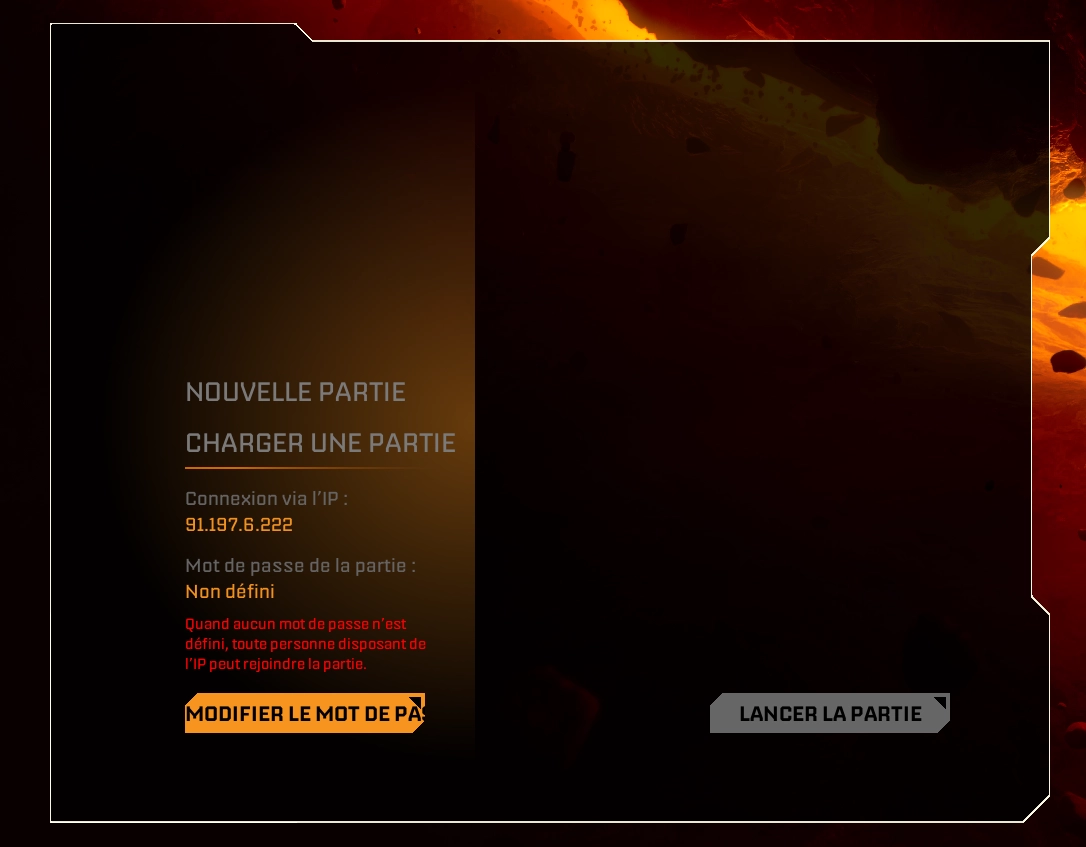
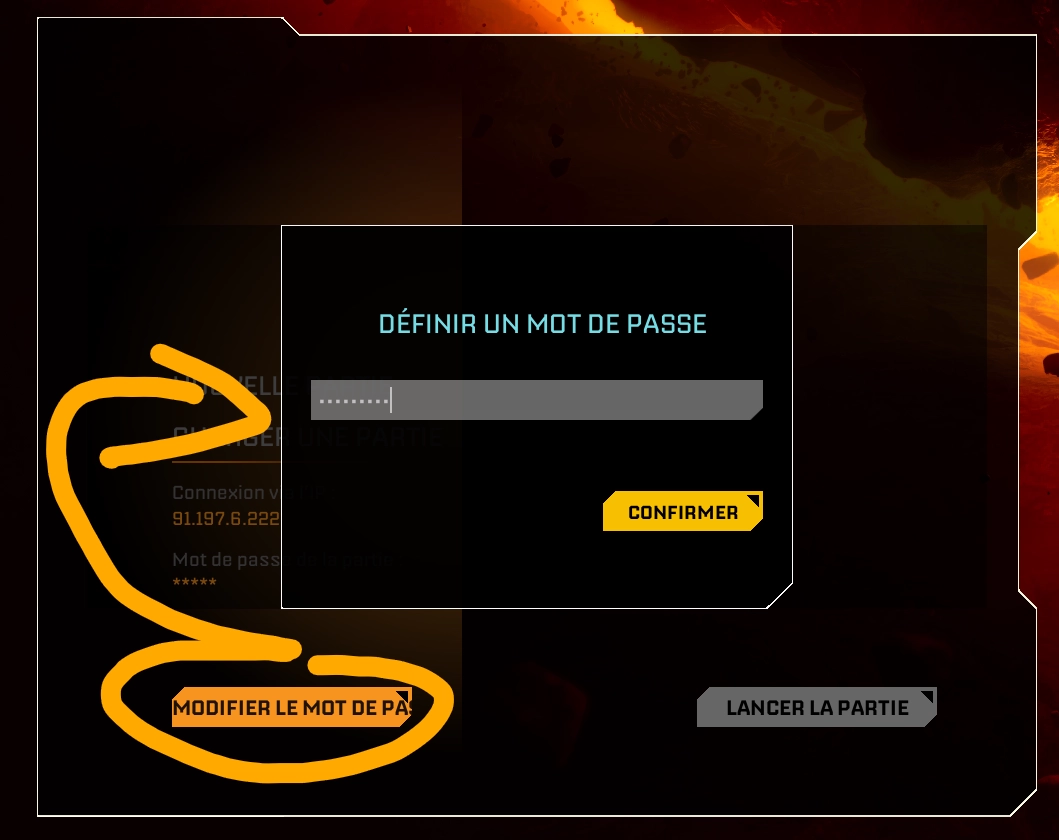
To set the password your players will use, click Change Password. A brief red message confirms the save.
🚨 Important: Don’t mix up the admin password and the player connection password. Players only need the second one.
Create and launch your first session
Click New Game and give your session a name. You can create multiple sessions, but only one can run at a time.
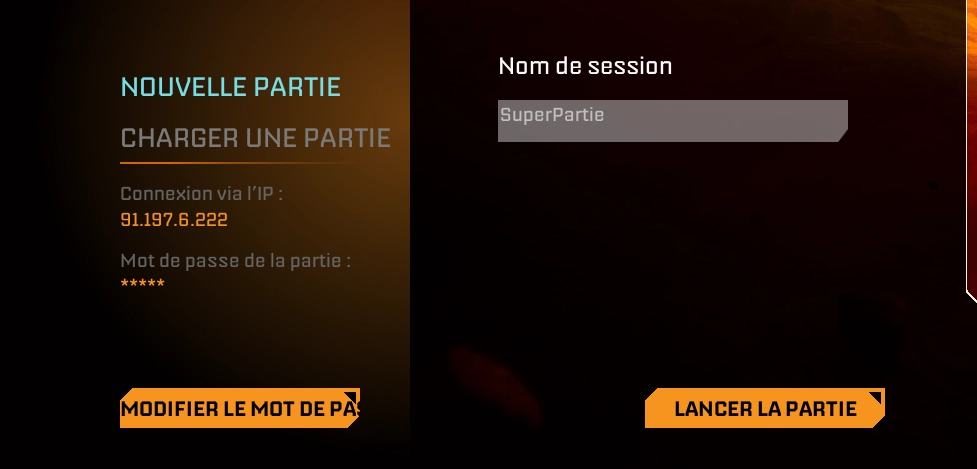
Then click Start Game only once. You might not see a big loading indicator, but the MineStrator console logs confirm the session startup.
A Confirmation, session in progress popup appears. Click OK, and you’ll return to the game’s main menu.
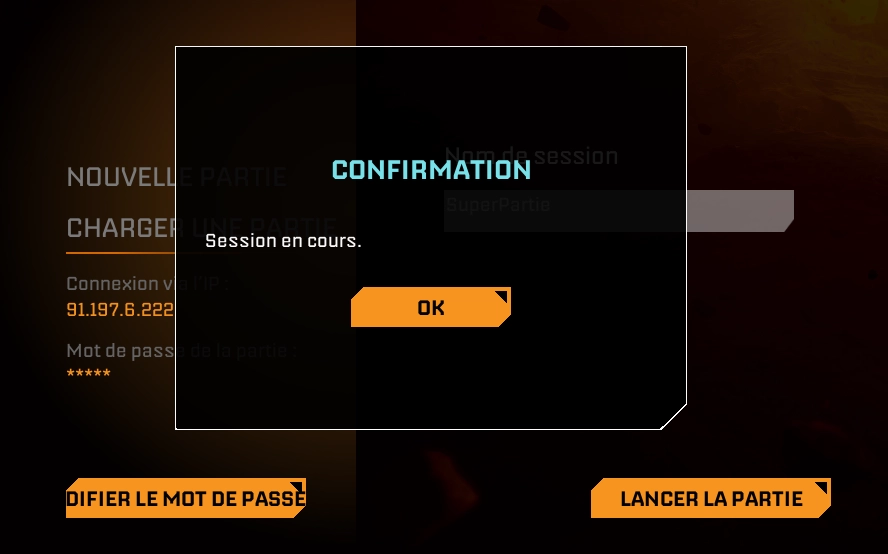
Once a session is loaded, access to Manage Server is blocked. To return to it, you must restart the server, and no session will auto-load after that.
Join as a player
From the menu, click Join Game, then Dedicated Servers.
Enter the server IP and the player connection password (not the admin one), then click Confirm.
Fix the empty session after restart
Because Star Rupture is in Early Access, a known behavior can surprise you after a restart. If you join the server directly, an empty map may load and a Default Session can be created automatically.
To avoid that, follow the workaround below after every server restart.
Restart without losing your save
From the MyBox panel, click Restart the server and let it fully boot back up.
Steam Guard may be requested again. If it happens too often, disable auto-update (as mentioned earlier).
After a restart, never join directly via Dedicated Servers. Otherwise, you may end up on an empty session.
⚠️ Warning: After each restart, go through Manage Server first to load your save.
Mandatory steps after a restart:
Launch the game
Click Manage Server
Enter the IP address, then the administration password.
Load your existing session:
Click Load Game
Select your session
Click Load Game again
You may not get a clear confirmation message. Use the logs in the MineStrator console to confirm the save has loaded.
Exit administration with Back or the Escape key.
You can now join normally via Join Game > Dedicated Servers using the IP and the player connection password.
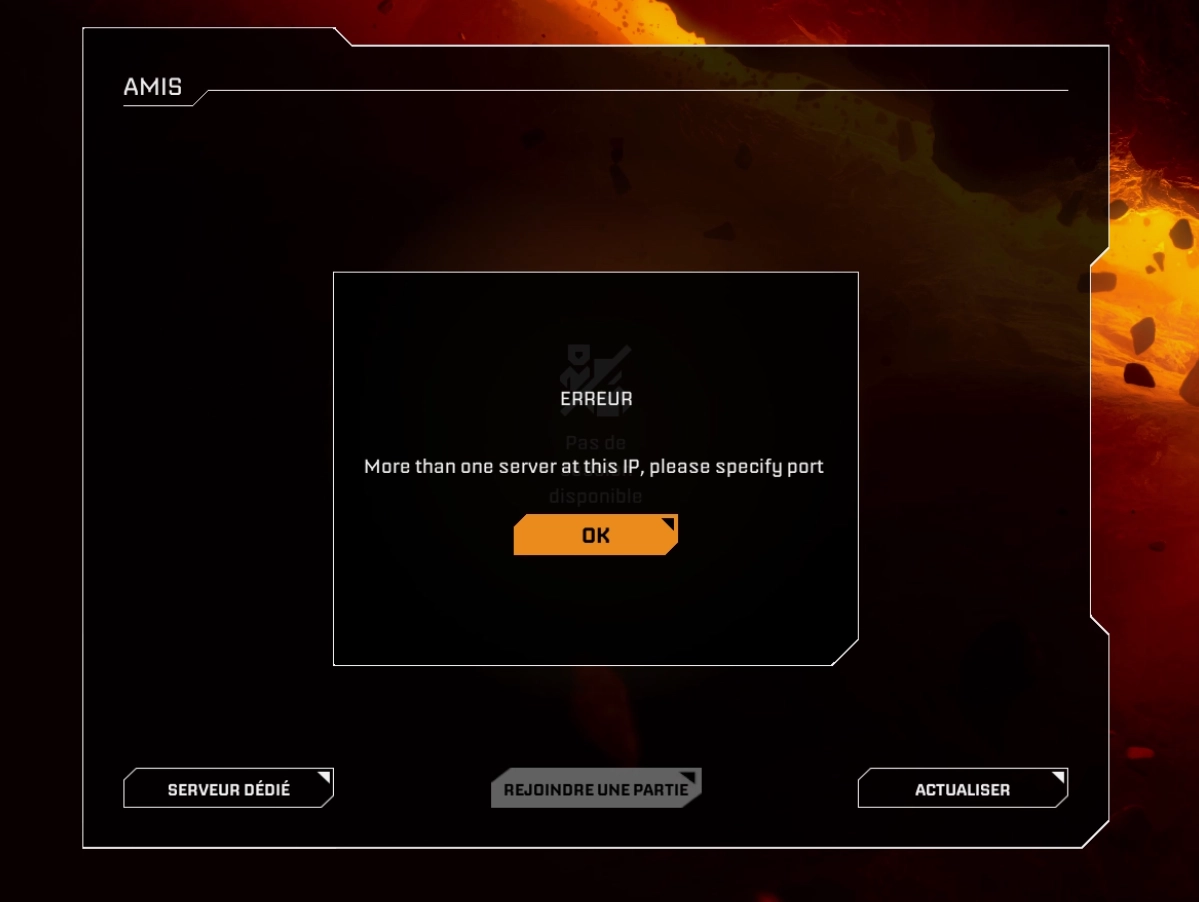
Fix “more than one server” IP error
You may see this message: More than one server has this IP, please specify port. The most common cause is that the game wasn’t restarted after the server reboot. Also note: this bug happens consistently after loading a save following a restart.
To fix it:
Load your save after the restart
Fully close the game
Launch it again
Reconnect to the server
Conclusion
You now know how to install and manage a Star Rupture server on your MyBox: creation, Steam Guard, IP retrieval, passwords, session launch, and the must-do restart workaround. Follow that routine and you’ll avoid the empty session trap, loading straight back into your real save.
Don’t have a machine yet? You can try it free for 12 hours (no credit card), then move to our MyBox offers to host all your game servers in one place.

 07 January 2026
  Enjoy 10% off your first month of server with MineStrator using the code ACTU10!