You want Bedrock players to join your Java Minecraft server? With GeyserMC and Floodgate, you can unlock real crossplay between PC, console and mobile players in just a few steps.
In this tutorial, you will learn how to install and configure GeyserMC and Floodgate on a single Spigot or Paper server hosted at MineStrator. We will cover the requirements, the installation, the key settings, and how Bedrock players can connect.
If you are just discovering plugins, you can also check our guide on how to add plugins to your Minecraft server before you start.
What are GeyserMC and Floodgate?
GeyserMC is a proxy that lets Bedrock Edition players (consoles, mobile, Windows 10) join a Java Edition server. It acts as a bridge between the two protocols and enables true crossplay between both versions of Minecraft.
Floodgate is an optional but highly recommended addon for GeyserMC. It allows Bedrock players to join your Java server without owning a Java account, by handling authentication on their side.
📝 Note: GeyserMC follows the latest Minecraft versions. You should assume this tutorial targets the current version of the game, not old legacy versions.
In this guide, we focus on installing GeyserMC and Floodgate directly as plugins on a single Spigot/Paper server. If you are running a proxy such as BungeeCord or Velocity, check the official GeyserMC setup wiki and the Floodgate setup wiki for the right architecture.
Server requirements for GeyserMC
Before installing GeyserMC and Floodgate, make sure your server environment is compatible. These tools work like classic plugins and require a Bukkit-like platform.
A server running Spigot, Paper or another Bukkit fork
Java 16 or higher enabled on your server
Access to your
pluginsfolder and configuration files
🚨 Important: GeyserMC is not compatible with Forge, Fabric or other mod loaders. It must run on a plugin-capable server, not a modded-only one.
Since GeyserMC is installed as a plugin, the process is similar to any other plugin installation. If you need a refresher, follow our plugin installation tutorial and come back here once you are comfortable with the basics.
Step 1: Download and install GeyserMC and Floodgate
The first step is to download the latest versions of GeyserMC and Floodgate and place them on your Minecraft server.
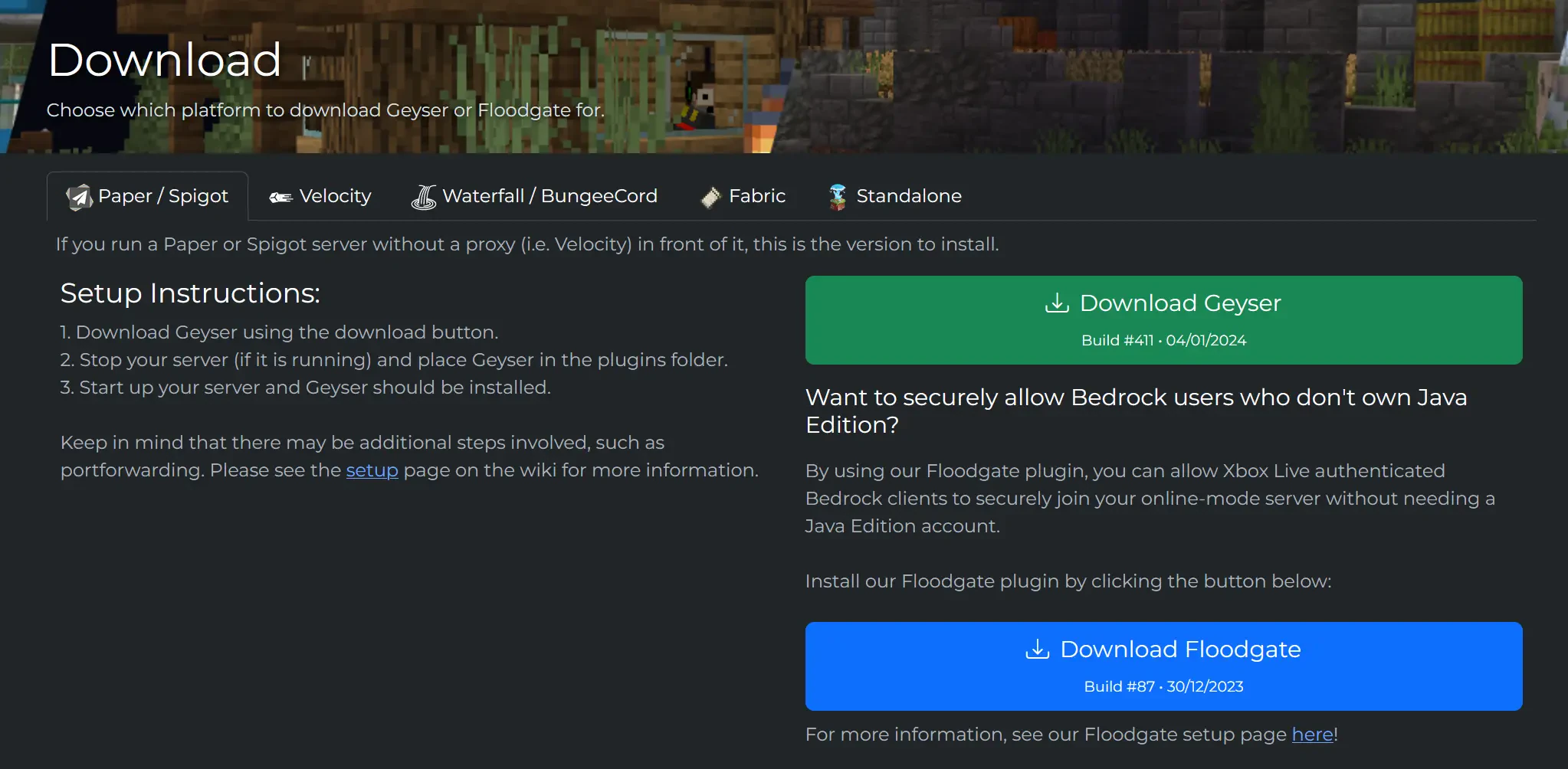
Go to the official download page: https://geysermc.org/download. From there, download both:
Geyser (Spigot/Paper version)
Floodgate (Bukkit/Spigot version)
You will get two .jar files. Upload these files into your server’s plugins folder using the MineStrator file manager or an FTP client.
💡 Tip: Floodgate is optional. If you plan to allow cracked players instead of Bedrock accounts, you can run Geyser alone and configure offline mode (explained later).
Once both plugin jars are in the plugins folder, you are ready to move on to the configuration step.
Step 2: Generate and locate configuration files
To create the configuration files for GeyserMC and Floodgate, you must start or restart your server at least once after uploading the jars.
After the restart, open the plugins folder. You should now see two new folders in addition to the jars:
Geyser-Spigot
floodgate-bukkit
The main configuration for GeyserMC is located in the file Geyser-Spigot/config.yml. This is where you will set the Bedrock port and the authentication method.
⚠️ Warning: Geyser requires Java 16 or higher. On MineStrator, you can change the Java version in your server Settings, Hosting tab.
Step 3: Configure GeyserMC for MineStrator
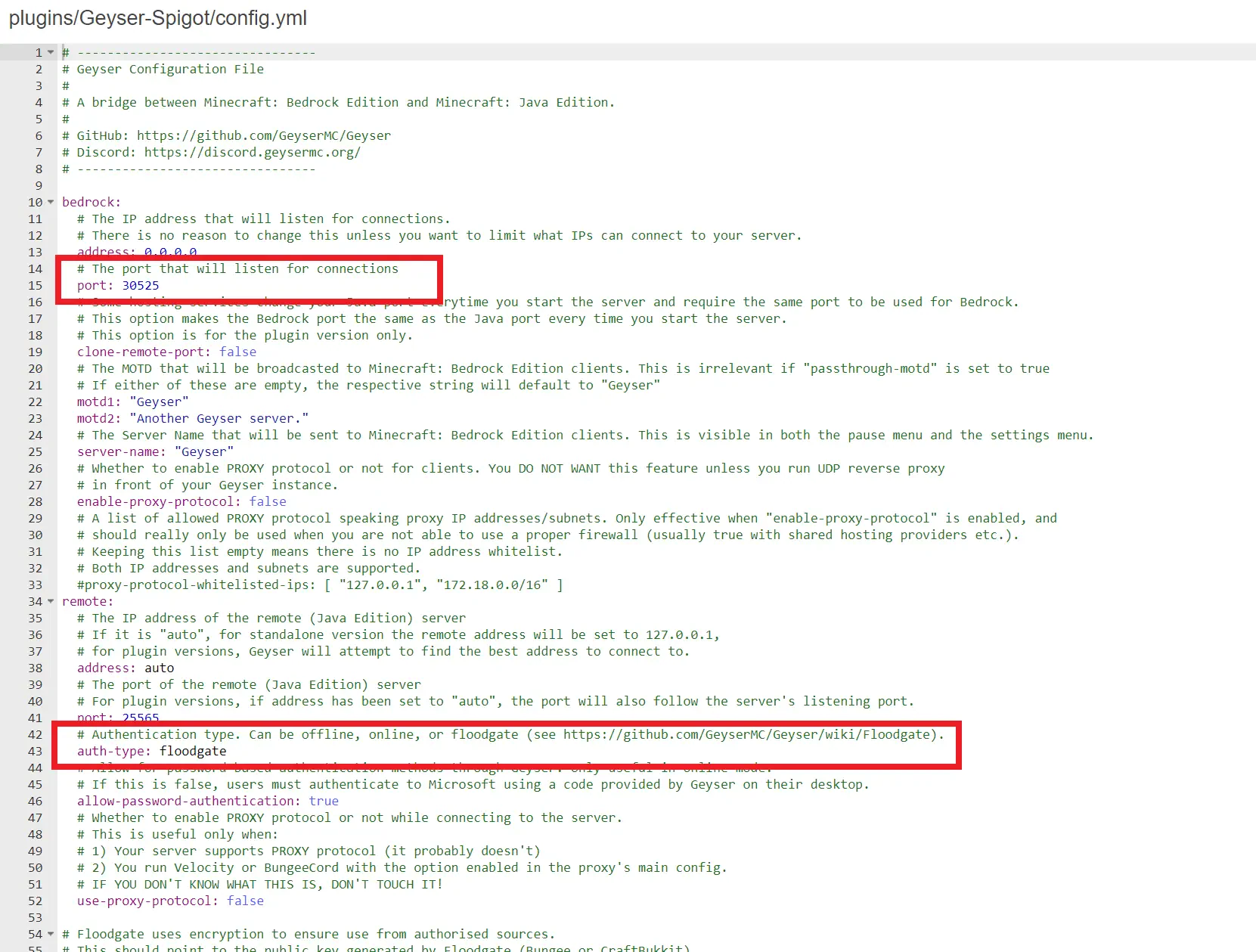
Open the file Geyser-Spigot/config.yml. For a MineStrator server, there are two key options you must adjust: the Bedrock port and the authentication type.
Set the Bedrock listening port
In the bedrock section of the config, you will see a line called port. By default, it is set to 19132. On MineStrator, you must replace this value with one of your dedicated ports.
🚨 Important: Your dedicated ports are shown on your server management page under the Access tab. Use one of those ports, not 19132 unless you have a dedicated IP option.
Once you have your dedicated port, set it as the value for port in the Geyser configuration. Save the file when you are done.
Choose the authentication mode
Still in config.yml, look for the option auth-type. This setting controls how Bedrock players are authenticated when they join your Java server.
floodgate: Bedrock players connect without a Java account, using Floodgate
offline: Cracked mode, no online authentication (not recommended for public servers)
online: Standard online-mode, requires matching Java accounts
To let Bedrock players join without a Java account, set:
auth-type: floodgate💡 Tip: If you specifically want to open your server to cracked players instead of using Floodgate, set
auth-type: offlineinstead. Make sure you understand the security risks before doing that.
After editing the configuration, restart your server so GeyserMC and Floodgate can apply the new settings.
Step 4: Let Bedrock players join your server
Once the server has restarted, GeyserMC will listen on the dedicated port you configured. Bedrock players can now connect directly from their client using your server’s IP address.
To join, a Bedrock player must enter in their server list:
Server address: your server’s numeric IP (for example
123.45.67.89)Port: the dedicated port you set in
config.yml
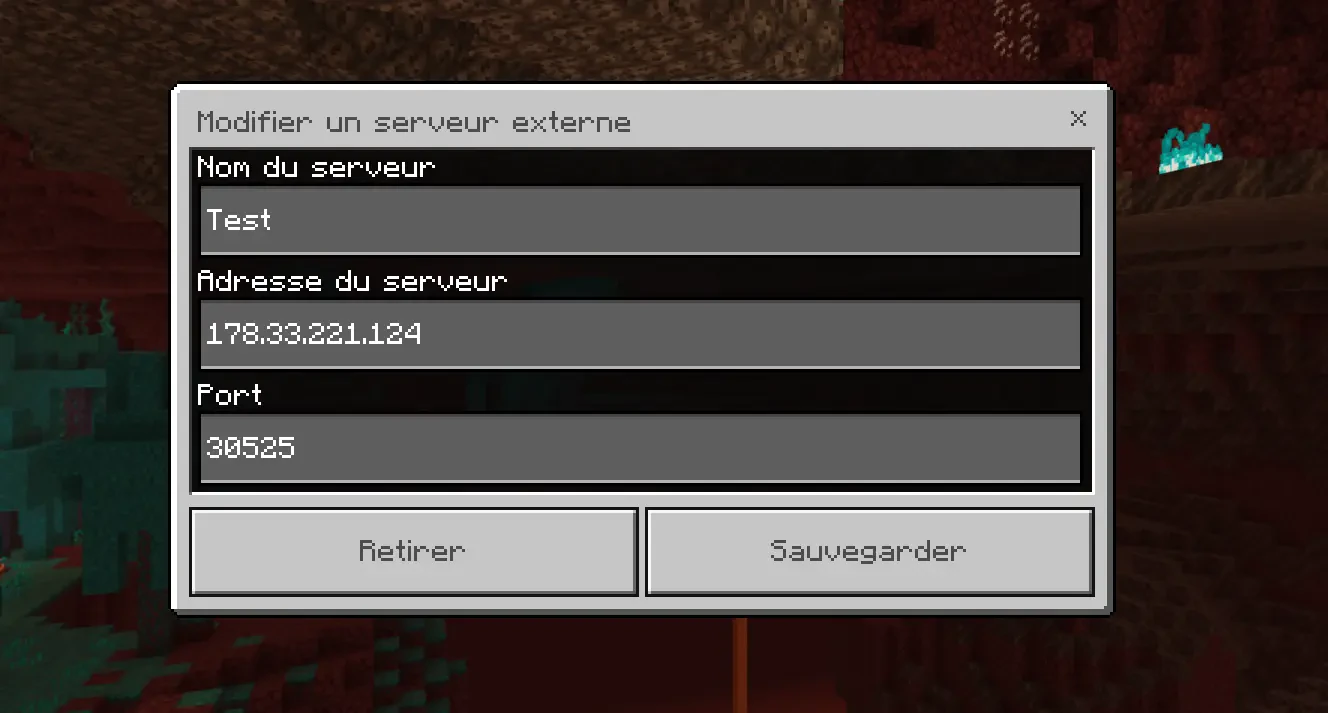
💬 Good to know: The Java port (usually 25565) and the Bedrock port must be different. Java players keep using the classic port, while Bedrock players use the dedicated one.
Fixing the “Missing profile public key” error
After enabling GeyserMC, you might see the error “Missing profile public key” (or in French: “La clé publique du profil est manquante”) when players try to join.
This comes from a security option introduced in recent Minecraft versions. To fix it, open your server.properties file and locate the line enforce-secure-profile. Set it to false instead of true, then save and restart your server.
# Disable secure profile enforcement to avoid Geyser issues
enforce-secure-profile=false
⚠️ Warning: Only disable this option if you understand why you need it. It is required for some crossplay setups but slightly relaxes profile security checks.
Frequently asked questions
Can I use GeyserMC with a modded Forge or Fabric server?
No. GeyserMC needs a Bukkit-like platform such as Spigot or Paper. It does not run directly on Forge or Fabric. If you want mods and crossplay, you usually need a more advanced setup with a proxy and a separate backend.
Do Bedrock players need to buy Minecraft Java Edition?
If you use Floodgate and set auth-type: floodgate, Bedrock players do not need a Java account. They connect using their Bedrock account, and Floodgate handles the link to your Java server.
Which IP should Bedrock players use to connect?
numeric IP and the dedicated port you configured in Geyser. Domain names and SRV records can work, but the simplest setup is to share the raw IP and port.
Is GeyserMC safe to use on a public server?
GeyserMC and Floodgate are widely used and actively maintained. As with any plugin, always download them from the official GeyserMC website and keep them updated to the latest stable version.
Conclusion
With GeyserMC and Floodgate correctly installed, your Java Minecraft server is now open to Bedrock players on console, mobile and Windows. You have set a dedicated Bedrock port, chosen the right authentication mode, and fixed the most common connection error.
If you do not have a server yet or want to test crossplay safely, you can try a free Minecraft server for 12 hours, no credit card required. Ready to go full-time? Discover our Minecraft hosting offers and launch your crossplay server in just a few minutes.

 31 December 2025
  Enjoy 10% off your first month of server with MineStrator using the code ACTU10!