You want to update your Minecraft modpack server without losing your world? Good news: you can absolutely do that, and it’s easier than it looks.
In this guide, we’ll walk you through how to update a Minecraft modpack on your MineStrator server while keeping your existing world safe. We’ll use Better MC 4 as an example, but the method is the same for any CurseForge modpack.
We’ll also cover a few important warnings so you don’t accidentally break your world or crash your server during the update.
Before you update your Minecraft modpack
Before touching anything on your server, there are a few conditions and limitations you really need to know. They will determine whether the update will be smooth or if you’ll have to do more manual work.
Your modpack must be on CurseForge and publicly available. If it’s not, you’ll have to manually upload and replace every file that changed between versions.
We assume mods store their data in the main world folder. If some mods save data elsewhere (custom folders, extra worlds, etc.), you may lose that data when you clean up the server files.
Some modpack updates are not world-compatible. It’s rare nowadays, but it still happens. Always create a Snapshot from the Backups tab before updating so you can roll back if needed.
🚨 Important: Always make a Snapshot backup before updating your Minecraft modpack. If something goes wrong, this is your safety net.
Example setup in the WebSFTP tab
For this tutorial, we’ll update a server running Better MC 4 v51 to Better MC 4 v52. Here’s what the server files currently look like in the WebSFTP tab:
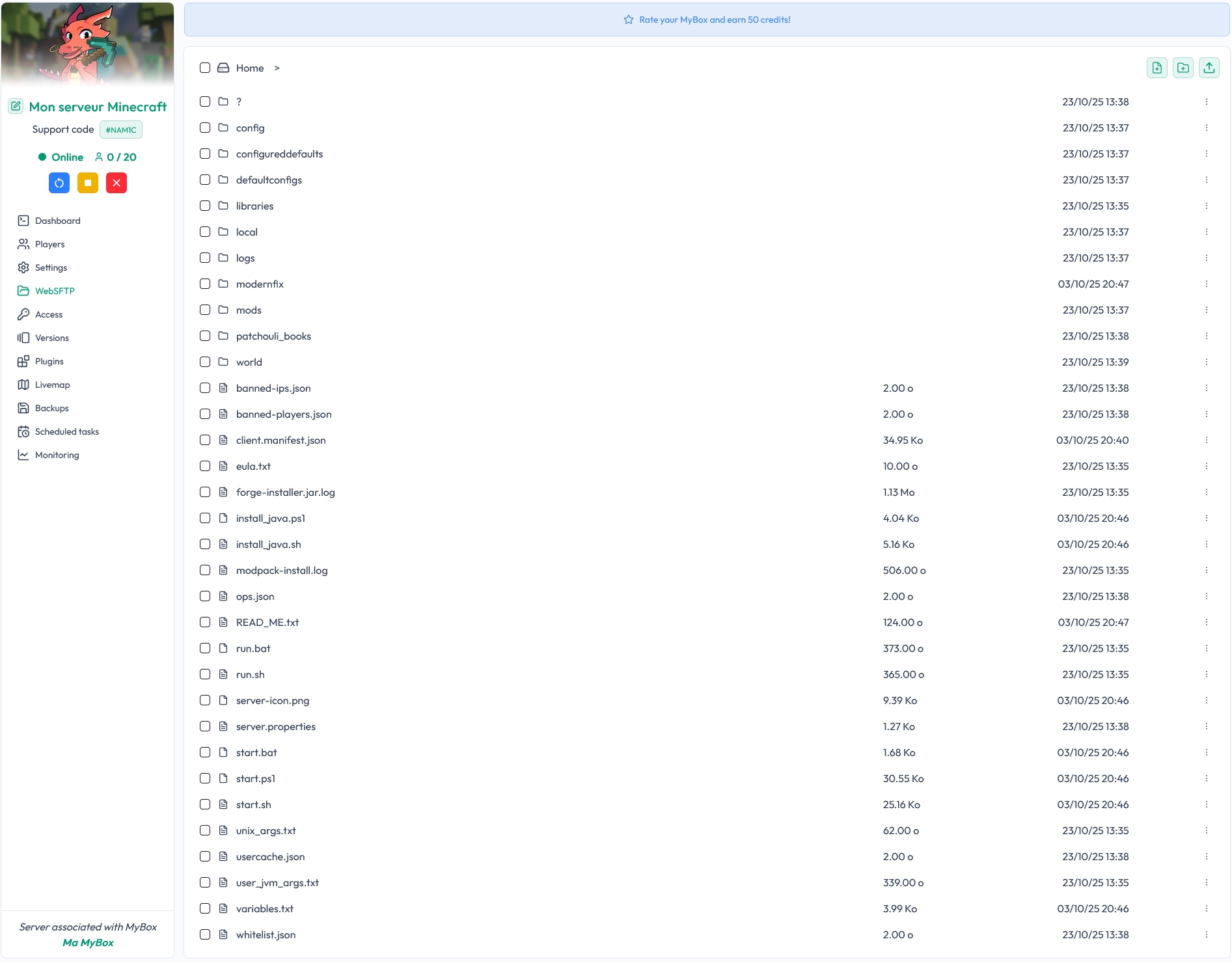
We’ll clean up the old files, keep only what we need to preserve the world and settings, and then let the panel install the new version of the modpack.
Step 1: Stop the server and create a Snapshot
First, you need to stop your server cleanly. This prevents file corruption and makes sure all data is properly saved before you start deleting anything.
Go to your MineStrator panel.
Stop your server from the console or main page.
Open the Backups tab and create a Snapshot of your server.
💡 Tip: Name your Snapshot with the modpack version (for example, BetterMC4-v51-before-update) so you know exactly what it corresponds to.
Step 2: Keep only the essential files
Once the Snapshot is done and the server is stopped, you can safely clean up the server files from the WebSFTP tab. The idea is to remove the old modpack files, but keep your world and key configuration files.
Here are the files and folders you should keep:
world – This folder contains your main world and all related data. If you changed the world name in the Parameters tab, keep that folder instead.
ops.json – This file stores the list of server operators (admins).
server.properties (optional) – This is the main server configuration file. Keep it if you changed the world name, enabled the whitelist, or customized any settings you care about.
whitelist.json (optional) – This file contains the list of players allowed to join if the whitelist is enabled.
Now, select all other files and folders and delete them. Do not touch the ones listed above.
⚠️ Warning: Double-check that you did not delete your world folder by mistake. If you’re unsure which folder is your world, verify its name in the Parameters tab first.
Step 3: Install the new modpack version from the panel
With the old files removed and your world preserved, you can now install the new version of your Minecraft modpack directly from the panel.
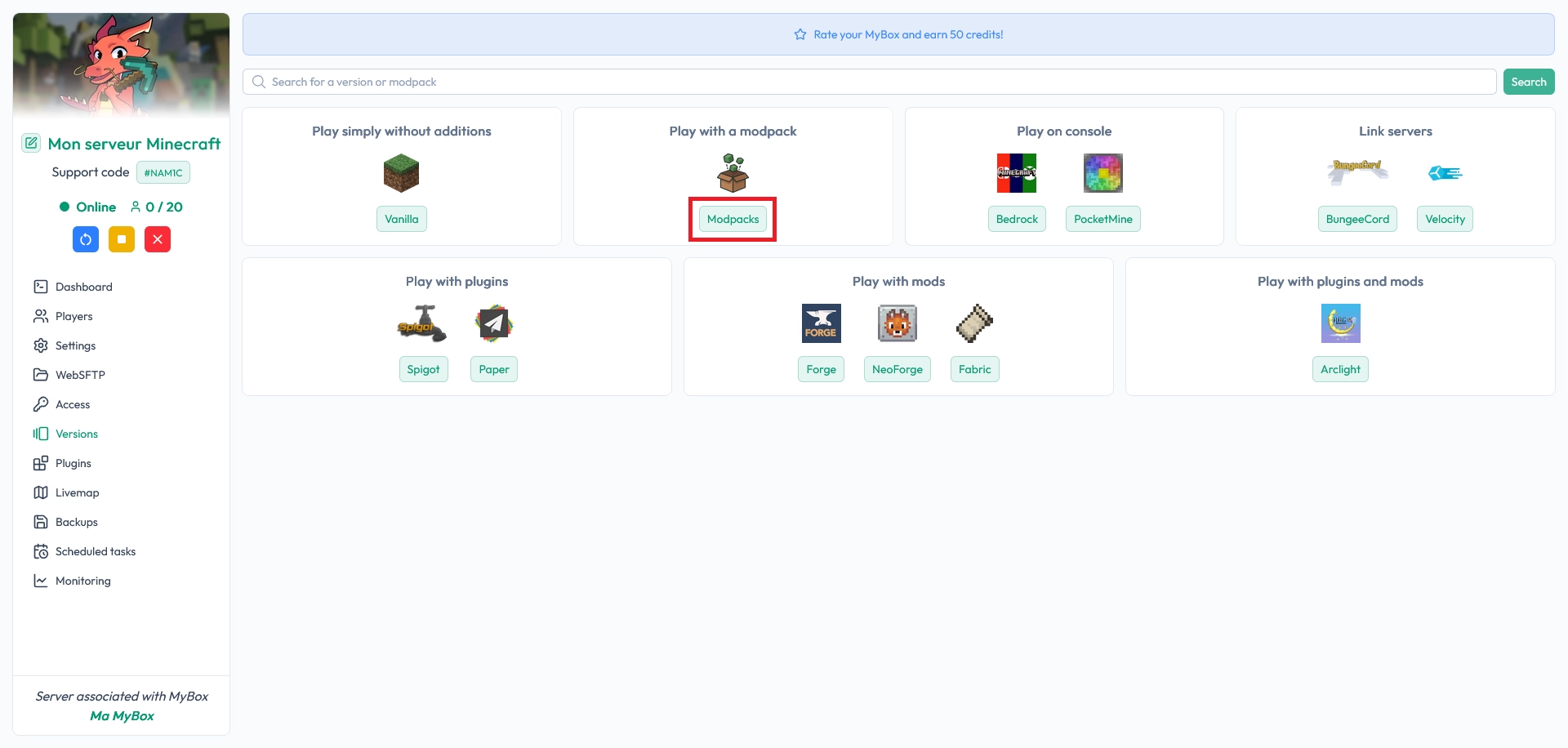
Go to the Versions tab on your MineStrator panel:
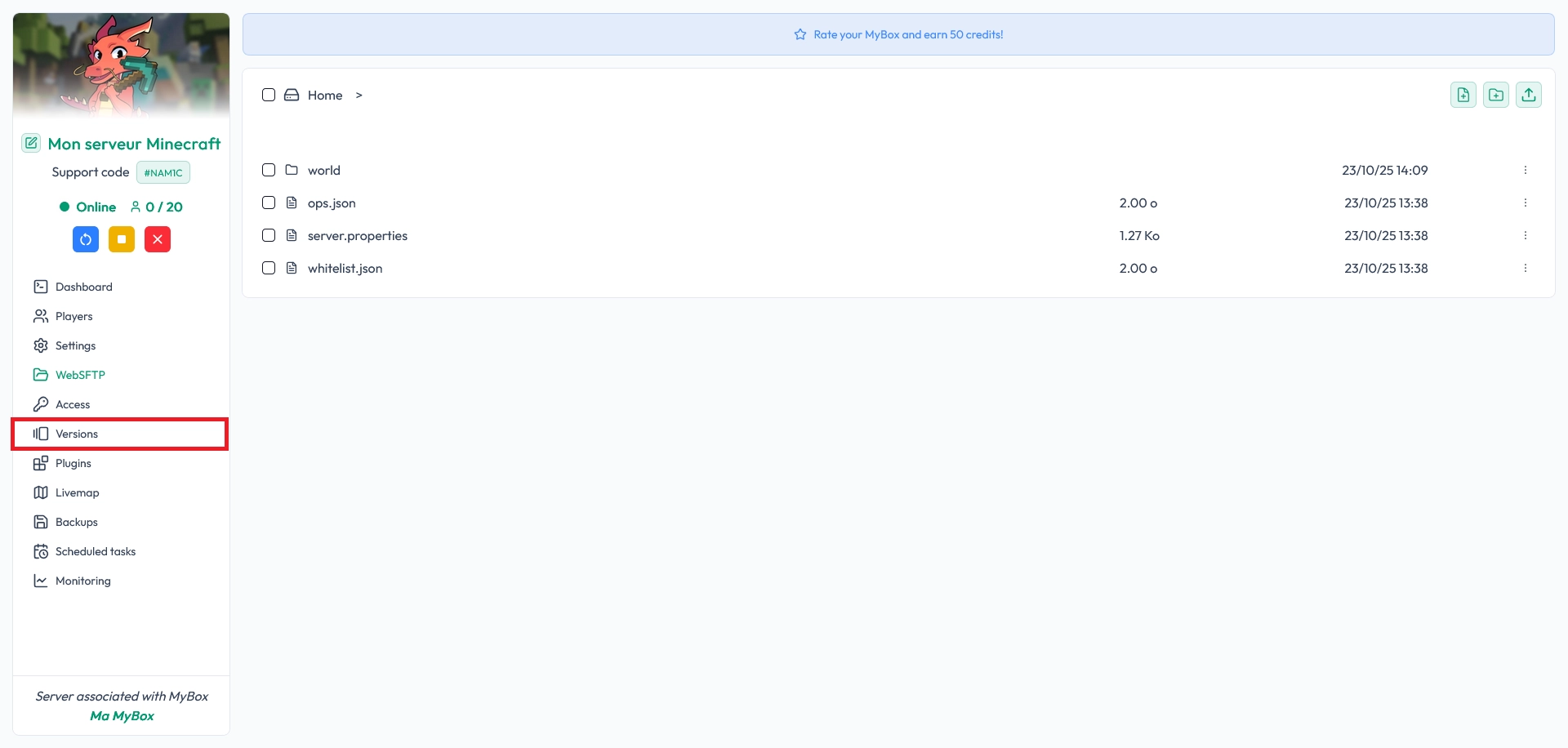
Then follow these steps:
Click on Modpacks.
Search for Better MC 4 (or the name of your modpack).
Click the Install button next to the version you want (in this example, v52).
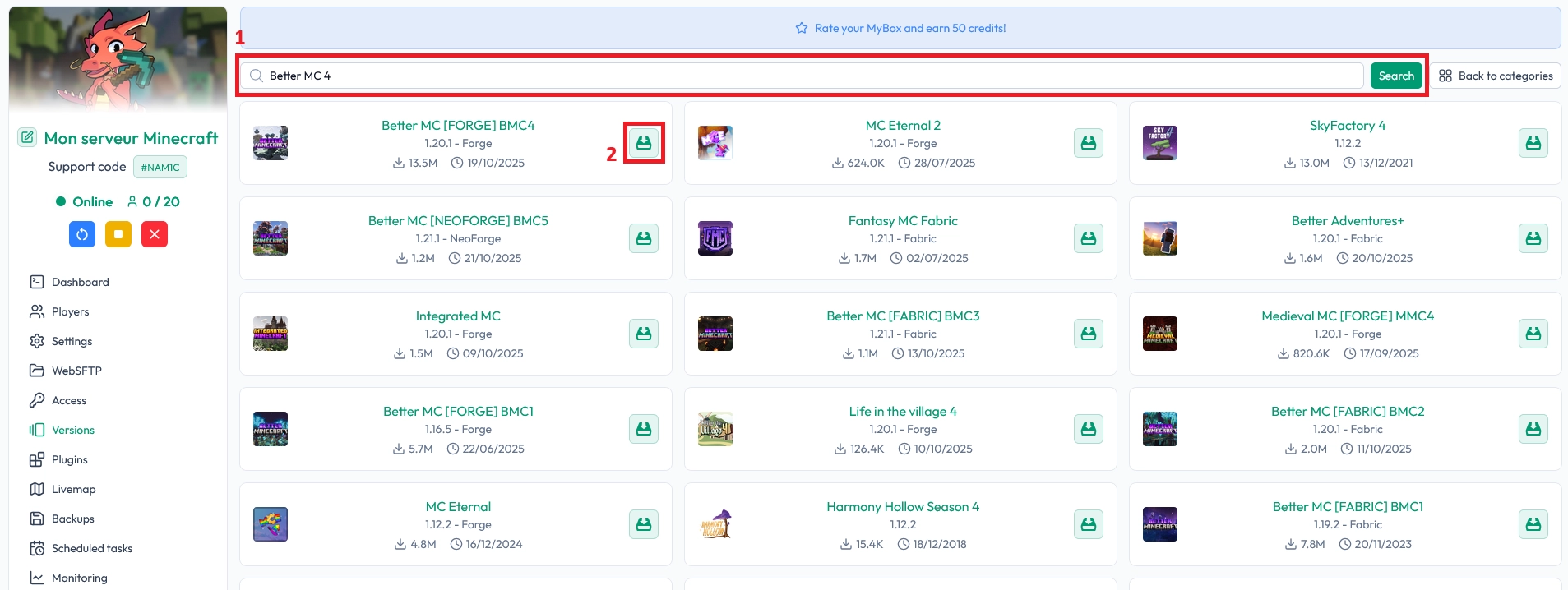
Step 4: Choose “Change version” to keep your world
When the panel asks how to install the modpack, you’ll have different options. To update your Minecraft modpack without deleting the remaining files (like your world), you must select the correct one.
Choose the option Change version. This tells the panel to install the new version of the modpack while leaving the files you kept (such as your world and config files) untouched.
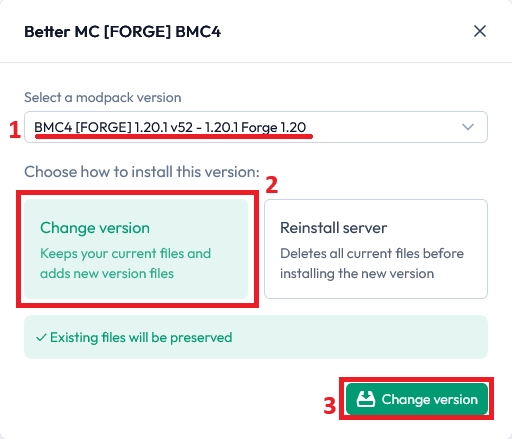
📝 Note: Do not choose options that mention full resets or complete wipes if you want to keep your existing world and settings.
Step 5: Restart and test your updated server
Once the installation is complete, you can start your server again from the panel. The new version of your Minecraft modpack will load, using your existing world.
If the world is compatible with the new version of the modpack, your players will be able to join and continue playing as usual, but with all the new content and fixes from the update.
If your world turns out to be incompatible (crashes, corrupted chunks, or unplayable issues), you can still restore the Snapshot you created earlier and go back to the previous version.
💡 Tip: After the first start, take a quick tour of your world and check the console for errors to make sure everything is running smoothly.
What if the server crashes after the update?
Sometimes, after updating a Minecraft modpack, the server may crash on startup. A common reason is the presence of client-side mods that should not be on the server at all.
These mods are designed only for the player’s game client (for example, minimap, HUD, or visual-only mods) and will often cause crashes when loaded on a server. We automatically remove many known client-side mods, but some can still slip through.
💬 Good to know: Client-side mods are often mentioned directly in the crash logs or console errors. If you’re stuck, just contact our support and we’ll help you identify and remove them.
If your server keeps crashing after the update:
Check the console and logs for the name of the problematic mod
mods folder on the server
Restart the server and test again
If nothing works, restore your Snapshot and revert to the previous version
Conclusion
Updating your Minecraft modpack while keeping your world is totally doable: stop the server, create a Snapshot, keep the essential files, install the new modpack version, and choose Change version. In a few minutes, your server is up to date and ready to play.
If you run into issues or repeated crashes, our support team is there to help you sort out client-side mods or compatibility problems. And if you don’t have a server yet, you can explore our MineStrator offers and launch your own modded server in just a few minutes.

 09 December 2025
  Enjoy 10% off your first month of server with MineStrator using the code ACTU10!