Hello !
Do you suddenly feel like starting a new Minecraft survival world or a modpack with your friends or community? Lucky you, this guide is here to help you get started from scratch!
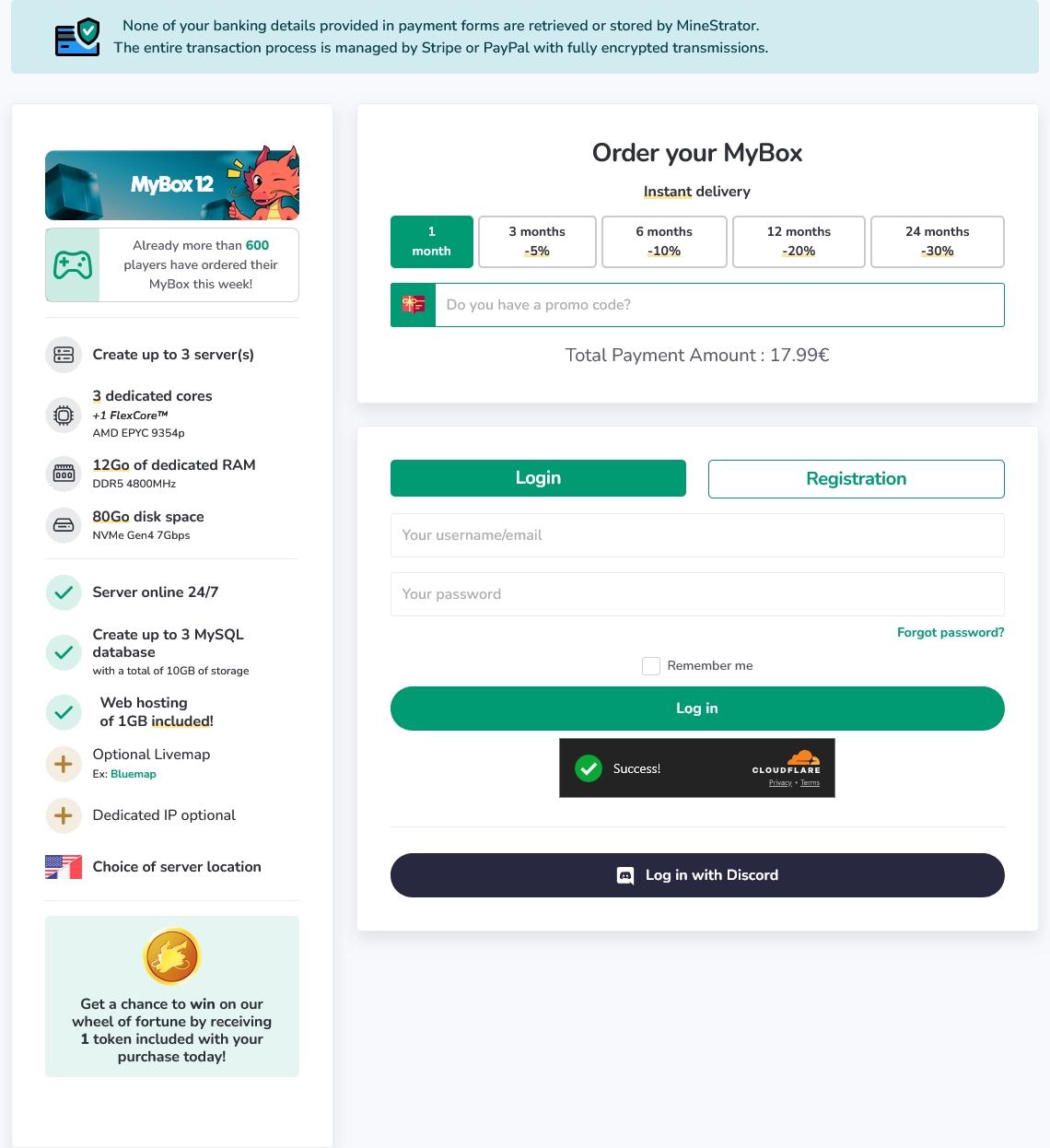
First, head over to the Minestrator homepage, scroll down to the offers, and select one that fits your needs.
Important: The way you use your server will greatly affect the resources required. If you’re unsure which plan to choose, check out our interactive purchage guide, it will identify the right server for you in just a few questions!
Once you’ve chosen your plan, log in or create an account if you haven’t already.
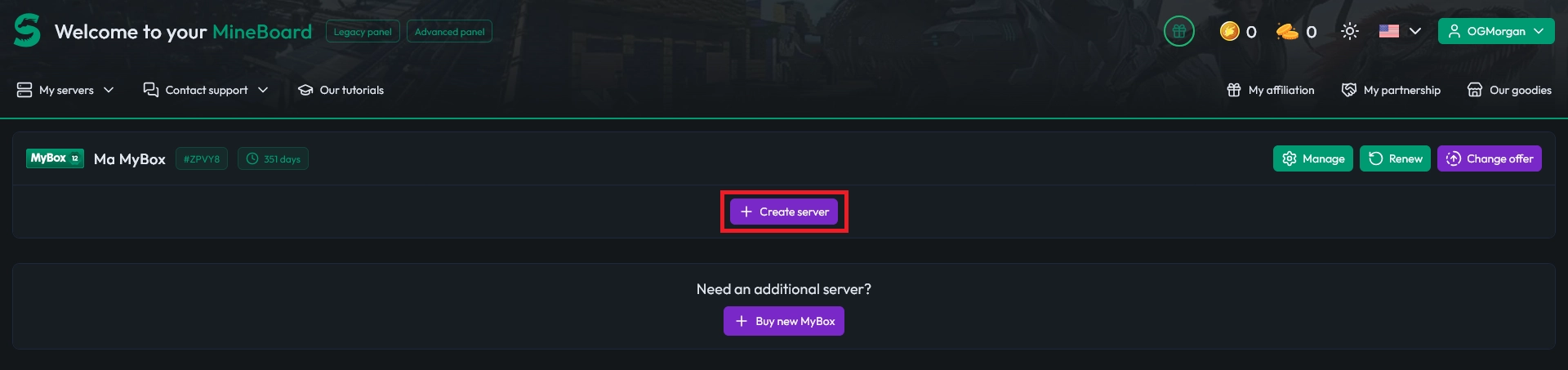
After completing the payment, go to your Dashboard, you'll see your MyBox there, and click your Create server.
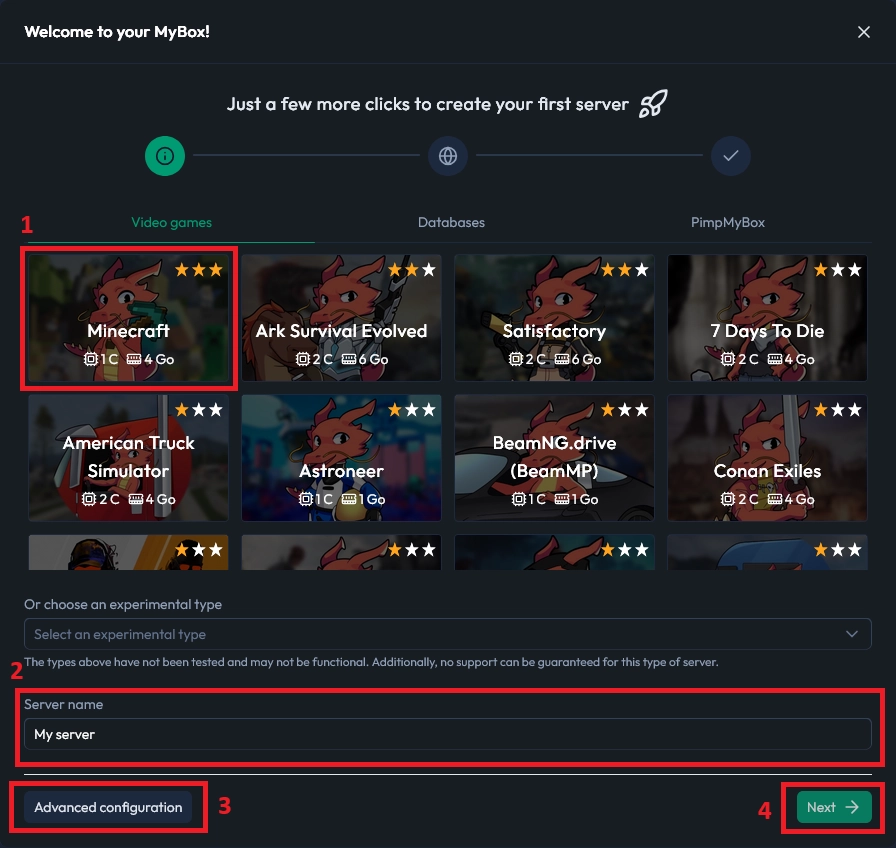
Select Minecraft (1), name (2) your server to find it quickly (especially if you plan on making more).
Optional : click Advanced configuration (3) if you want to set a custom amount of CPU cores and RAM instead of using the recommended minimum values.
Click Next (4).
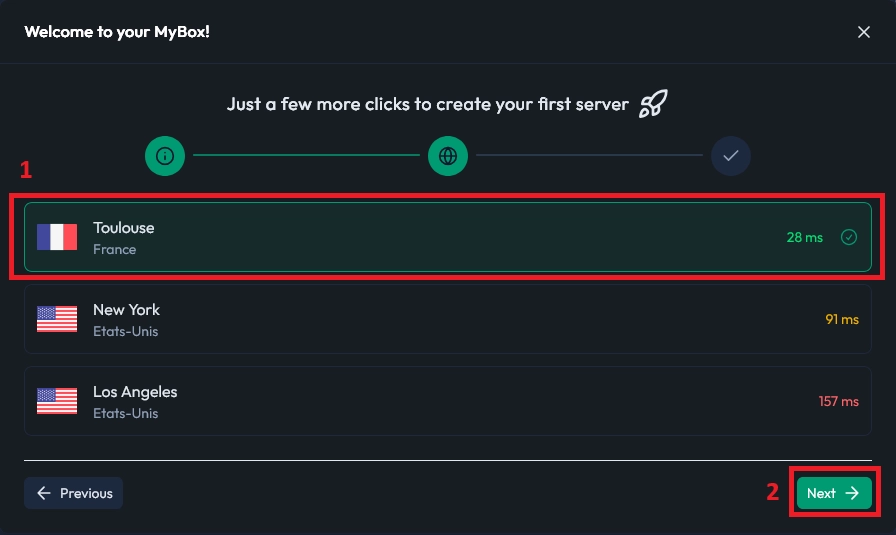
Select the server’s location (1), here I'm choosing Toulouse because it provides the best ping for my current location. Then click Next (2).
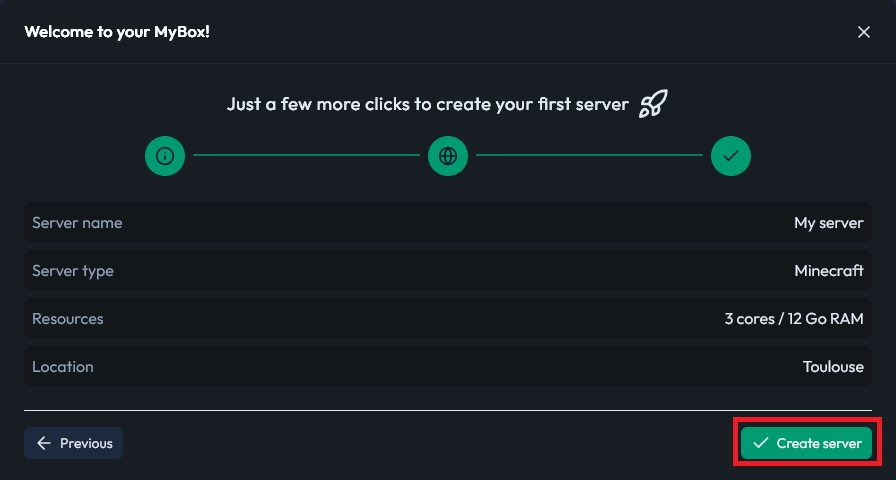
Review the parameters and click Create server.
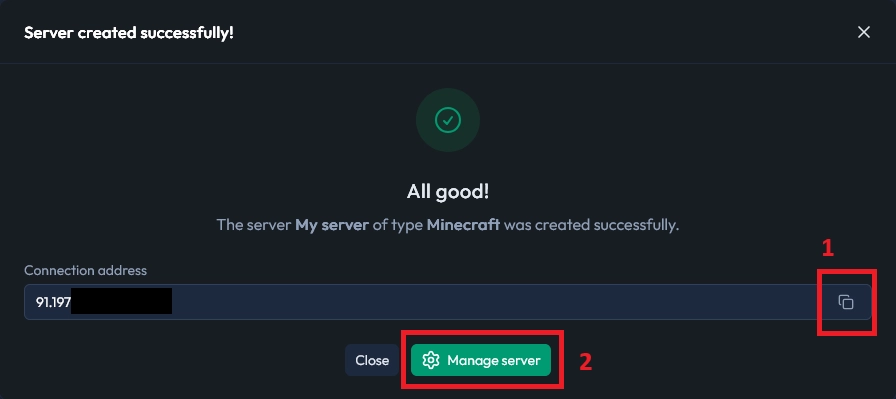
Your server is ready! Retrieve the IP (1) and click the Manage server (2) button to access its panel.
If this guide helped you, don’t hesitate to click the 🤍 at the top of the article! And if you have questions or need assistance, click the chat icon at the bottom right of the page or join our Discord.
Note: The default server type is Paper, an optimised, high-performance version of the game that supports CraftBukkit, Spigot, or Paper plugins.
Some bugs and mechanics may be fixed by Paper but can be re-enabled in the configuration (such as TNT duplication) or through a plugin (e.g., sand duplication). Others are simply no longer possible (notably 0-tick redstone).
You can change the version at any time (while keeping data such as the world and inventories) or reinstall the server (this will delete all data) from the Versions tab in the panel.

 26 September 2025
  Enjoy 10% off your first month of server with MineStrator using the code ACTU10!