Reset your server to a clean state
Your server is lagging, full of random files, or completely broken? When things get messy, the fastest solution is often to reset everything and start from a clean base.
A full reinstall is ideal if you want to remove all custom files, wipe a corrupted setup, or force a manual update when the auto-updater does not trigger. In this guide, you will learn how to reinstall a Minecraft server, then how to do the same for any other game or application hosted on MineStrator.
Reinstall a Minecraft server
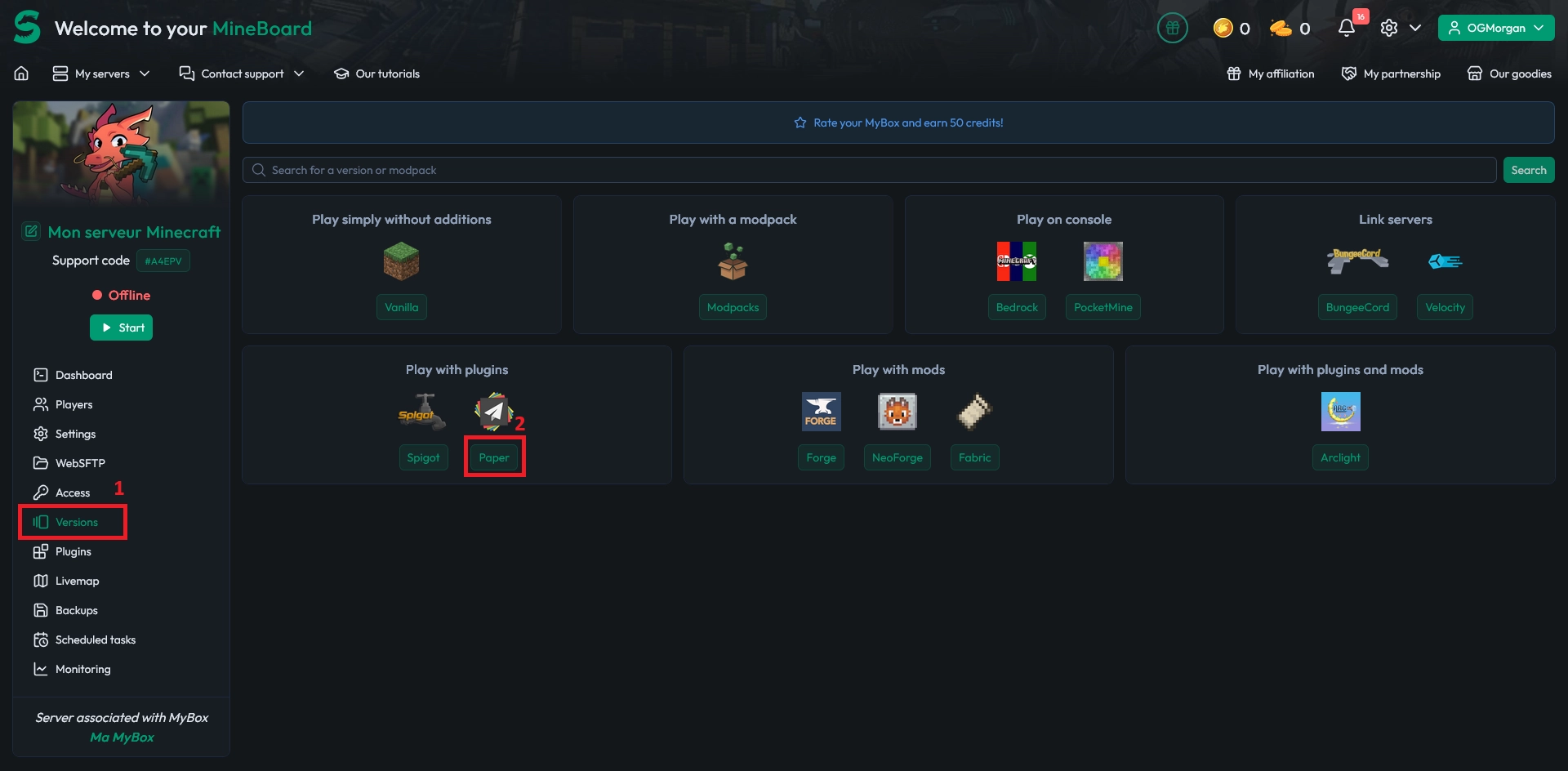
On Minecraft servers, the reinstall process is handled directly from the Versions tab in your panel. You simply choose the game version (and modloader or modpack if needed), then confirm the reinstall to get a fresh setup.
🚨 Important: Reinstalling a Minecraft server deletes all existing data. Back up your world and configuration first if you want to keep them.
💬 Good to know: If you only want to update a modpack and keep your world, follow our dedicated modpack update guide instead.
Choose the Minecraft and server version
Open your server panel and go to the Versions tab. In the list, select the server type and version you want to reinstall, for example Paper 1.20.10, then pick the matching Minecraft version.
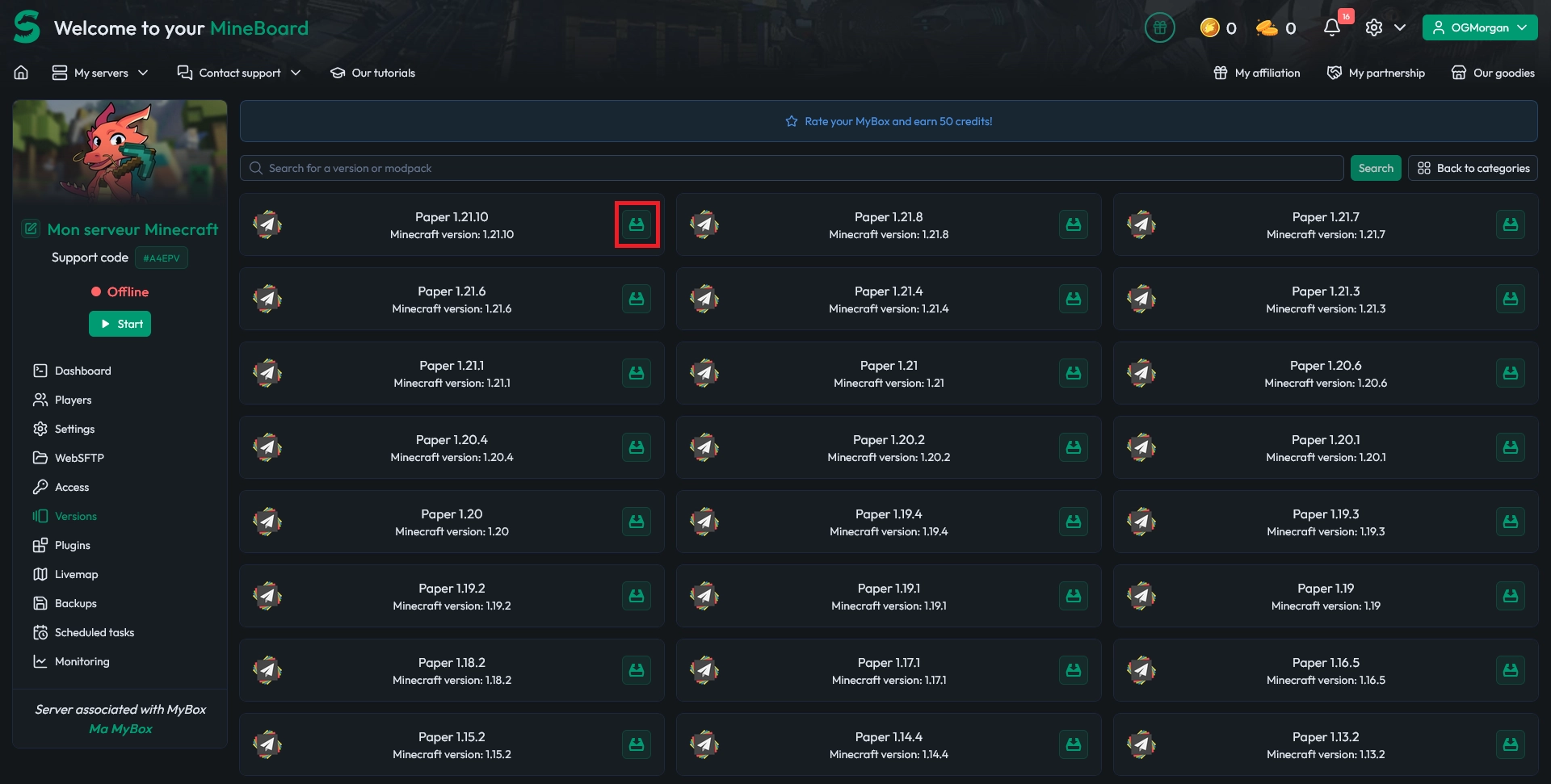
If you select a modloader (Forge, Fabric, etc.) or a modpack, you will also need to choose its specific version before continuing. Make sure it matches the version of your client and the mods you plan to use.
📝 Note: Always double-check the Minecraft, modloader and modpack versions to avoid compatibility issues when you reconnect.
Confirm the Minecraft reinstall
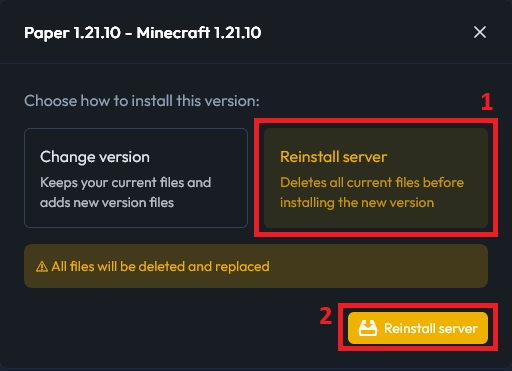
Once the correct version is selected, click Reinstall server. The menu turns yellow to show that the action is armed and waiting for confirmation.
Click Reinstall server again to actually start the reinstall. The panel will then download and install a fresh copy of the selected version, giving you a clean Minecraft server.
💡 Tip: After the reinstall, upload your backups (world, plugins, configs) only if you really need them. Fewer old files usually means fewer bugs.
Reinstall another game or application
For non-Minecraft services (Garry's Mod, other games, bots, applications, etc.), the reinstall button is located in a different place, and the behaviour can vary slightly depending on the software you are hosting.
💬 Good to know: For some games, a reinstall only updates or replaces certain files instead of wiping everything.
⚠️ Warning: If you have important data (configs, saves, plugins), back it up before reinstalling. You can download the files or create a Snapshot from the Backups tab.
🚨 Important: If you want a truly fresh install, go to the Files tab and delete all files before you reinstall. This guarantees a clean installation instead of a simple update.
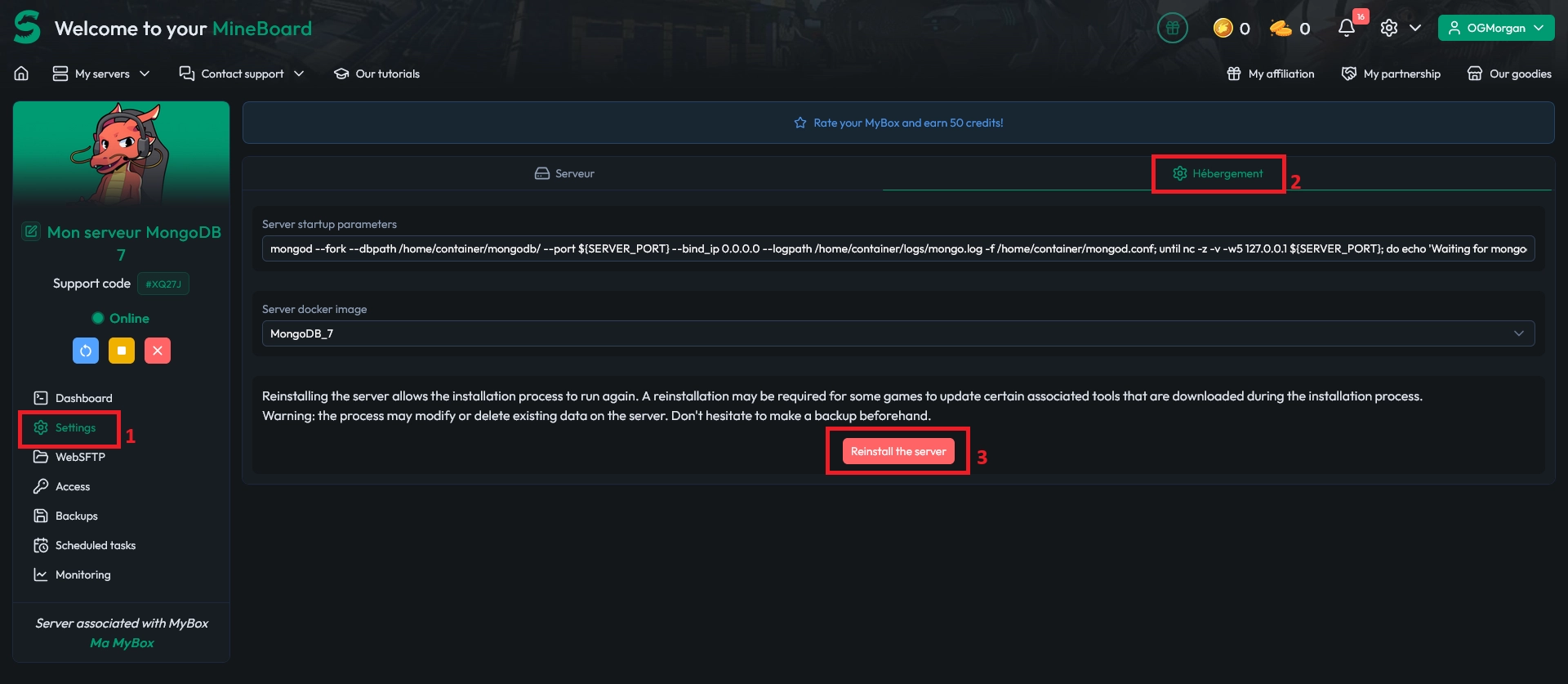
To start the reinstall, open your panel and go to the Settings tab. In the Hosting sub-tab, click the Reinstall the server button to launch the process and download a fresh copy of the game or application.
💡 Tip: Keep a Snapshot right after a clean reinstall. It gives you a perfect restore point if you break something later.
Conclusion
With these steps, you can reset any of your MineStrator servers to a clean, default state and get rid of broken files, failed updates or messy configs in just a few clicks. A clean reinstall often saves more time than trying to hunt down every single issue.
If you are stuck or unsure about deleting files, our support team is here to help you secure your data and reinstall safely. Use the Contact support button on your MineBoard to access all support options and restart your server with peace of mind.

 12 December 2025
  Enjoy 10% off your first month of server with MineStrator using the code ACTU10!