Managing several game servers on the same machine can feel a bit confusing at first. With MyBox, you can easily switch between Minecraft, Satisfactory, Garry's Mod and more, without being locked to your first choice.
In this guide, you'll learn how to access your MyBox panel, free up CPU/RAM, disable or delete a server, and create new ones. By the end, you'll be able to manage your MyBox like a pro and run multiple servers smoothly.
If you are just getting started with hosting, you can also check our other tutorials on server management in your client area.
Access your MyBox panel
To manage your MyBox servers, you first need to access the dedicated panel. There are two simple ways to open it from your client area.
From your Dashboard (after logging in, or by clicking MineBoard at the top of any page), then click Manage on the MyBox you want to configure

From any page of your MineBoard, by clicking My servers in the top menu, then selecting your MyBox

In this example, you can see two MyBoxes. We will use a MyBox 12 on which Minecraft was installed at delivery. With a MyBox 12, you can have up to 3 active servers at the same time. Right now, the Minecraft server is using all available resources, but you are not stuck with this setup.
💬 Good to know: You can change which games run on your MyBox at any time. You are never locked to a single server.
Free resources on your MyBox
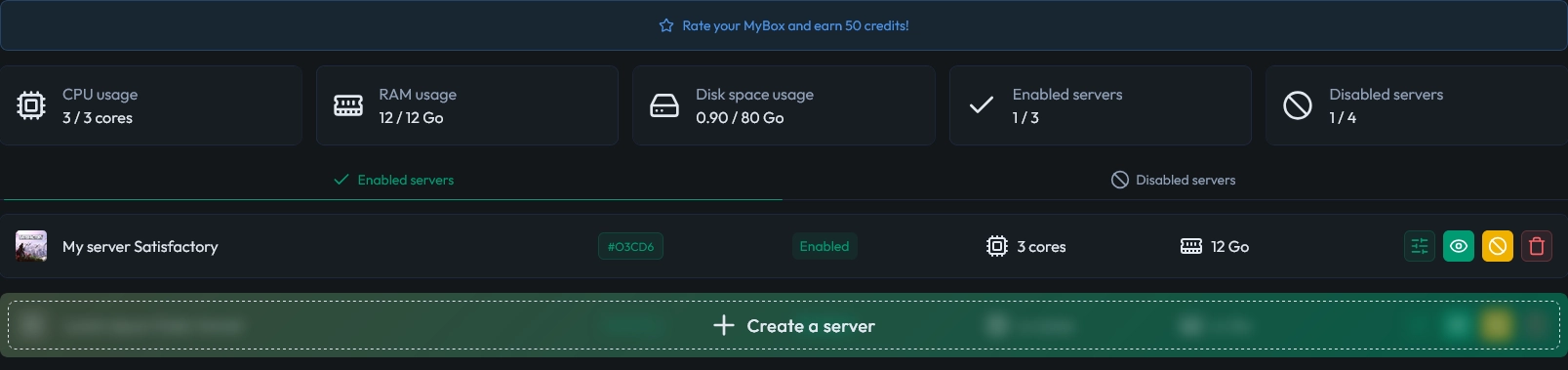
Once you are on your MyBox panel, you will see the list of all servers hosted on this MyBox, along with their resource usage. In our case, there is a single Minecraft server using 3 cores and 12 GB RAM.
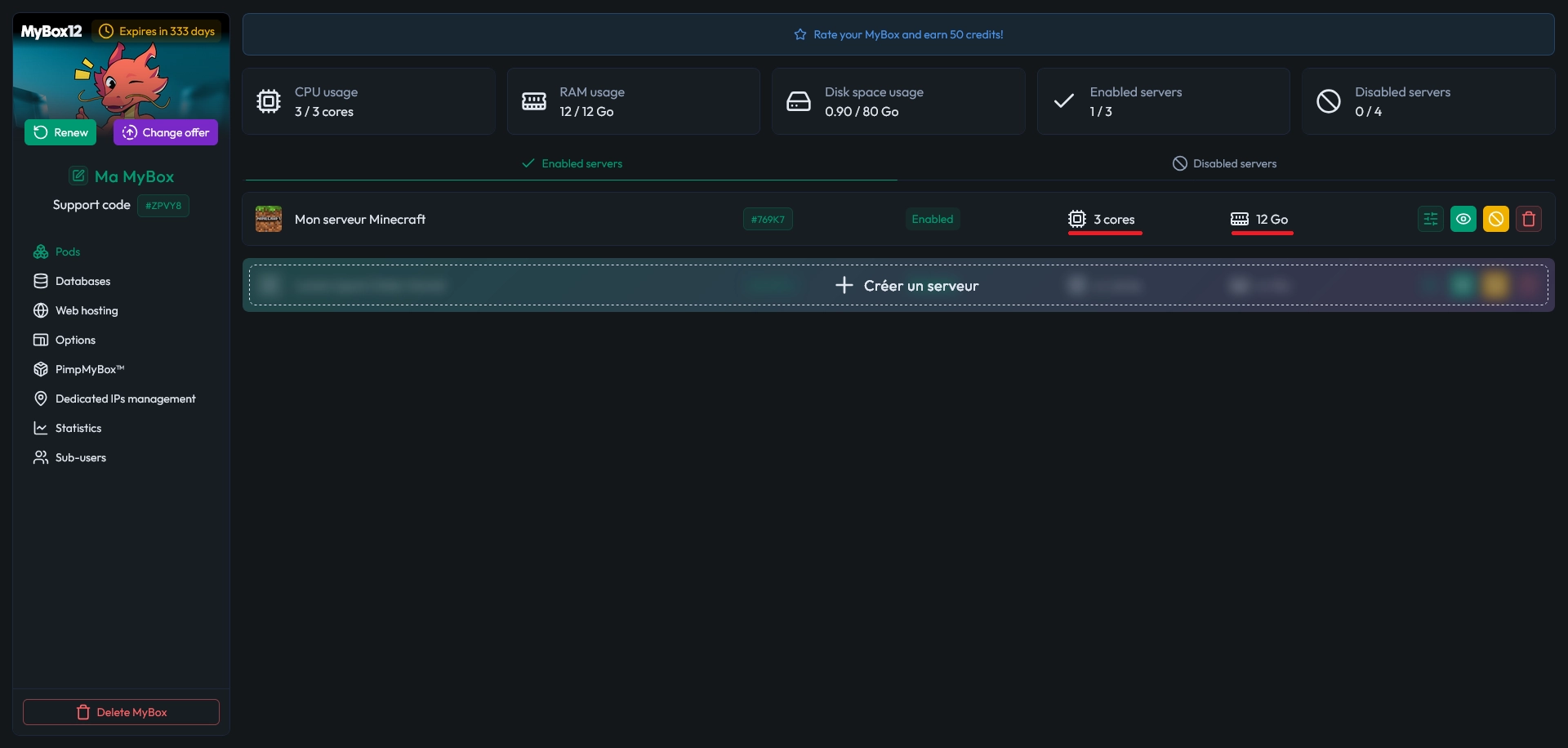
Today, you do not feel like playing Minecraft anymore and want to host a Satisfactory server instead. To do that, you need to free some CPU and RAM. You have two options (we will see a third one later):
Delete the Minecraft server by clicking the red bin icon (1)
Disable the Minecraft server by clicking the yellow “not allowed” icon (2)

The difference is simple: if you delete the server, you lose everything on it permanently. If you disable it instead, the server is stopped and put into a stasis mode. It no longer uses resources and you cannot interact with it, but all files are safely stored. When you reactivate it, you can play again on the exact same world.
📝 Note: Each account can have up to 8 disabled servers in total. This limit is global to your account, not per MyBox.
In this guide, we assume you want to play Minecraft again later, so we will disable the Minecraft server instead of deleting it.
Disable a server to keep your data
To free resources without losing your world, click the yellow disable button next to your Minecraft server, then confirm your choice in the popup.


Your Minecraft server is now disabled and no longer uses any CPU or RAM. You can reactivate it later from the Disabled servers tab. For now, you are ready to create your new Satisfactory server using the freed resources.
💡 Tip: Use disabling when you want to “pause” a project (event server, old map, modpack) without deleting anything.
Create a new Satisfactory server
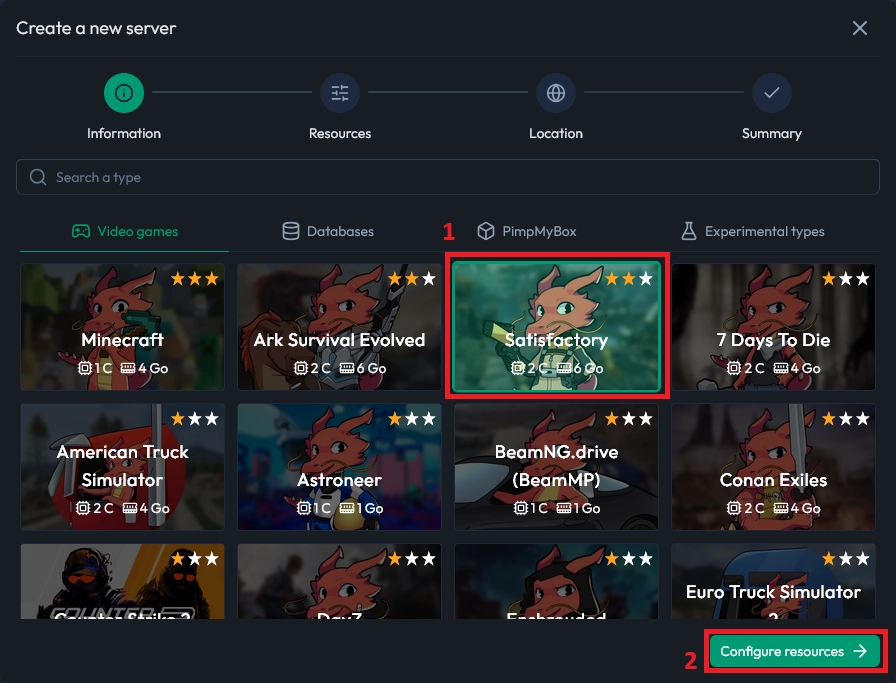
With your Minecraft server disabled, you can now create a new game server on your MyBox. Click the button to create a server, then choose Satisfactory from the list of available games.

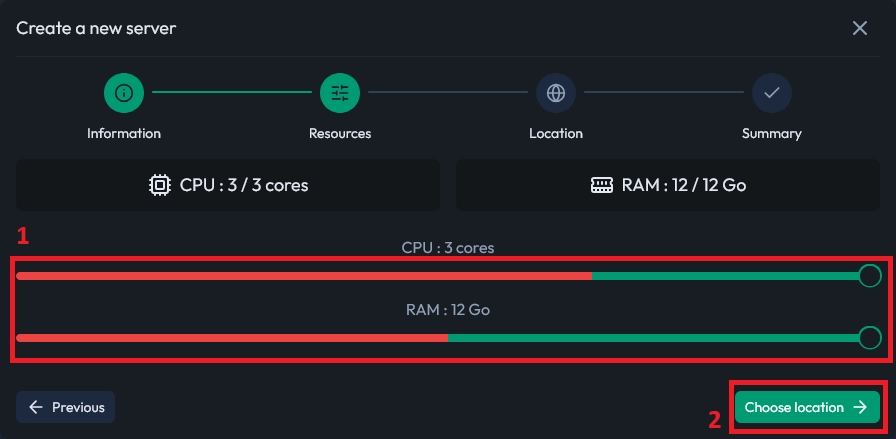
The panel shows a recommended allocation in a red zone: at least 2 cores and 6 GB RAM for Satisfactory. In this example, you only want to run one server for now, so you can safely allocate all available resources to Satisfactory.
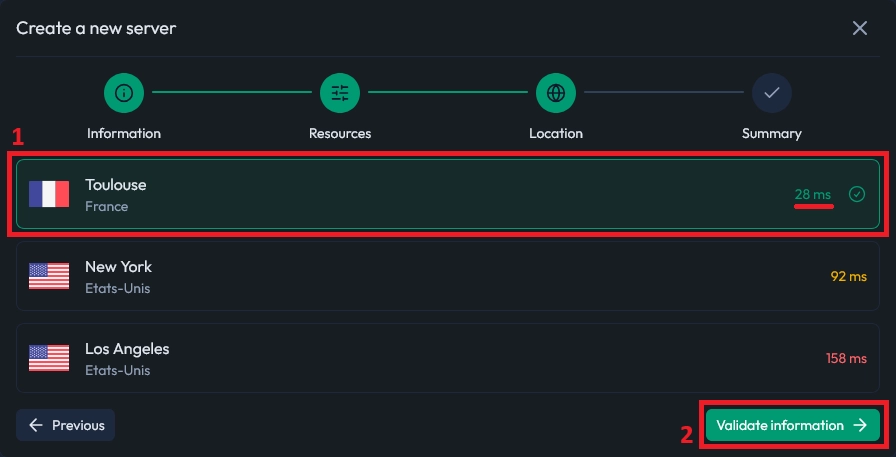
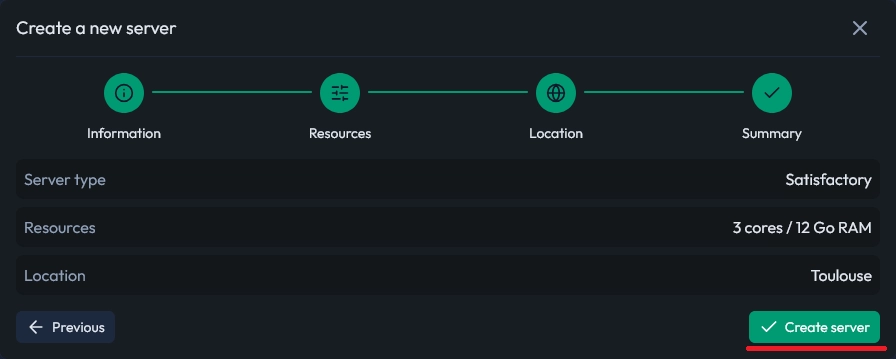
Once the server is created, you can click Manage server to open its dedicated panel. In this tutorial, we will click Close to stay on the main MyBox panel and continue managing our resources.
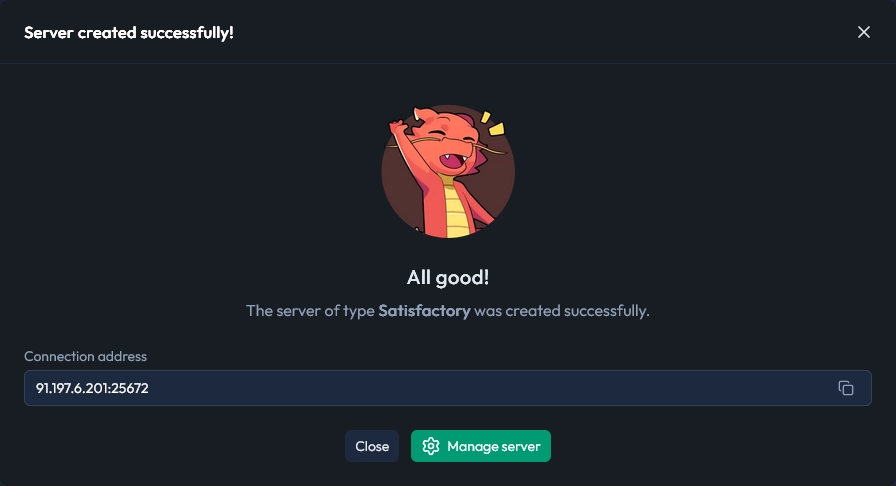
You now have a running Satisfactory server, and your old Minecraft server is safely stored in the Disabled servers tab, ready to be reactivated later.
Adjust resources to host multiple servers
Now imagine a friend messages you and wants to play Garry's Mod. You still want to keep your Satisfactory server online, so this is the perfect time to create another server on the same MyBox by adjusting your resources.
To free some CPU and RAM, click the green Settings button next to your Satisfactory server. This opens the resource sliders where you can reduce the allocation. In this example, you decide to free up 1 core and 4 GB RAM.


After saving your changes, the MyBox panel updates and shows the new resource distribution. You now have enough free CPU and RAM to create a Garry's Mod server, exactly the same way you created your Satisfactory server.

🚨 Important: Avoid allocating 100% of your resources to a single heavy server if you plan to run several games at once. Keep some headroom for stability.
Questions fréquentes
Can I switch games on my MyBox without losing data?
Yes. If you disable a server instead of deleting it, all files and worlds are kept. You can later reactivate the server from the Disabled servers tab and continue exactly where you left off.
How many servers can I disable on my account?
You can have up to 8 disabled servers on your MineStrator account, regardless of how many MyBoxes you own. This limit is shared across all your MyBoxes.
How many active servers can I run on a MyBox 12?
A MyBox 12 allows up to 3 active servers at the same time, as long as you have enough CPU cores and RAM available. You can adjust allocations at any moment from the MyBox panel.
Can I change resource allocation later?
Yes, you can change the number of cores and the amount of RAM assigned to each server at any time via the green Settings button. The changes apply after saving and may require a server restart.
Conclusion
You now know how to manage your MyBox: access the panel, disable or delete servers, create new ones, and adjust CPU/RAM to run multiple games at once. With these tools, you can easily switch from Minecraft to Satisfactory or Garry's Mod without losing your worlds.
Want to try new setups or host more friends? Explore our MyBox plans in your client area and launch your next server in just a few minutes. And if you need help, our support team is here for you every day.

 09 December 2025
  Enjoy 10% off your first month of server with MineStrator using the code ACTU10!