Want to let a friend help you manage your MineStrator server without handing over the keys to the kingdom? That’s exactly what a sub-user is for.
A sub-user is a trusted person you add to your MyBox panel with specific permissions. Depending on what you allow, they can start or stop the server, access files, use the console, or simply monitor what’s going on.
In this 2026 guide, you’ll learn how to add a sub-user step by step, and how to avoid common permission mistakes.
Add a sub-user on MineStrator
Before you start, make sure the person you want to add already has a MineStrator account. You’ll need the email address or the username linked to that account to invite them properly.
Once you have it, you’ll add them from your MyBox panel and choose exactly what they’re allowed to do.
Get the sub-user email or username
Ask your future sub-user for the email address or MineStrator username they use to log in. This is the identifier your panel will use to link their MineBoard to your server.
If you enter the wrong info, the invitation won’t reach the right account, so double-check it before moving on.
Create the sub-user in your MyBox panel
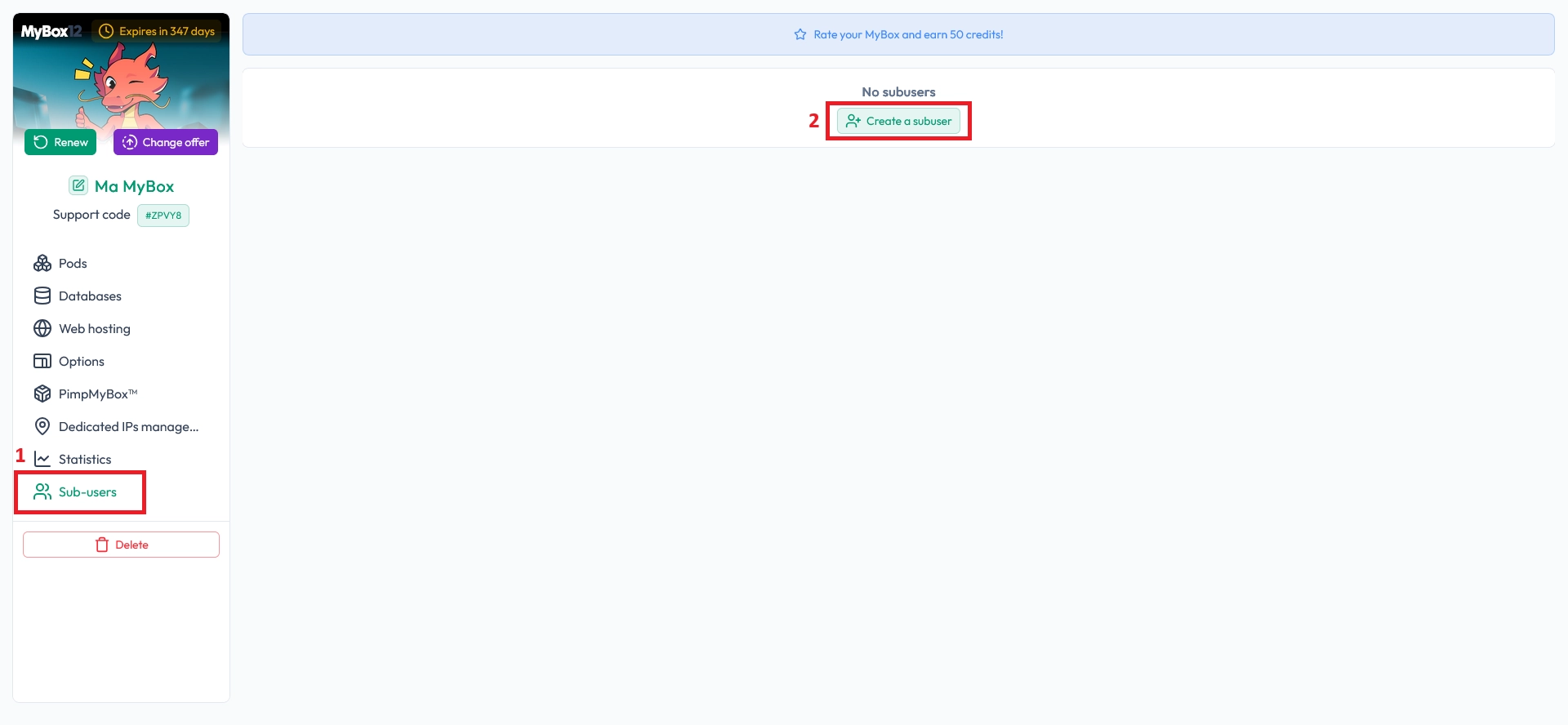
Open your MyBox panel, then go to the Sub-users tab. From there, create a new sub-user and enter the email address or username you collected.
You’ll then be able to select which permissions to grant, depending on how much control you want to share.

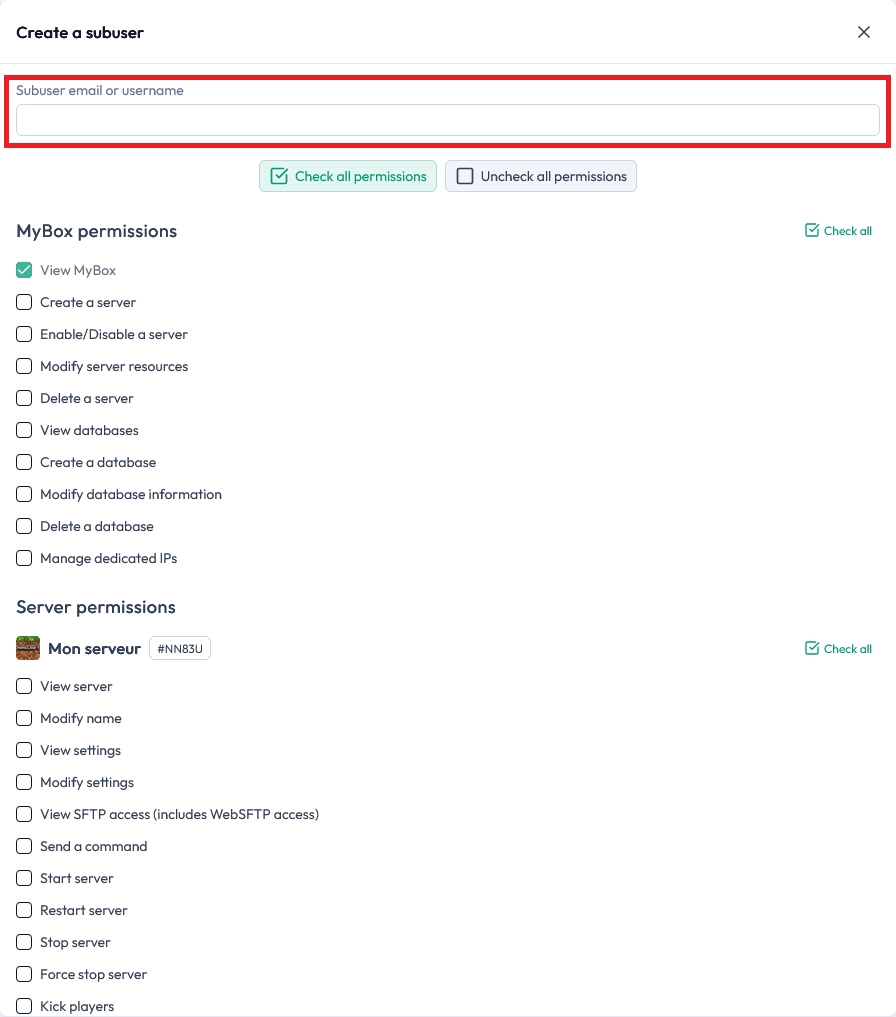
Choose the right permissions
When the dialog box appears, enter the email address or username, then tick the permissions you want to grant. After selecting the right options, scroll down and confirm to save the sub-user.
💡 Tip: Start with minimal permissions, then add more only if your sub-user actually needs them.
⚠️ Warning: Avoid giving file access and console access unless you fully trust the person. These permissions can impact server stability fast.
Verify access from the sub-user MineBoard
Once confirmed, your sub-user can manage the server from their MineBoard, within the limits of the permissions you granted. If something is missing, you can edit their rights anytime from the same Sub-users tab.
📝 Note: If the sub-user can’t see the server right away, ask them to log out and back in to refresh their MineBoard.
Questions frequently asked
Does my sub-user need a MineStrator account?
Yes. You can only add a sub-user using an existing MineStrator email address or username. Without an account, they won’t be able to access your server from their MineBoard.
Can I change permissions later?
Yes. You can edit permissions at any time from the Sub-users tab in your MyBox panel. It’s a good idea to review rights after staff changes or new server features.
Why can’t my sub-user see the server?
Most of the time, it’s a typo in the email/username or a missing permission. Verify the identifier, then ask them to reconnect to their MineBoard to refresh access.
Conclusion
You now know how to add a sub-user to your MineStrator server, assign the right permissions, and verify their access. It’s the safest way to get help while keeping full control of your game server.
If you run into trouble or want advice on permissions, check the FAQ or reach out to our team via Support.

 30 January 2026
  Enjoy 10% off your first month of server with MineStrator using the code ACTU10!