Note : using an SFTP browser such as WinSCP or FileZilla is and outdated method for most operations. Using the Files tab of your server's panel is simpler, faster and doesn't require any software installation.
Your Minecraft or Garry's Mod server has a lot of files to manage? Using SFTP with WinSCP or FileZilla is the safest way to upload maps, mods, plugins, and big config changes.
With an SFTP client, you can connect directly to your game server’s file system, drag and drop files, and edit configs like server.cfg or server.properties without breaking anything. It’s the recommended method for heavy operations, especially when you upload a large world or a full modpack.
In this guide, you’ll learn how to install WinSCP or FileZilla, retrieve your SFTP credentials from the MineStrator panel, and connect to your server step by step.
What you need before using SFTP
Before you start with SFTP and WinSCP or FileZilla, make sure you have access to your MineStrator server panel. You will need your SFTP IP, port, username, and password to connect.
SFTP is more reliable than the web file manager for large transfers. Use it when you upload big maps, modpacks, or a lot of plugins at once to avoid corrupted files and half-finished uploads.
💡 Tip: Always stop your server before uploading a big world or many plugins, then restart it once the transfer is complete.
Step 1: Install WinSCP or FileZilla
You can use either WinSCP or FileZilla to manage your server via SFTP. Both work great; it’s mostly a matter of preference. Pick one, or install both and see which interface you like more.
Install WinSCP
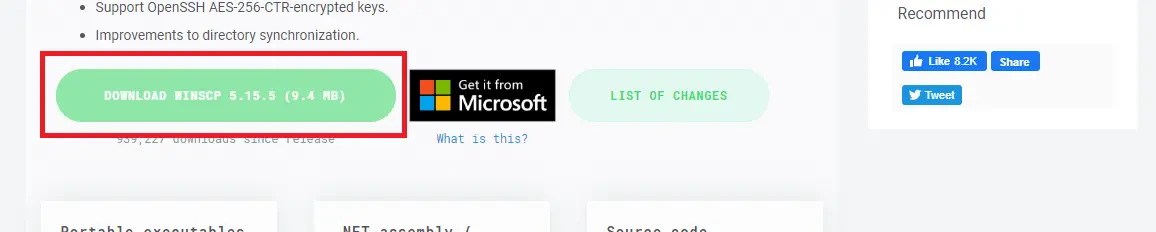
To install WinSCP, download it from the official website: https://winscp.net/eng/download.php. On the page, click the DOWNLOAD WINSCP button to get the installer.
Once the file is downloaded, run it and follow the installation steps. You can keep the default options; they work perfectly for managing your MineStrator server via SFTP.
Install FileZilla
To install FileZilla, go to the official download page: https://filezilla-project.org/download.php?type=client. Click on the Download FileZilla Client button to download the installer.
Run the downloaded file and follow the instructions to install FileZilla on your computer. The default settings are fine for SFTP access to your game server.
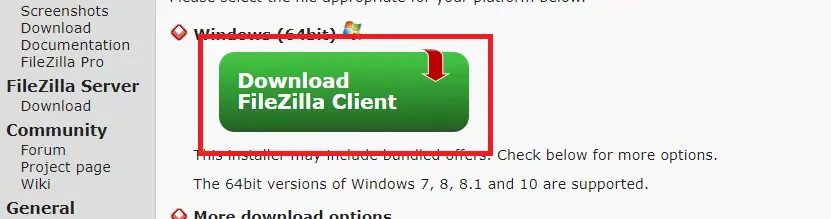
📝 Note: The FileZilla installer may offer extra software (Firefox, Dashlane, Avast, etc.). You can safely decline these offers to avoid installing unwanted programs.
Step 2: Get your SFTP credentials from MineStrator
To connect WinSCP or FileZilla to your server, you need your SFTP connection details. You can find them directly in your MineStrator panel.
If you are the server owner, log in to your MineStrator account, open your server, and go to the Access tab. There you will see the SFTP IP, port, username, and password.
If you are a sub-user with the right permissions, you can also access the same Access tab in the server management panel and retrieve the SFTP information there.
🚨 Important: Never share your SFTP password or credentials publicly. Anyone with this info can access and modify all your server files.
Step 3: Connect to your server with WinSCP
Once WinSCP is installed and you have your SFTP credentials, you can connect to your server in a couple of clicks. MineStrator even provides a shortcut button for WinSCP.
The easiest method is to use the Connect with WinSCP button under your SFTP details in the MineStrator panel. This will automatically open WinSCP and fill in all the connection information for you.
You can also configure the connection manually in WinSCP and save it as a site in the Sessions List. This way, you won’t have to retype your SFTP details every time you want to manage your server.
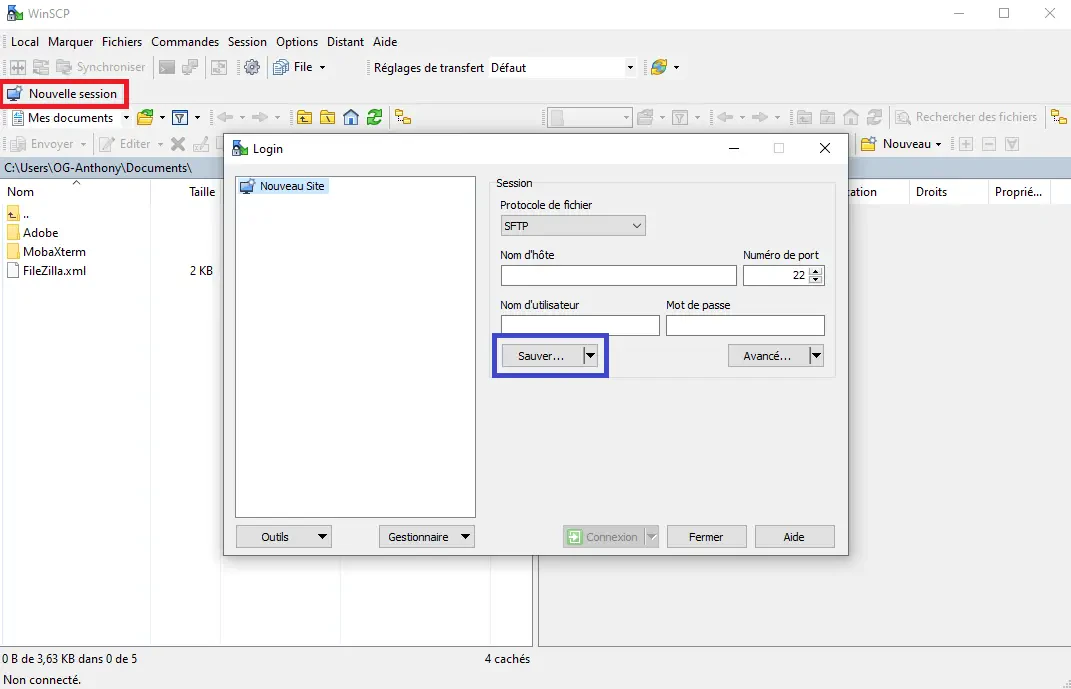
Use the following settings in WinSCP to connect to your MineStrator server via SFTP:
File protocol: SFTP
Host name: SFTP server IP (from the Access tab)
Port number: SFTP server port (from the Access tab)
User name: SFTP user (from the Access tab)
Password: SFTP password (from the Access tab)
💡 Tip: After entering everything, click Save in WinSCP so you can reconnect to your server in one click next time.
Step 4: Connect to your server with FileZilla
If you prefer FileZilla, you can also save your MineStrator server as a site in the Site Manager. FileZilla will store your SFTP information so you can connect quickly whenever you need.
Open FileZilla, click on File > Site Manager, then create a new site. Fill in your SFTP details from the MineStrator Access tab and click OK or Connect to save and start the connection.

Use these settings in FileZilla to manage your server via SFTP:
Protocol: SFTP
Host: SFTP server IP (from the Access tab)
Port: SFTP server port (from the Access tab)
Logon Type: Normal
User: SFTP user (from the Access tab)
Password: SFTP password (from the Access tab)
📝 Note: If the connection fails, double-check the port and password, and make sure you selected the SFTP protocol, not FTP.
Step 5: Manage and edit your server files
Once connected via SFTP with WinSCP or FileZilla, you can browse your server files, upload or download content, and edit configuration files. This is where you upload maps, mods, plugins, and resource packs for your game server.
To edit a file, right-click on it. In WinSCP, choose Edit or Edit with WinSCP. In FileZilla, select View/Edit. The file will open in your default text editor, and changes will be uploaded back to the server when you save.
For a better experience, install a dedicated code editor like Notepad++ or Sublime Text. They are much more comfortable than Windows Notepad and integrate very well with WinSCP and FileZilla for editing configs and scripts.
💬 Good to know: Always keep a local backup of important files (worlds, configs) before making big changes via SFTP.
Frequently asked questions
What is SFTP and why should I use it?
SFTP (SSH File Transfer Protocol) is a secure way to transfer files between your PC and your server. It encrypts the connection and is more reliable than basic FTP or browser uploads, especially for large maps, modpacks, and many plugins.
Can I use SFTP on a MineStrator sub-user account?
Yes, as long as the server owner has given you the right permissions. If you can see the Access tab and the SFTP details in the panel, you can connect with WinSCP or FileZilla using those credentials.
Do I need to stop my server before uploading files?
For small changes like a single config file, it is usually fine. For big operations (new world, many plugins, full modpack), you should stop the server, upload everything via SFTP, then start it again to avoid issues or corrupted files.
Is WinSCP or FileZilla better for my server?
Both work perfectly with SFTP on MineStrator. WinSCP is often preferred for its built-in editor and clean interface, while FileZilla is very popular and simple to use. You can try both and keep the one you like most.
Conclusion
With SFTP and tools like WinSCP or FileZilla, you gain full control over your MineStrator server files. You can safely upload maps, mods, and plugins, and edit configuration files without relying only on the web file manager.
If you need help using SFTP, WinSCP, or FileZilla, you can join the MineStrator Discord to get support from the team and the community. You can also follow these video tutorials: WinSCP tutorial and FileZilla tutorial. Don’t have a server yet? Discover our MineStrator hosting offers and launch your server in just a few minutes.

 11 December 2025
  Enjoy 10% off your first month of server with MineStrator using the code ACTU10!