Want your Rust server to stand out on server lists instead of looking like a default template? Good news: with the MineStrator panel, you can customize your server identity in a few minutes by editing the description, adding a header image, and linking your website.
In this 2026 guide, you’ll learn where to find these settings, what formats Rust expects, and how to apply changes properly so players can see them in-game.
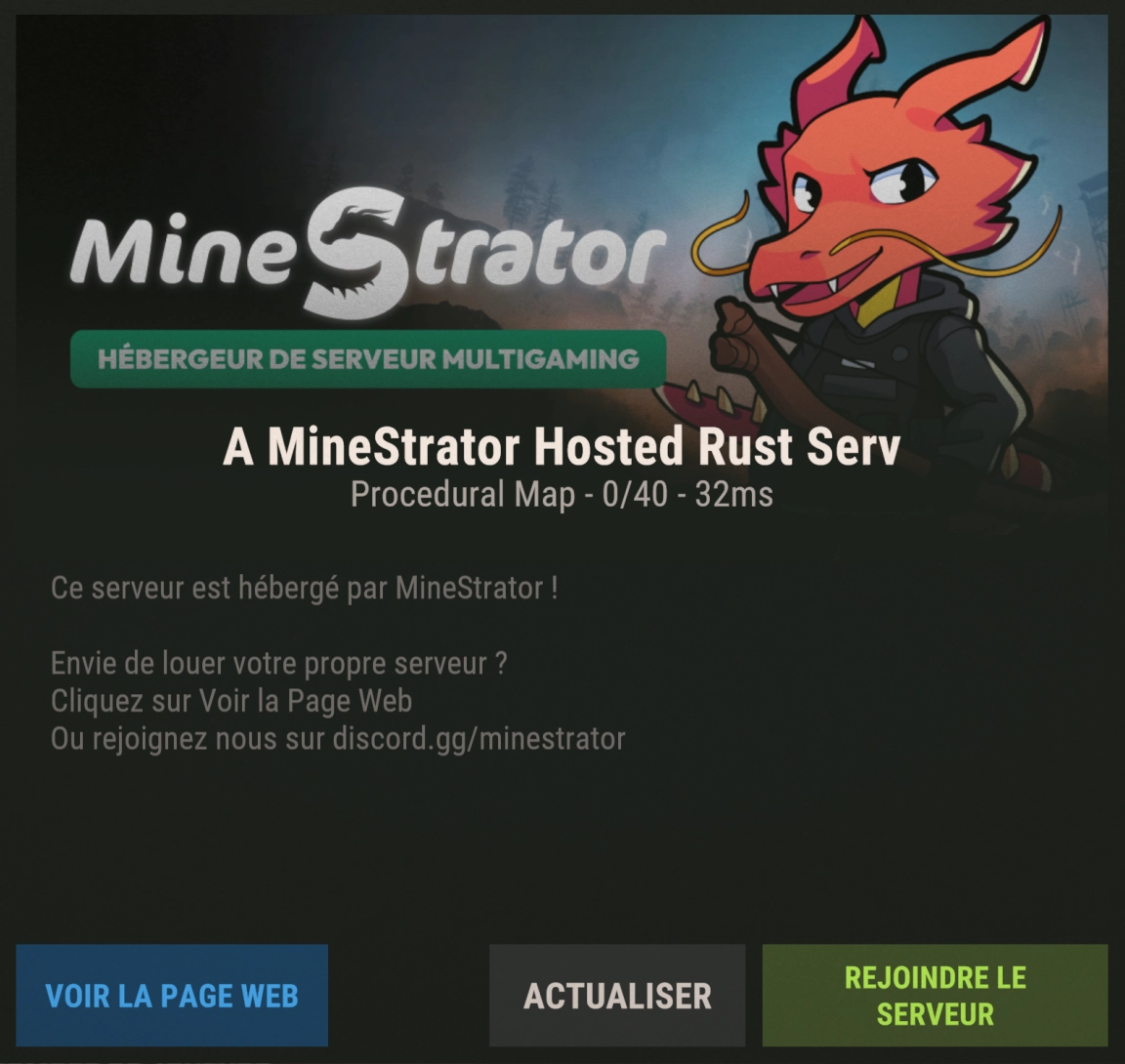
Preview of your customized server’s final rendering in the game interface
Open your Rust server settings
Start from your server dashboard, then open the Settings tab. This is where MineStrator groups the options that affect how your Rust server appears to players.
If you can’t find a field mentioned below, double-check you’re editing the correct server instance and not a template or backup.
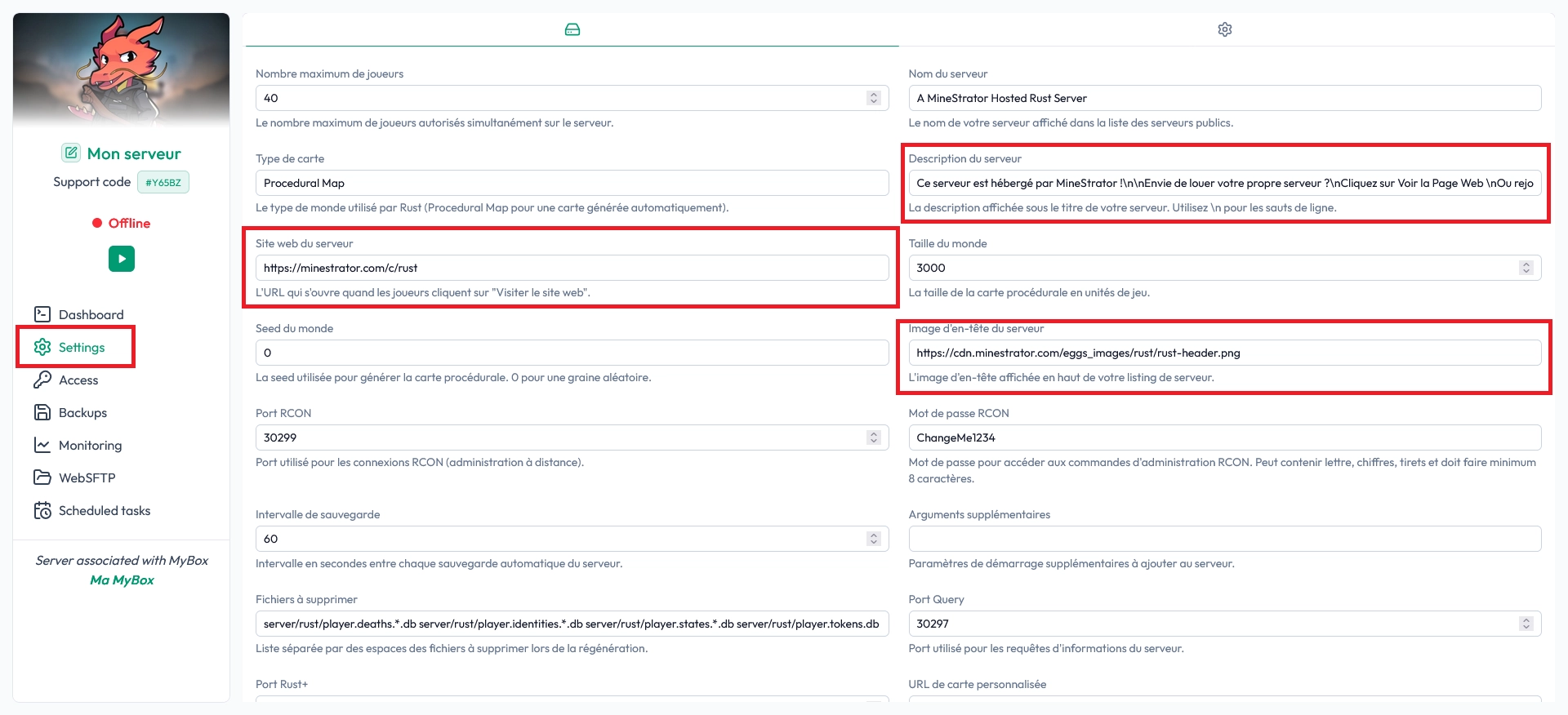
Edit your Rust server description
Your Rust server description is the first thing many players read before joining. Use it to explain your gameplay style (vanilla, modded, x2, PvE, roleplay), rules, wipe schedule, and any key features.
To format multiple lines, Rust uses line breaks with \n. That means you write everything in one field, and you insert \n where you want a new line.
For example, if you want to display this:
Welcome to my server.
Maximum 50 players.
Enter it like this in the description field:
Welcome to my server.\nMaximum 50 players.💡 Tip: Keep the first line punchy (rates + wipe + style). Many players won’t read more than 2-3 lines.
Add a header image
The header image is your server’s “banner” and the most visible branding element. If you want your server to look legit at first glance, this is the field to optimize.
Paste the full URL of your image in the header field. The image must be hosted online and publicly accessible (for example on imgur).
Header image requirements:
Format: PNG
Resolution: 1024 x 512 exactly
URL: direct link to the image file
⚠️ Warning: If the image isn’t exactly 1024x512 or isn’t publicly accessible, Rust may ignore it or display it incorrectly.
Set your website link
If you have a website, forum, or community hub, you can attach it to your server so players can find your info outside the game. Paste the full URL in the website field, including https://.
This link is perfect for sending players to resources like:
Official website
Community forum
Discord invite page
Server wiki
Online store
💬 Good to know: A clear website link improves trust, especially for new players browsing public server lists.
Save changes and apply them
Once you’re done, click Validate settings to save. A server restart is required for the changes to apply, and public server lists may take a few minutes to refresh.
If your edits don’t show up right away, wait a bit, then confirm your URLs are correct and your image host allows public access.
Questions frequently asked
Why isn’t my header image showing in Rust?
Most issues come from the wrong format or size. Make sure your header is a PNG and exactly 1024x512, and that the URL is a direct, public link to the image file.
Do I need to restart the server after editing the description?
Yes. After clicking Validate settings, restart your server so Rust can reload the updated metadata. Public lists may also take a few minutes to update.
Can I add multiple lines in the server description?
Yes. Use \n to create line breaks. For example: Line 1\nLine 2\nLine 3.
Conclusion
With a clean Rust server description, a proper 1024x512 PNG header, and a clear website link, your server instantly looks more professional and easier to trust on public lists.
Need help applying the changes or troubleshooting display issues? Check our FAQ or reach out via Support and we’ll help you get it sorted.

 16 June 2026
  Enjoy 10% off your first month of server with MineStrator using the code ACTU10!