Hytale Early Access is finally here, and if you want the best co-op experience, nothing beats having your own Hytale server for your group. No random lobbies, no weird rules—just you, your friends, and your world.
In this 2026 tutorial, you’ll learn how to create a Hytale server on your MyBox, start it the right way, then connect using the IP and port from your panel. Let’s get your server online.
Create a Hytale server on MyBox
This guide assumes you already have a MyBox. If you don’t, you can get one from our MyBox offers.
From your MyBox panel, click Create a server. If the button doesn’t show up, your MyBox usually doesn’t have enough free resources left, so you’ll need to free up some CPU cores and/or RAM used by other servers.
Pick resources based on your plan and your player count. In this example, the server runs with 4 cores and 12 GB RAM. Since Hytale is in Early Access, memory usage can spike, especially when several players join.
📝 Note: We added optimizations to the default startup command, but depending on your use case, you may still want to tweak a few settings.
Start the server once to complete initialization and generate the required files. This first launch is basically Hytale setting up its backpack before the adventure begins.
When the console shows “Hytale Server Booted”, you’re good: your Hytale server is online and ready for players.
💡 Tip: If you’re short on RAM, lower the server view distance to stabilize performance in
config.jsonwithmaxViewRadius.
Connect to your Hytale server
To join your Hytale server, grab the IP address and the port shown in your panel. You’ll use both, so don’t copy only the IP.
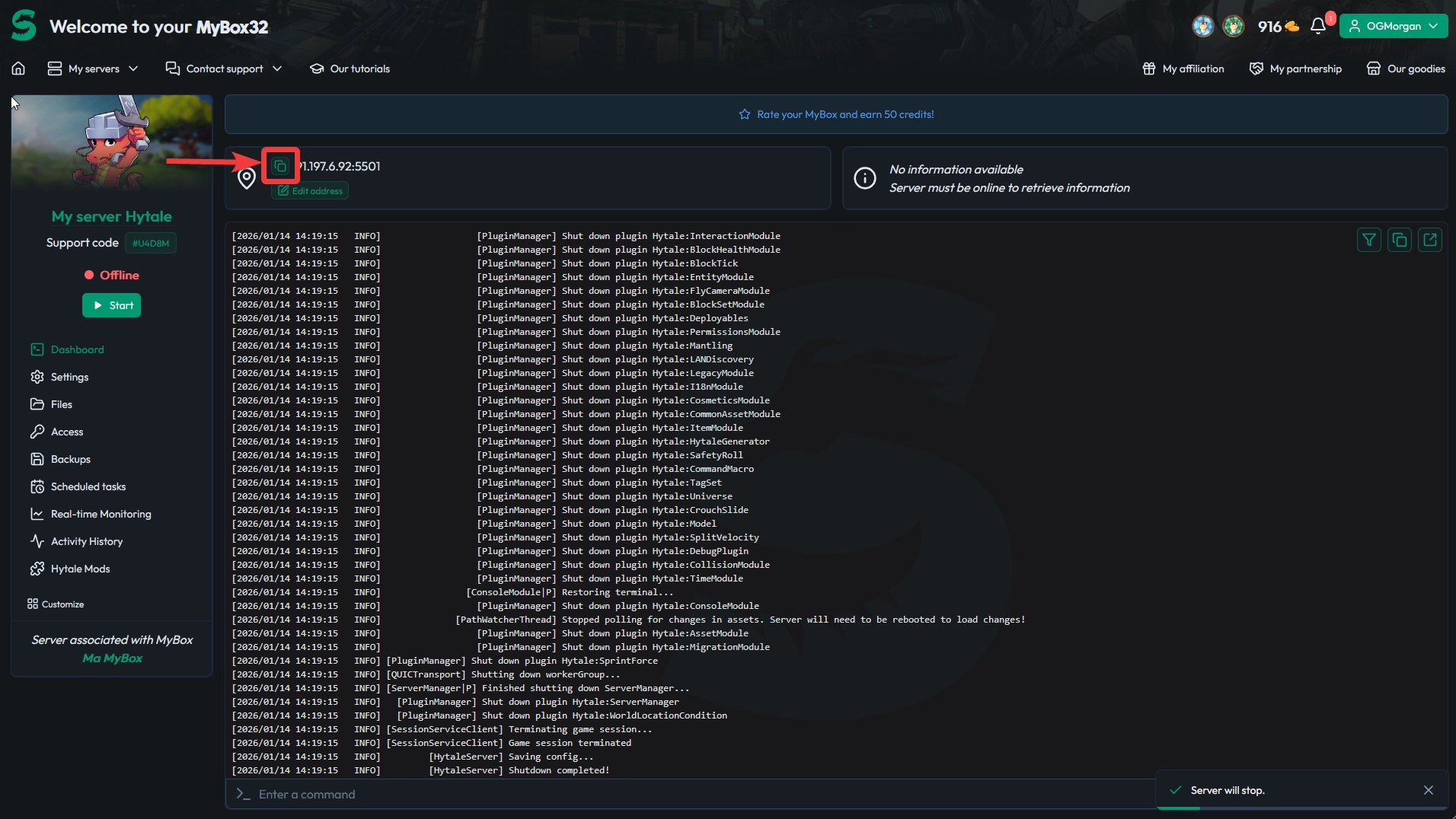
Then add the server in your in-game server list by pasting the IP and port, and connect. If your friends can’t join, double-check you shared the full address (IP + port).
That’s it—your server is reachable, and you can start playing right away. Clean setup, no drama, more time for actual adventures.
Questions players often ask
Why doesn’t “Create a server” appear?
Most of the time, it means your MyBox has no free resources left. Stop another server or lower its allocated CPU/RAM, then refresh the panel and try again.
Is 12 GB RAM required for a Hytale server?
No, but Early Access builds can be memory-hungry, especially on first boot and with multiple players. Start with what you have, then increase RAM if you see crashes, heavy stutters, or frequent restarts.
Where do I change the view distance?
Edit config.json and adjust maxViewRadius. Lower values reduce memory and CPU load, which is often the quickest fix for instability.
Conclusion
You now know how to create a Hytale server on your MyBox, start it properly, and connect using the IP and port. Since Hytale is still in Early Access in 2026, keep an eye on RAM usage and reduce view distance if performance gets spicy.
Don’t have a MyBox yet? Check out our MyBox offers and launch your Hytale server in just a few clicks.

 15 January 2026
  Enjoy 10% off your first month of server with MineStrator using the code ACTU10!