

Your Hytale server crashes the moment a few players log in and start exploring? Don’t panic: in most cases, it’s not a “random bug”, it’s your RAM hitting the ceiling. A view distance set too high, chunks that never unload, or a player cap that’s a bit too optimistic, and memory usage skyrockets.
In this guide, you’ll learn how to optimize the RAM of your Hytale server on MineStrator with simple, high-impact settings. We’ll start with the biggest one, MaxViewRadius, then enable chunk unloading.
Optimize Hytale server RAM: the basics
On a Hytale server, RAM is mainly used to keep the world “alive” in real time: loaded chunks, entities, players, inventories, and world data. The more your server keeps active at once, the faster memory usage climbs, sometimes even when players don’t notice anything happening.
Most RAM spikes come from the same usual suspects, especially on public servers:
Player count online
Render distance (MaxViewRadius)
Players spread across the map
Chunks kept active in memory
Installed mods and plugins
💬 Good to know: Hytale generally needs 4 GB RAM minimum for a basic setup, but 8 to 12 GB is far more stable.
Reduce RAM usage with MaxViewRadius
MaxViewRadius is the number one setting to tweak when a Hytale server uses too much RAM. It defines how many chunks are loaded around each player. The higher the value, the more the server loads and keeps in memory, even if players are AFK or just building at spawn.
These values are a solid starting point for most servers:
8: lightweight, limited resources
12: recommended for most servers
16: comfortable with plenty of RAM
⚠️ Warning: If your server is set to MaxViewRadius=32, lower it first. It’s one of the most RAM-hungry settings.
Change MaxViewRadius in the MineStrator panel
On MineStrator, you can edit this setting directly from the file editor in your panel. It takes about three minutes, and you’ll often see an immediate improvement in RAM usage once the server restarts.
Step 1: Open your panel
Log in to your MineStrator dashboard: https://minestrator.com/my/dashboard, then select your Hytale server.
Step 2: Open the config.json file
Go to Files, then open the config.json file located at the root of your server.
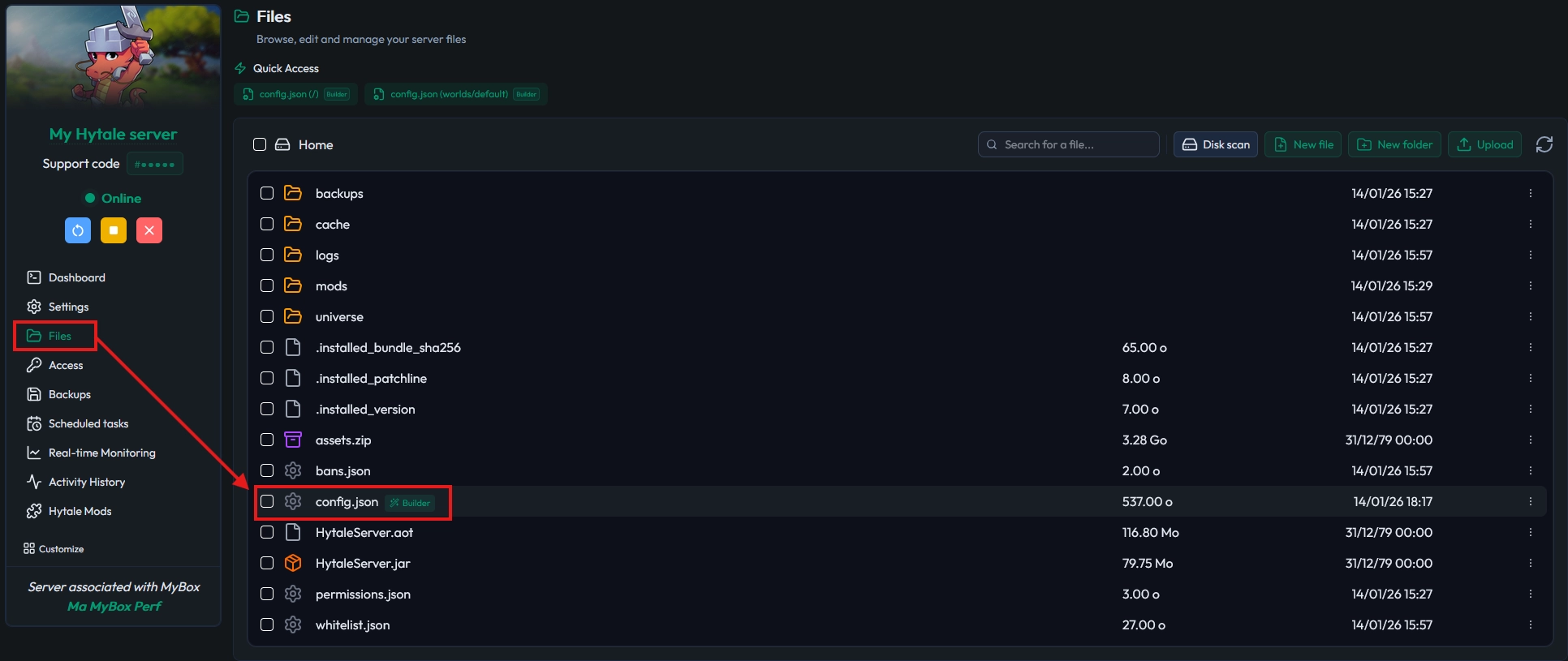
Step 3: Edit the MaxViewRadius value
Search for "MaxViewRadius" and change the value. For a clean, stable baseline on most servers, start with 12, then adjust depending on stability and how many players you host.
Add or update these lines in your config.json:
{
  "Version": 3,
  "ServerName": "Hytale Server by MineStrator",
  "MOTD": "Powered by MineStrator.com",
  "Password": "",
  "MaxPlayers": 100,
  "MaxViewRadius": 12,
  "LocalCompressionEnabled": false,
  "Defaults": {
    "World": "default",
    "GameMode": "Adventure"
  },
  "ConnectionTimeouts": {
    "JoinTimeouts": {}
  },
  "RateLimit": {},
  "Modules": {},
  "LogLevels": {},
  "Mods": {},
  "DisplayTmpTagsInStrings": false,
  "PlayerStorage": {
    "Type": "Hytale"
  }
}
Save your changes with Save or the shortcut Ctrl+S.
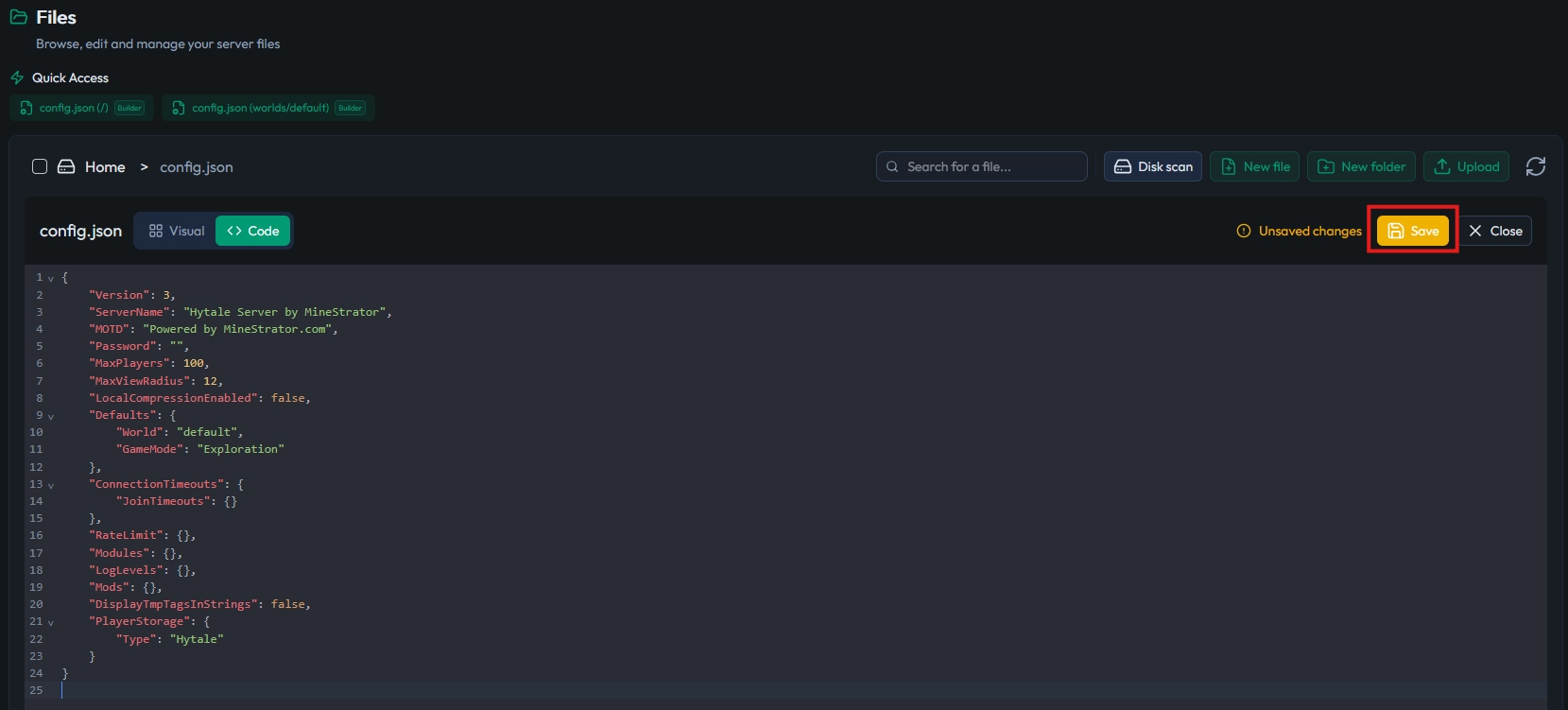
Step 4: Restart the server
Go back to the Dashboard, click Restart, and wait for startup to finish. Your new MaxViewRadius is now active.
Enable chunk unloading to free RAM
If your server keeps too many areas in memory, RAM can keep rising even without a player rush. The IsUnloadingChunks setting helps by automatically freeing memory and unloading inactive chunks.
Open /universe/worlds/default/config.json and make sure this setting is enabled:
"IsUnloadingChunks": truetrue: unloads inactive chunks (recommended)false: keeps everything in memory (very expensive)
📝 Note: If you’re testing mods or a new map, enable this before opening the server to the public.
Set MaxPlayers to match your resources
MaxPlayers doesn’t consume RAM by itself, but it sets expectations. If you allow 100 players with a high view radius, your server can overload the moment everyone explores in different directions and forces new chunks to stay active.
If crashes happen during peak hours, temporarily lower MaxPlayers, stabilize RAM, then increase it step by step. The goal is simple: avoid the “everything is fine… then black screen” moment when the server fills up.
💡 Tip: Test with players spread out and exploring, not just hanging around spawn. That’s the fastest way to reveal RAM limits.
Questions frequent
What MaxViewRadius value should I use?
In most cases, 12 is the best starting point for a smooth experience. Only move up to 16 if RAM stays stable and your players aren’t too spread out across the world.
Why does RAM increase when nobody moves?
If chunks don’t unload, or your view radius is too high, the server keeps a huge amount of data in memory. Check IsUnloadingChunks and reduce MaxViewRadius first.
Can mods and plugins blow up RAM usage?
Yes. Some add more entities, persistent systems, or extra world storage. Install them one by one, then monitor resource usage in your panel to spot the culprit quickly.
What if RAM is still maxing out?
Double-check your configs, lower MaxViewRadius again, and contact support if needed. If your server is growing, upgrading resources is often the simplest and most stable long-term fix.
Conclusion
To optimize Hytale server RAM, focus on three moves: lower MaxViewRadius, enable IsUnloadingChunks, and tune MaxPlayers to match your resources. Then keep an eye on RAM in the panel to confirm everything stays stable under real gameplay conditions.
Want to test these settings without commitment? Try it free for 12 hours, no credit card required, and get hands-on with the MineStrator panel in real conditions.

 15 January 2026
  Enjoy 10% off your first month of server with MineStrator using the code ACTU10!