
Your Satisfactory factory is running smoothly, but everything stops the second you log out of your server? That is totally normal. By default, the game activates an automatic pause when no player is connected, which freezes all production.
On a dedicated server, this can be pretty frustrating, especially if you are planning big builds or want your lines to run 24/7. In this guide, you will see how to disable the auto pause so your Satisfactory server keeps producing, even when you are offline.
Why disable auto pause on your Satisfactory server?
Disabling the automatic pause lets your Satisfactory server behave like a real always-on factory. Your production lines keep running, resources keep flowing, and you do not have to stay connected just to keep machines alive.
Here is what you gain when you turn off auto pause:
Your machines keep producing while you are offline
You come back to full storage containers and buffers
Perfect for mega-factories and resource-heavy late-game projects
💡 Tip: Disable auto pause only if your server and factory are stable, to avoid wasting resources on broken setups.
Change the auto pause setting on your server
To disable the automatic pause, you need to adjust a setting directly in the Satisfactory dedicated server interface. The whole process only takes a minute.
Step 1: Open the server settings
First, connect to your Satisfactory server interface and access the configuration menu:
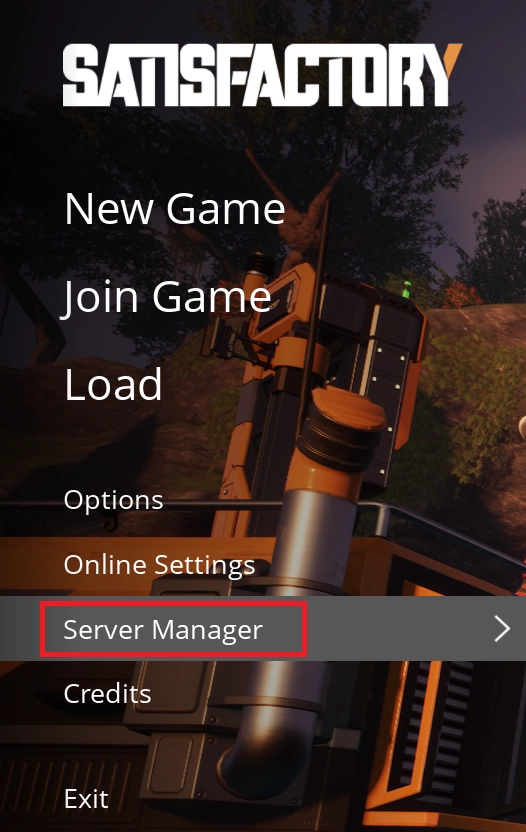
Click on Server Manager
Select your server in the list
If your server is not set up yet, follow our complete tutorial on how to create and join a Satisfactory server on MineStrator in the article Create and join a Satisfactory server.
Step 2: Disable the auto pause option
Once your server is selected, you can access the specific settings that control how the dedicated server behaves when no one is connected.
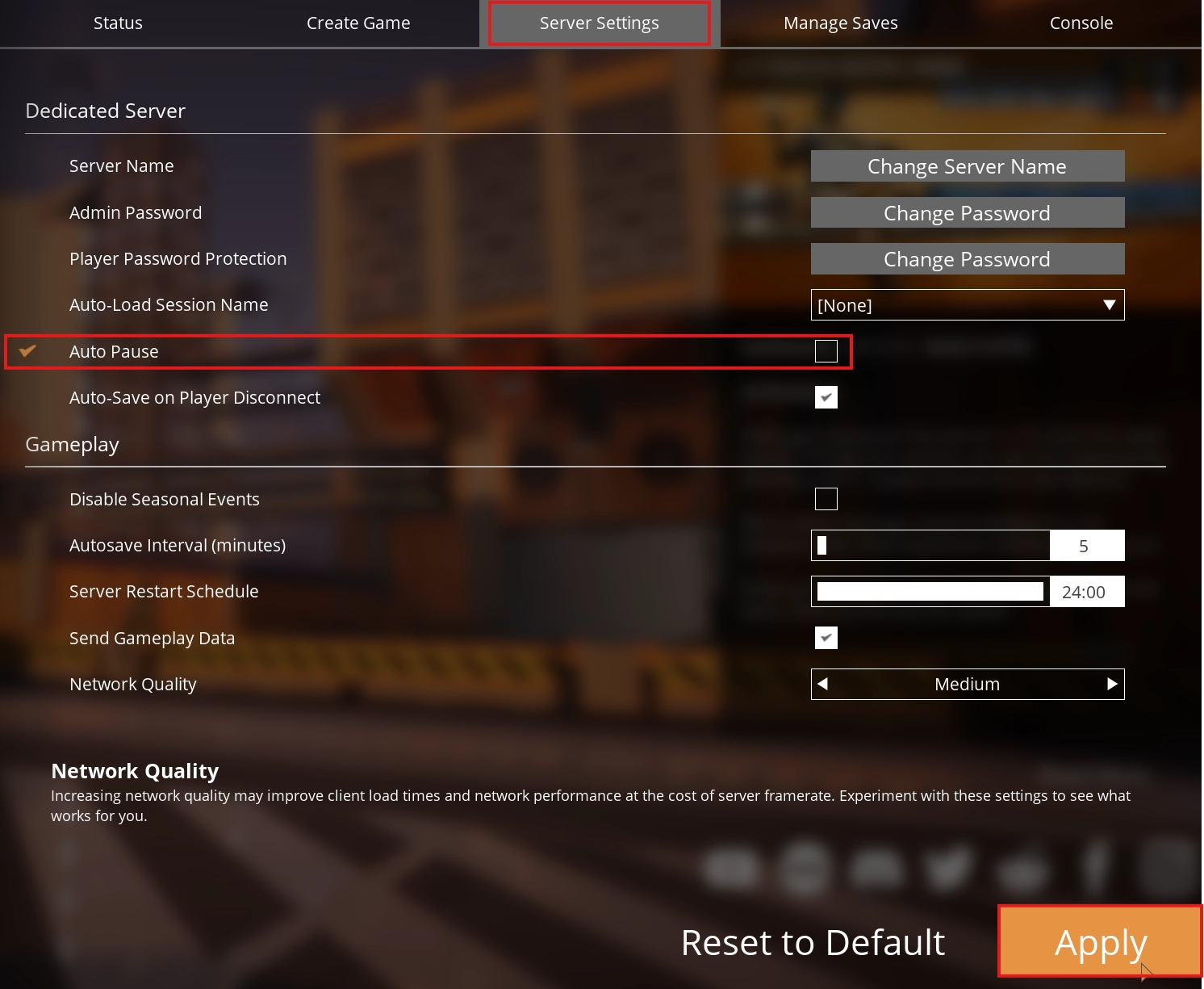
Click on Server Settings
Open the Dedicated server section
Uncheck the Auto Pause option
🚨 Important: With auto pause disabled, your factory will run continuously, so keep an eye on fuel, power and storage to avoid outages.
Step 3: Apply and restart the server
To make sure the change is taken into account, you need to save the configuration and restart your Satisfactory server.
Click on Apply to save the new settings
Restart the server from the interface
📝 Note: The restart only takes a few moments. Wait until the server status shows as online before reconnecting.
Check that your factory keeps running
To confirm that your Satisfactory server no longer pauses when empty, do a quick test. Stay connected until your production lines are running normally, then log out of the game.
Wait a few minutes, then reconnect to your server. If everything is set correctly, your machines will have continued to produce, and you should see more items in your storage containers and buffers.
💬 Good to know: If production has not progressed, double-check that the Auto Pause box is unchecked and that you clicked Apply before restarting.
Need help with your Satisfactory server?
If you have not created your server yet or want to review the full setup process, you can follow our detailed tutorial in the article Create and join a Satisfactory server on MineStrator.
For any questions or if you run into issues with your Satisfactory server configuration, feel free to join the MineStrator Discord server and ask the community or our team for help.
Conclusion
By disabling auto pause, your Satisfactory server finally behaves like a real dedicated factory: production continues even when no one is online, and you can prepare huge projects without staying connected for hours.
Do not have a server yet or want a more stable host for your factory? You can explore all supported games and find the right offer for you on our game server hosting page, then launch your Satisfactory world in just a few minutes.

 03 January 2026
  Enjoy 10% off your first month of server with MineStrator using the code ACTU10!