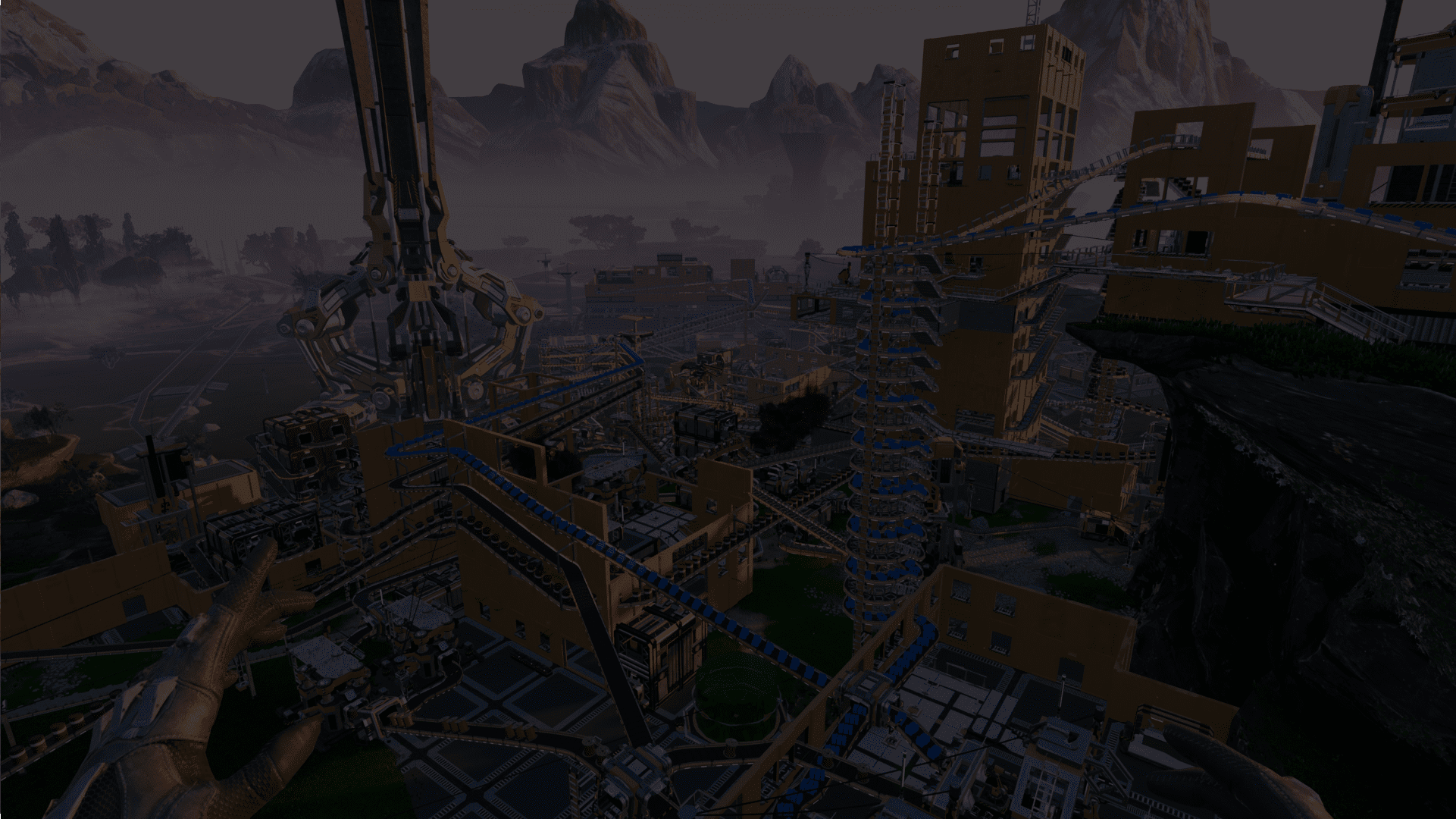

Your Satisfactory factory is already huge in singleplayer and you want to move it to your server? Good news: importing a Satisfactory save on your server is quick and painless. The game offers a built-in upload tool, and even from a dedicated server it only takes a couple of file moves.
In this guide, you will learn two simple methods to import a save on your Satisfactory server: directly from the game client, or by copying the save file from another dedicated server. Follow the steps and you will be back to building in just a few minutes.
Import a save from the game
The easiest way to import a Satisfactory save on your server is to upload it directly from the game. This works for both solo saves and self-hosted worlds.
Start by selecting your server in the in-game server list, then open the Manage Saves tab. Inside this menu, go to the Upload Save sub-tab to access all your local saves.
Choose the game you want to upload. In this example, the session is called « test ». Click on the exact save file you want for that game (for example, a specific autosave or manual save). Finally, press Upload game and wait for the upload to complete.

💡 Tip: If you have several autosaves, check the date and time to make sure you upload the most recent version of your factory.
Import a save from a dedicated server
If your factory is already running on another dedicated server, you can import that save by copying the .sav file to your new Satisfactory server. All you need is access to the server’s file system via FTP or an SFTP client.
On a Linux dedicated server, Satisfactory saves are stored in the following directory:
/.config/Epic/FactoryGame/Saved/SaveGames/server/Locate the .sav file you want to keep. Based on the previous example, the file would be named test_autosave_0.sav. Download this file, then upload it to the exact same directory on your new dedicated Satisfactory server.
📝 Note: Keep the original file name to avoid confusion, especially if you manage several saves on the same server.
If you are using WinSCP to access your server files, the .config directory may be hidden by default. To display it, click the yellow cog icon, then go to Panels and enable Show hidden files. You should now see the full path and be able to upload your save.
💡 Tip: After copying the save, restart your server so Satisfactory can detect the new file and list it correctly in the in-game interface.
FAQ about Satisfactory save imports
Where do I select the imported save in-game?
Once the file is uploaded or copied, join your Satisfactory server from the game client. In the server menu, open the Manage Saves section and select the imported save from the list, then start the session from that file.
Can I import multiple saves on the same server?
Yes, you can upload or copy several .sav files to your Satisfactory server. They will all appear in the server’s save list, and you can switch between them from the Manage Saves menu whenever you want.
Conclusion
Importing a Satisfactory save to your server is a matter of a few clicks from the game, or a simple file copy from another dedicated server. Once your .sav is in place, you and your friends can keep expanding the same factory, but this time 24/7 on a stable host.
If you run into any issues, you can always reach us via Discord or directly from your panel through chat or ticket. Don’t have a server yet? Try a MineStrator server free for 12 hours, no credit card required, and start automating your factory in peace.

 11 December 2025
  Enjoy 10% off your first month of server with MineStrator using the code ACTU10!