
Your Satisfactory server feels a bit too “vanilla”? Don’t panic, we’ll fix this together.
In 2026, the easiest way to install mods on a Satisfactory dedicated server is still the same: use Satisfactory Mod Manager (SMM) on your PC, connect it to your server via SFTP, and let it handle the uploads for you.
In this guide, you’ll learn how to download SMM, add your server using your panel credentials, install mods in a couple of clicks, and apply them safely with a restart.
What you need before installing mods
Before you start modding your Satisfactory server, make sure you have everything ready. This avoids the classic “why doesn’t it connect?” moment later.
Satisfactory Mod Manager installed on your PC
Your server SFTP credentials (from your panel)
Access to the server’s SatisfactoryDedicatedServer folder
A quick restart window for applying changes
📝 Note: SMM manages the server-side files for you, so you don’t need to manually upload mod folders.
Step 1: Download Satisfactory Mod Manager
First, you need the official SMM installer. Always download it from the project’s release page to avoid outdated or unsafe builds.
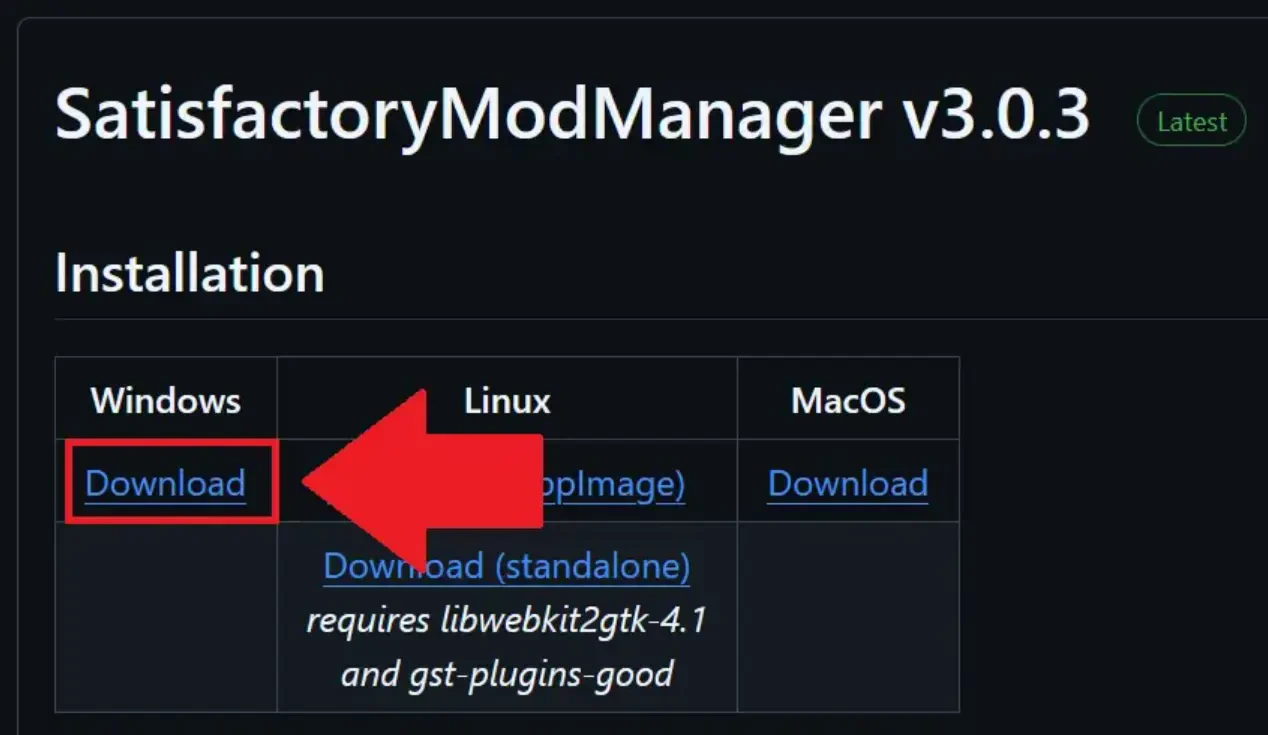
Open the official SMM releases page on GitHub.
Download the latest version by clicking Download.
Save the installer on your PC.
https://github.com/satisfactorymodding/SatisfactoryModManager/releases
Once the file is downloaded, install SMM like any other Windows app.
Run
SatisfactoryModManager-Setup.exeand follow the installer steps.Select English as the installation language.
💡 Tip: If Windows blocks the installer, right-click it, open Properties, and check “Unblock” before running it.
Step 2: Add your Satisfactory server in SMM
Now you’ll link SMM to your Satisfactory server using SFTP. This is what allows SMM to upload and remove mods automatically.
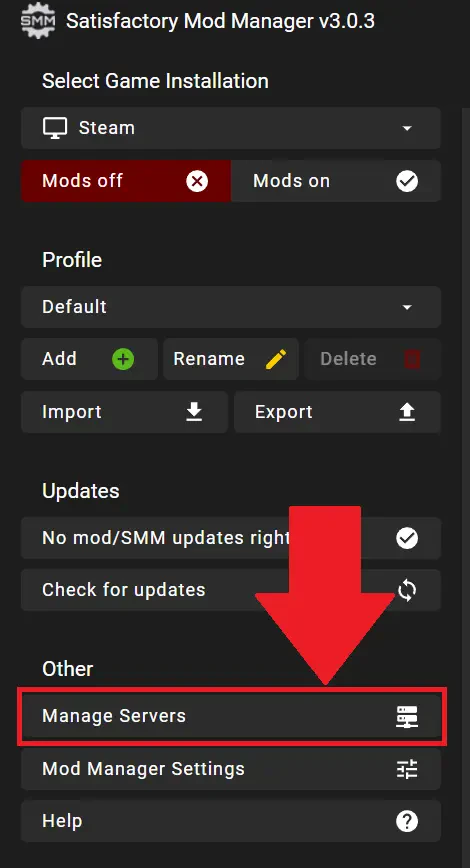
In SMM, open the server management menu.
In the menu bar, click Manage Servers.
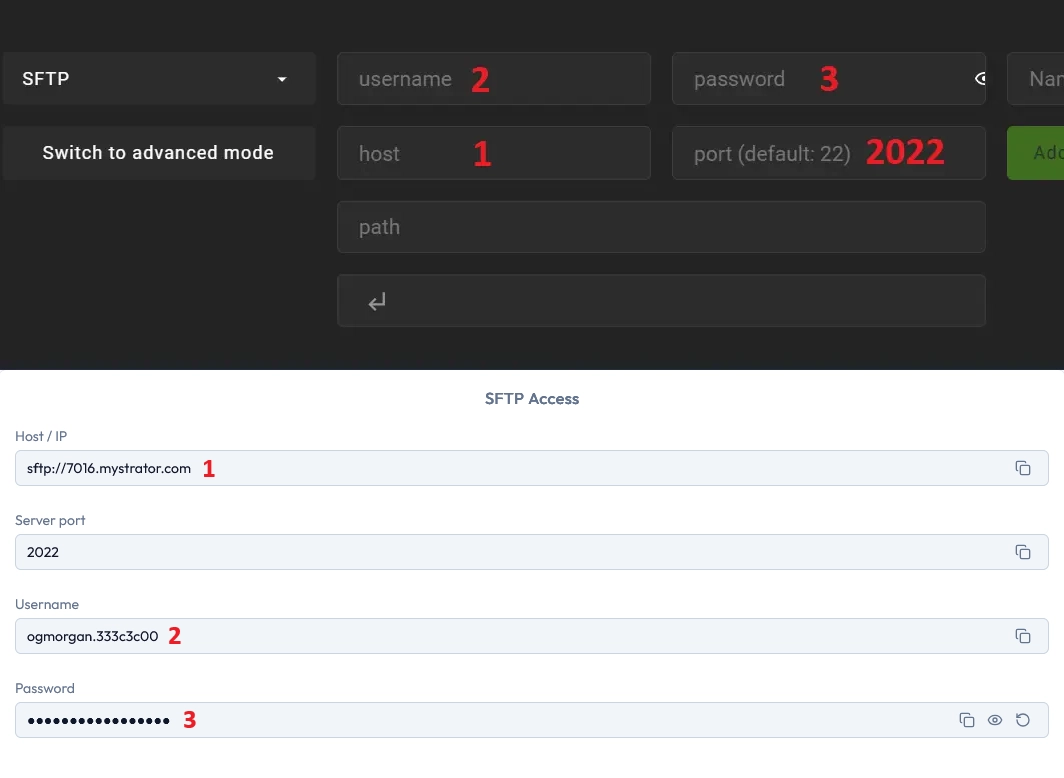
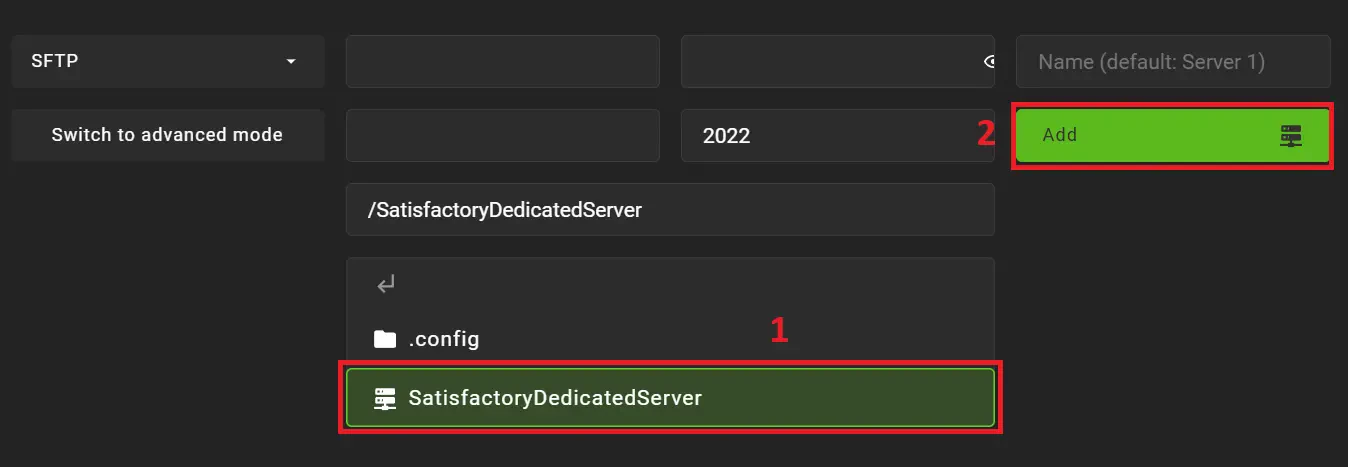
A pop-up will appear. Enter your server’s SFTP credentials, which you can find in your panel under “Access”.
🚨 Important: Never share your SFTP password publicly. Treat it like an admin password.
When SMM asks for the server directory, select the SatisfactoryDedicatedServer folder, then confirm.
Select SatisfactoryDedicatedServer.
Click Add to save the server.
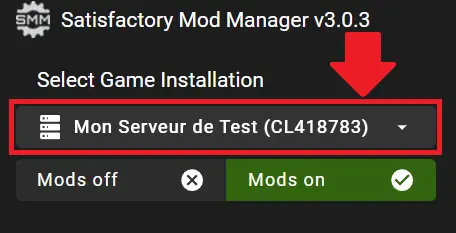
Once the server is added, select it from the top-left server list in SMM.
Step 3: Install mods and upload them
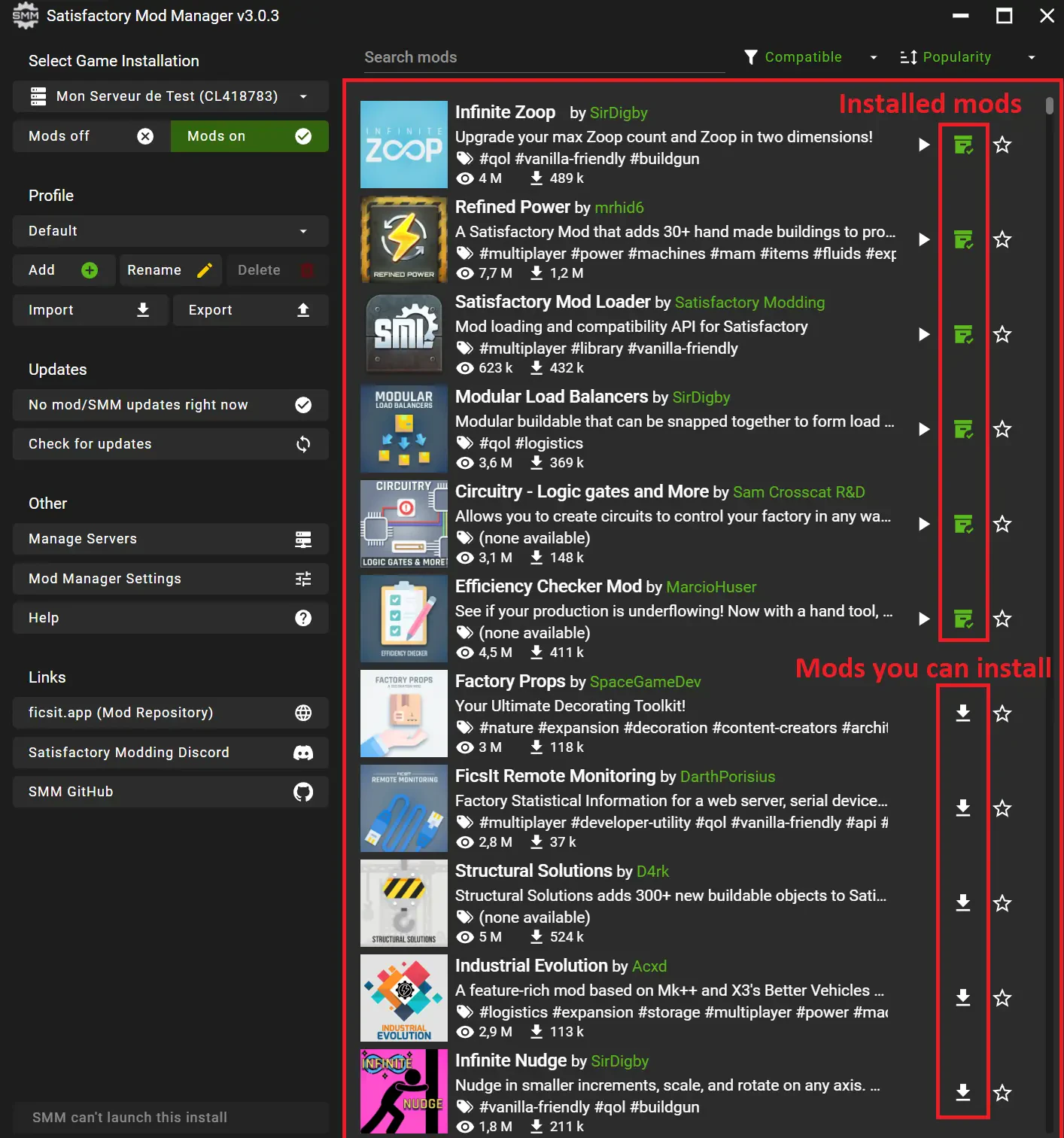
With your Satisfactory server selected, you can now install mods directly from SMM. Use the right-hand menu to browse mods, install them, or remove them, and SMM will automatically upload the required files to your server.
💬 Good to know: Installing too many heavy mods at once can increase startup time. Add them in small batches for easier troubleshooting.
Step 4: Restart the server to apply mods
Once SMM finishes installing and uploading, your server still needs a restart to load the new mod files properly.
Restart your server after the installation completes.
⚠️ Warning: Avoid restarting during active gameplay. Ask players to log out first to prevent save issues.
Questions frequent
Do players need to install anything on their PC?
Yes. Players must have the mods as well installed on their game unless the mod author specifically mentions it's not required (for instance, mods adding only commands may not be needed on the client).
Where do I find my SFTP credentials?
You can find them in your Minboard under the “Access” tab. Copy the host, port, username, and password exactly as shown.
My server doesn’t start after adding mods, what should I do?
Remove the last mod(s) you installed in SMM, restart, and try again. Most startup issues come from a mod version mismatch or incompatible mod combinations.
Conclusion
You now know how to install mods on a Satisfactory server using Satisfactory Mod Manager: connect via SFTP, select SatisfactoryDedicatedServer, install mods, and restart to apply everything.
If you want to launch your own server (or upgrade to something smoother for bigger modpacks), you can start with a free 12h trial, no credit card required, then explore our full game catalog on All games. Need help? Our FAQ and Support have your back.

 10 January 2026
  Enjoy 10% off your first month of server with MineStrator using the code ACTU10!