Hello and welcome to this tutorial explaining how to modify the server icon and the MOTD that appears in your multiplayer server list on Minecraft.
1. Modify the server MOTD and server icon via the MineBoard
You can easily modify your server's MOTD in the settings of your server on your panel. On your pod's page, click on the Settings tab to display your server settings. Then simply fill in the "MOTD" field.
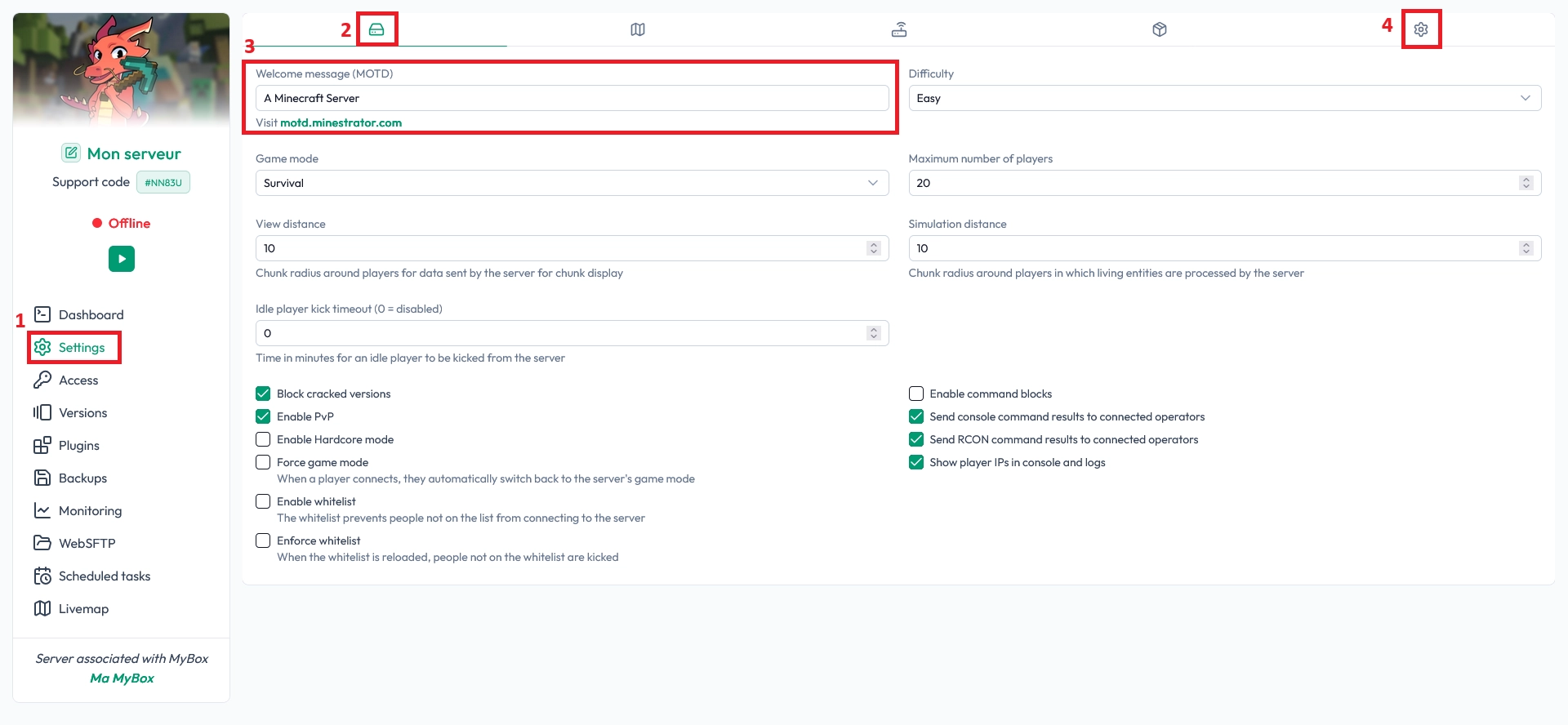
There are websites like https://minecraft.tools/fr/motd.php that allow you to generate a MOTD with different colors or text styles. Feel free to use them !
Your server must be restarted after changing the MOTD for it to appear correctly.
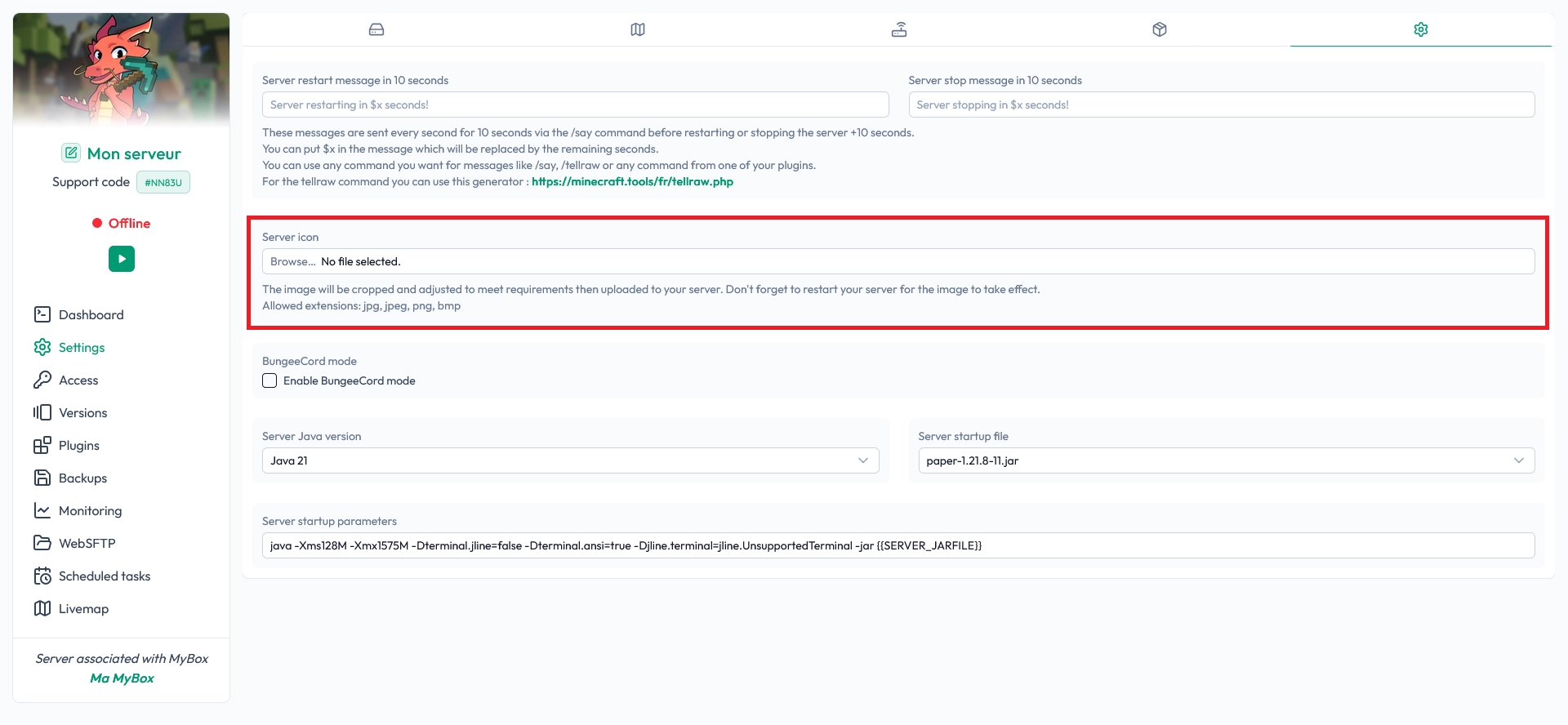
Finally click on the cog on the right to access the icon settings. Then you can upload the image of your choice. The image does not need to have a specific size or a particular name, the MineBoard will handle the adjustments.
Note : Your server must be restarted after uploading the image for it to appear correctly.
2.2 Modify the server icon manually via SFTP
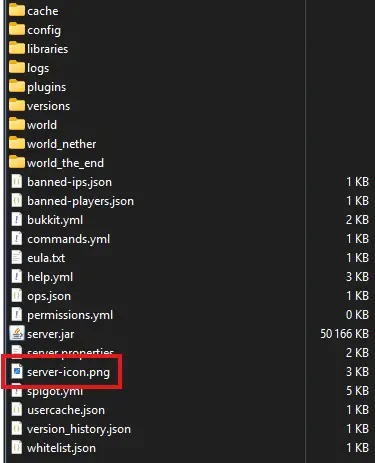
To change your Minecraft server's icon, you need to upload this image to your Minecraft server. The image must be placed at the root of the server, in the same location as the server.properties file. To ensure the image displays correctly, it must meet a few requirements :
- The image must be a PNG file (no JPEG or GIF)
- The image must be exactly 64x64 pixels
- The image must be named exactly server-icon.png
Your server must be restarted after uploading the image for it to appear correctly.
This is the end of the tutorial. Feel free to join the MineStrator Discord if you need help modifying your server’s icon or MOTD.

 30 September 2025
  Enjoy 10% off your first month of server with MineStrator using the code ACTU10!