Minecraft server lag is one of the most frustrating issues for any admin. Your players are rubber-banding, blocks take ages to break, and mobs freeze mid-air. In this guide, you will learn how to diagnose Minecraft server lag, understand where it comes from, and apply concrete fixes to make your server smooth again.
This tutorial focuses on the most common and visible sources of lag on a Minecraft server. We will look at how ticks work, what usually overloads a server, which quick optimizations you should apply, and how to use the Spark plugin to analyze performance in detail.
It is not an exhaustive performance bible, but it will give you a solid, practical method to track down lag and fix it on your own server.
Understanding ticks and Minecraft server lag
To understand Minecraft server lag, you first need to know how a Minecraft server works internally. The entire game runs on a tick system. One tick represents 0.05 seconds, which means a healthy server runs at 20 ticks per second (20 TPS).
During each tick, the server must perform a huge number of calculations: everything related to the map (chunk loading and unloading, world generation, block updates such as a hopper transferring items or a furnace cooking items, water and lava flow, plant growth...), everything related to entities (spawning, despawning, movement, interactions), player actions, and all plugins and mods logic.
Imagine there is a creeper on your server. On every tick, the server needs to:
Calculate its exact position in the world
Check the block it stands on (water, lava, solid block, etc.) and apply effects like swimming or damage
Detect nearby entities, such as cats that scare creepers or players that they should chase
Measure the distance to players to know if it should start its fuse
Handle the fuse timer and trigger the explosion if the delay is over
Now multiply this by every entity, every player, every redstone circuit, and every plugin task. If the server cannot finish all these calculations within 0.05 seconds, ticks start to take longer. That is when you feel Minecraft server lag in-game.
If you want a more technical explanation of ticks, you can check the official wiki page on the subject on the Minecraft wiki about ticks.
Main sources of Minecraft server lag
Before you dive into advanced profiling, start with a few basic checks. Not every lag issue comes from the server itself. Sometimes, the problem is simply your connection or a network issue on the route.
First, check your own internet connection. Mobile data (4G/5G), VPNs, and public Wi-Fi are often unstable and can create lag that looks like server lag, even when the server is perfectly fine.
Then, verify that there is no ongoing issue with your ISP or with the MineStrator network. This is rare, but it can happen. If everything looks fine on your side, it is time to look at the Minecraft server.
The easiest way to confirm that the lag comes from the server is to check the console or logs for this message:
[Server thread/WARN]: Can't keep up! Is the server overloaded? Running 22840ms or 456 ticks behind
This line means that your server cannot complete all its tasks in time and is falling behind. The exact numbers will be different on your server, but the higher they are, the worse the lag. If this message appears repeatedly, your Minecraft server is definitely lagging.
Typical performance bottlenecks on a server
There are many possible causes of Minecraft server lag, but some appear much more often than others. Here are the main performance killers you should look at first:
World generation. This is usually the most expensive operation for a Minecraft server. When players explore new areas, the server must generate chunks, save them to disk, place structures, and apply any world-related mods or datapacks. The more players explore at the same time, the more CPU and disk I/O your server will use.
Too many entities. Every entity (mobs, animals, dropped items, minecarts, armor stands, etc.) needs to be processed each tick. The more entities you have, the more calculations the server has to perform for movement, AI, collisions, and interactions.
Command blocks. A lot of command blocks, or very complex commands running frequently, can easily overload a server. This is especially true for redstone clocks constantly triggering commands.
View-distance and simulation-distance. These two settings in
server.propertiescontrol how many chunks around each player are loaded (view-distance) and actively simulated (simulation-distance). Higher values mean more chunks to keep in memory and more entities to process.Datapacks, plugins and mods. Some of them are extremely well optimized, others are not. A single bad plugin or heavy mod can tank your TPS, especially on survival or modded servers.
There are other possible sources of Minecraft server lag, but if you start by checking these, you will already cover most real-world cases.
💬 Good to know: If you run a Paper server, many settings in the
config/folder (orpaper.ymlon old versions) andspigot.ymlcan help reduce the impact of entities and chunk loading.
First steps to reduce Minecraft server lag
Once you know the main causes of lag, you can apply some quick optimizations to improve your Minecraft server performance. These are simple actions that already make a big difference on most servers.
Start by pre-generating your worlds. World generation is extremely expensive when players explore new areas. If you generate your map in advance, your server will not have to create chunks on the fly when players travel, which removes a huge source of lag spikes.
To pre-generate maps, you can use a plugin like Chunky for Bukkit/Paper/Fabric or a Forge mod like Chunk-Pregenerator for Forge servers. Both tools let you define a radius and generate all chunks inside it.
💡 Tip: Always pre-generate during low-traffic hours and keep an eye on CPU and disk usage while the process runs.
If you are running Vanilla, CraftBukkit or Spigot, switch to Paper as your server software. Paper is a highly optimized fork designed to improve performance and give you more configuration options. It is almost a must-have for public or busy servers.
Once Paper is installed, you can follow this excellent community guide to optimize its configuration: Server Optimization Guide for Minecraft. It explains how to tune entity limits, chunk settings and more.
🚨 Important: Always make a full backup of your server before changing core settings or switching software.
Installing Spark to analyze server performance
Quick tweaks are nice, but to really understand Minecraft server lag, you need proper profiling. That is where Spark comes in. Spark is a powerful performance profiler for Minecraft servers that shows you exactly what is using your CPU.
To install Spark, download it from the official site: Spark download page. Choose the build that matches your server type (Paper, Spigot, Fabric, etc.) and your Minecraft version.
If you run an older modded server, you can also grab Spark as a mod from its CurseForge page: Spark on CurseForge.
Once downloaded, place the file in your server’s plugins folder if you are using a Bukkit/Paper-like server, or in the mods folder if you are on Forge or Fabric. Then restart your Minecraft server so Spark can load correctly.
📝 Note: Spark works on most popular server types and is safe to use in production. It only analyzes performance, it does not change gameplay.
Checking TPS and CPU usage with Spark
The first Spark command you should use helps you quickly check if the issue is really server-side. In-game or in the console, run:
/spark tpsThis command shows two key metrics: your TPS (Ticks Per Second) and your CPU usage. TPS reflects how healthy your Minecraft server is. A stable server should stay very close to 20 TPS most of the time.
If TPS drops below 20, the server is not keeping up with the workload. The lower the TPS, the more lag you and your players will feel: delayed block breaks, mobs freezing, rubber-banding, and so on.
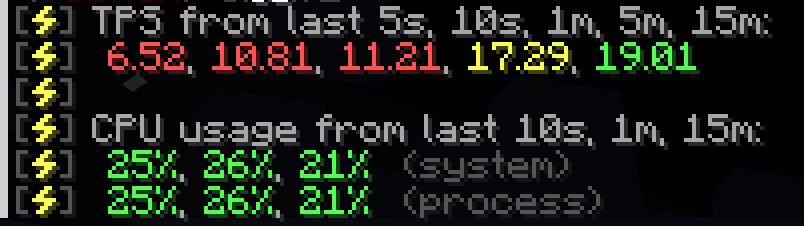
If your TPS is consistently low, you need to go deeper and profile what is actually causing the slowdown. That is where Spark’s profiler comes into play.
Using Spark profiler to find lag sources
Spark’s profiler records what your server is doing over a period of time and then generates a detailed report. This report lets you see exactly which tasks, entities, plugins or mods are eating your CPU.
To start, decide whether your server has constant lag or only occasional spikes. Then, use one of these commands:
If you have constant lag, run:
/spark profiler --timeout 30If you have occasional lag spikes, run:
/spark profiler --only-ticks-over 100 --timeout 30Wait for the 30 seconds profiling time (you can use 60 or more if needed)
After the timeout, Spark will give you a link in chat or console
Open that link in your browser and scroll through the results
On the report page, scroll down and expand the entries in the tree. You are looking for lines with very high percentages. The higher the percentage, the more time that specific task uses during a tick.
In the example below, after expanding the tree, we find a particularly interesting line: net.minecraft.world.entity.monster.EntityZombie.tick() 92.32%.
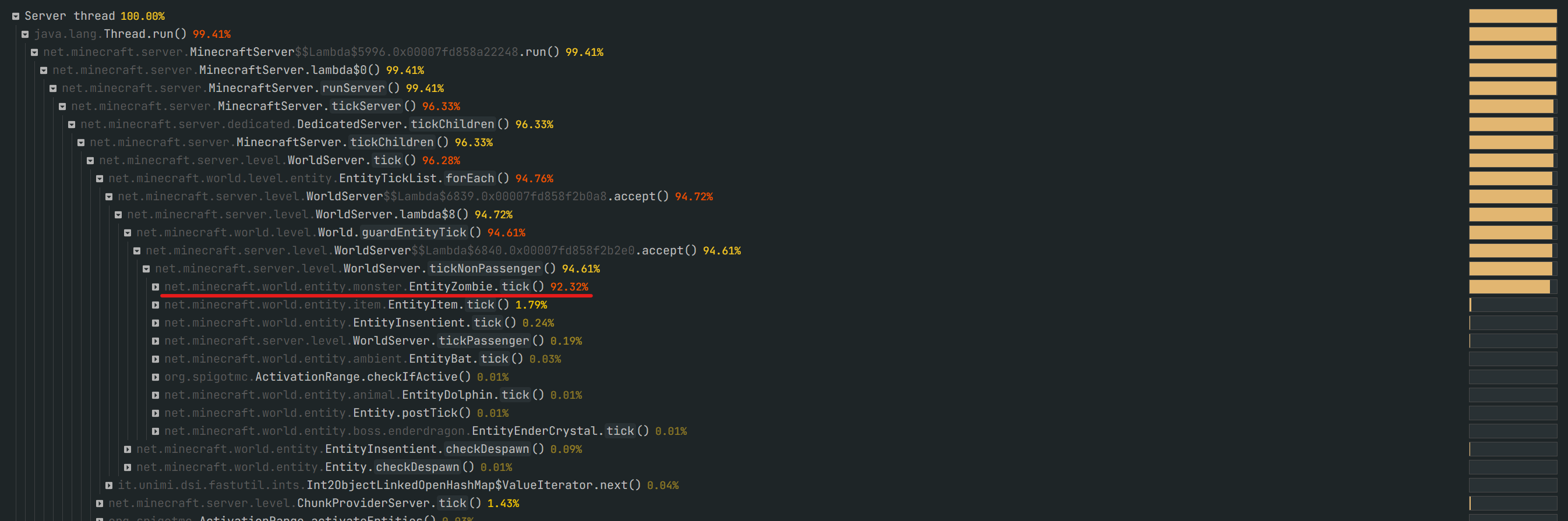
This means that 92.32% of the tick time is spent processing zombies. That is huge and clearly abnormal. For this test, thousands of zombies were intentionally spawned in one spot, similar to what can happen with giant mob farms or when players stack animals or items.
In recent versions of Spark, you can also get a detailed view of the number of entities per world and per chunk from the “World” tab at the top of the report.
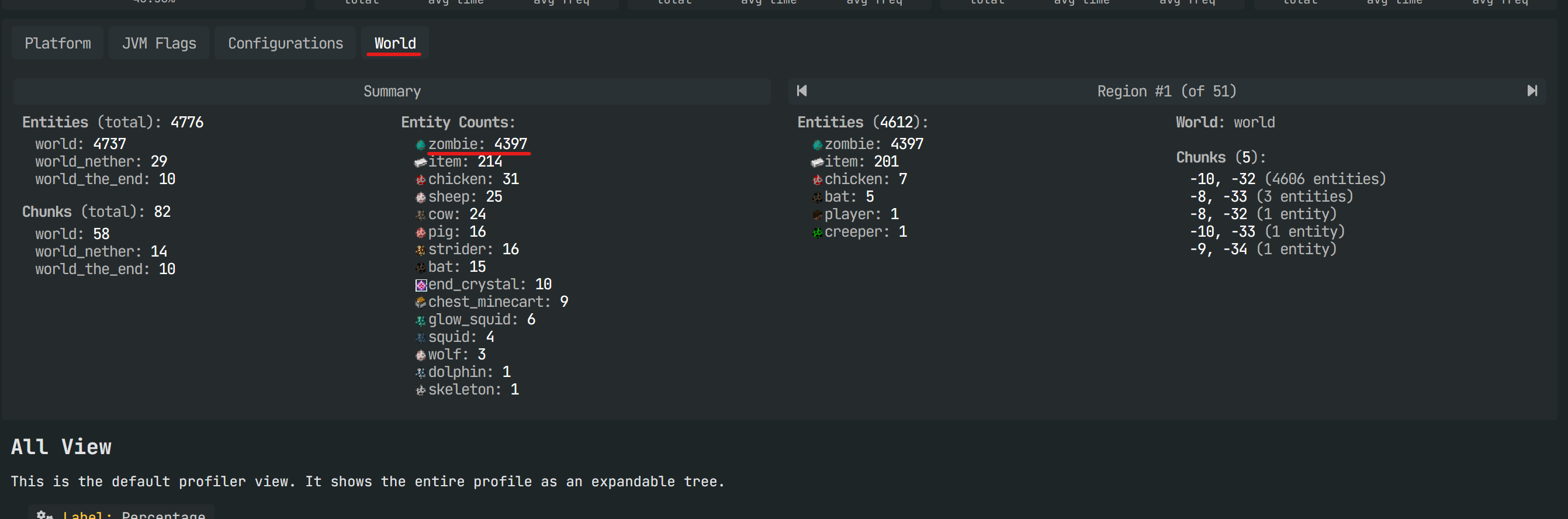
Here, you can clearly see that there are 4,397 zombies in a single chunk. That is far too many and obviously the main cause of the lag. On a real server, you might see similar patterns with chickens, villagers, item stacks, or specific modded entities.
💡 Tip: When you identify a problematic entity or plugin, look for configuration options to limit it, or consider removing or replacing it entirely.
How to share useful information when asking for help
With Spark, you now have a solid method to identify the main sources of lag on your Minecraft server. Sometimes, though, you will still need help interpreting the results or finding the best fix, especially on heavily modded setups.
If you ask for help on Discord, forums, or with MineStrator support, providing the right information will make it much easier for others to assist you efficiently.
Always include a Spark profiler link. Even if the report looks confusing to you, it is the most valuable piece of data for anyone trying to diagnose your server.
Describe your server type and setup. Mention whether you use Paper, Forge, Fabric, etc., and share your full list of plugins or mods if possible. Certain names immediately ring alarm bells for experienced admins.
Specify versions. Indicate your Minecraft version and whether you are using the latest versions of your plugins and mods. If not, mention the exact versions you run.
Explain when the lag happens. Does it occur only with many players online, only in specific worlds, or when certain farms are active? The more context you give, the easier it is to pinpoint the issue.
📝 Note: Detailed information saves everyone time. A good Spark link plus a clear description often leads to a solution in just a few messages.
Frequently asked questions
How do I know if my lag is from the server or my connection?
Use /spark tps to check the TPS. If TPS is close to 20 but you still feel lag, it is probably your connection (ping, packet loss, Wi-Fi issues). If TPS is low and you see “Can’t keep up!” messages in the console, the lag comes from the Minecraft server itself.
What TPS value is considered “good” for a Minecraft server?
A healthy Minecraft server should stay at 20 TPS most of the time. Occasional short drops to 18–19 TPS are usually fine and barely noticeable. If you regularly see values below 17 TPS, your server is struggling and you should investigate with Spark.
Do more RAM and a better CPU always fix lag?
More resources help, but they do not magically fix bad configurations or broken plugins. A single unoptimized farm or plugin can lag even a powerful machine. Always combine good hardware with proper optimization and profiling using tools like Spark.
Can I use Spark on a production server with players online?
Yes. Spark is designed to run on live servers and has very low overhead. Profiling for 30–60 seconds while players are online is the best way to capture real conditions and understand what actually causes your lag.
Conclusion
By understanding how ticks work, checking the usual suspects, and using Spark to profile your server, you can track down most Minecraft server lag issues on your own. Pre-generating worlds, switching to Paper, and keeping entities and plugins under control will already give your players a much smoother experience.
If you still struggle with performance or want a solid base to build on, MineStrator offers optimized Minecraft server hosting ready for Paper, Forge and more. You can deploy a new server in a few minutes and our support team is here to help you analyze your Spark reports and keep your TPS at 20.

 11 December 2025
  Enjoy 10% off your first month of server with MineStrator using the code ACTU10!