Hello! In this guide, you’ll learn how to install an addon on a Bedrock server and make sure it actually loads in your world. We’ll go through every step: extracting the addon, uploading it to your server, and editing the right configuration files so Minecraft Bedrock recognizes it.
Whether you’re adding custom mobs, textures, or full gameplay overhauls, the process is always the same. Follow the steps carefully and your Bedrock server will be running your favorite addons in no time.
Limitations with Marketplace addons
Let’s clear up one important point before you start. Addons purchased on the official Marketplace cannot be installed on a dedicated server. Microsoft restricts these purchases so they only work in solo worlds or on Realms.
So for a dedicated Bedrock server, you must use addons that are provided as downloadable files (.mcaddon, .mcpack, or .mcworld) outside the Marketplace.
How Bedrock addons work on a server
To install a Bedrock addon on your server, you will always follow the same logic: extract the addon on your PC, upload its folders to the server, then tell Minecraft to load them by editing two JSON files in your world folder.
In this example, we’ll use the “Mutant Creatures” addon. After downloading it, we get a file named Mutant Creatures V3.1.mcaddon. Your addon might instead be in .mcpack or .mcworld format, but the installation steps stay almost identical.
Step 1: Extract the addon on your PC
You can’t just drop the .mcaddon file directly into the behavior_packs folder and call it a day. First, you need to extract its contents on your computer so you can access the internal folders.
Right‑click your addon file and extract it into a folder (for example using 7‑Zip or a similar tool). This will create a new folder containing the addon’s files and subfolders.
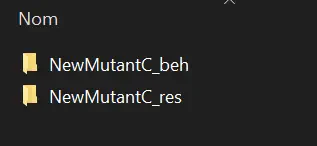
In this example, you can see two subfolders inside the extracted addon: one for a Behavior Pack and one for a Resource Pack. Your addon might only include one of them, and that’s totally fine — the rest of the process is the same.
Step 2: Upload the addon to your Bedrock server
Now you need to upload these folders to your Bedrock server so it can use them. To do that, you will connect via SFTP and drag the folders into the correct directories.
If you’re not sure how to connect, follow our tutorial on managing your server files with WinSCP or FileZilla. Once connected, navigate to your server’s root folder where you can see behavior_packs and resource_packs.
In our example, we will:
Place the
NewMutantC_BEHfolder intobehavior_packsPlace the
NewMutantC_RESfolder intoresource_packs
Simply drag and drop each folder into the matching directory. Once the transfer is complete, the addon files are on your Bedrock server, but they are not active on your world yet.
Step 3: Prepare your world to use the addon
Before activating the addon, make sure your Bedrock server is stopped. Then, in your SFTP client, open the worlds folder. Inside, you will find your world folder (for example, Bedrock Level in this guide).
Inside your world folder, look for two files: world_behavior_packs.json and world_resource_packs.json. If your world has already used addons, these files should already exist. If they are missing, you’ll need to create them manually.
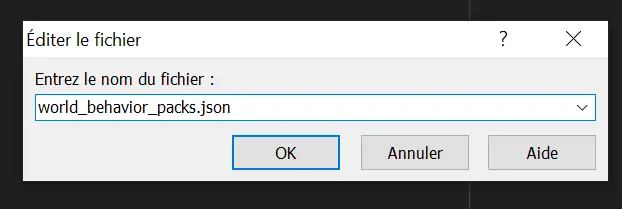
To create them, use your file manager’s “New file” option (or the shortcut your SFTP client provides) and name them exactly world_behavior_packs.json and world_resource_packs.json. Open both files in a text editor, but don’t write anything yet — we’ll fill them in using information from the addon.
Step 4: Get the UUID and version from the addon
Each Bedrock addon is identified by a UUID and a version in its manifest.json file. Your world’s JSON files must reference these values so the server knows which packs to load.
In your SFTP client, go to the behavior pack folder you uploaded earlier (for example, behavior_packs/NewMutantC_BEH). Open the file named manifest.json. You should see a structure similar to this, with a UUID and a version array.
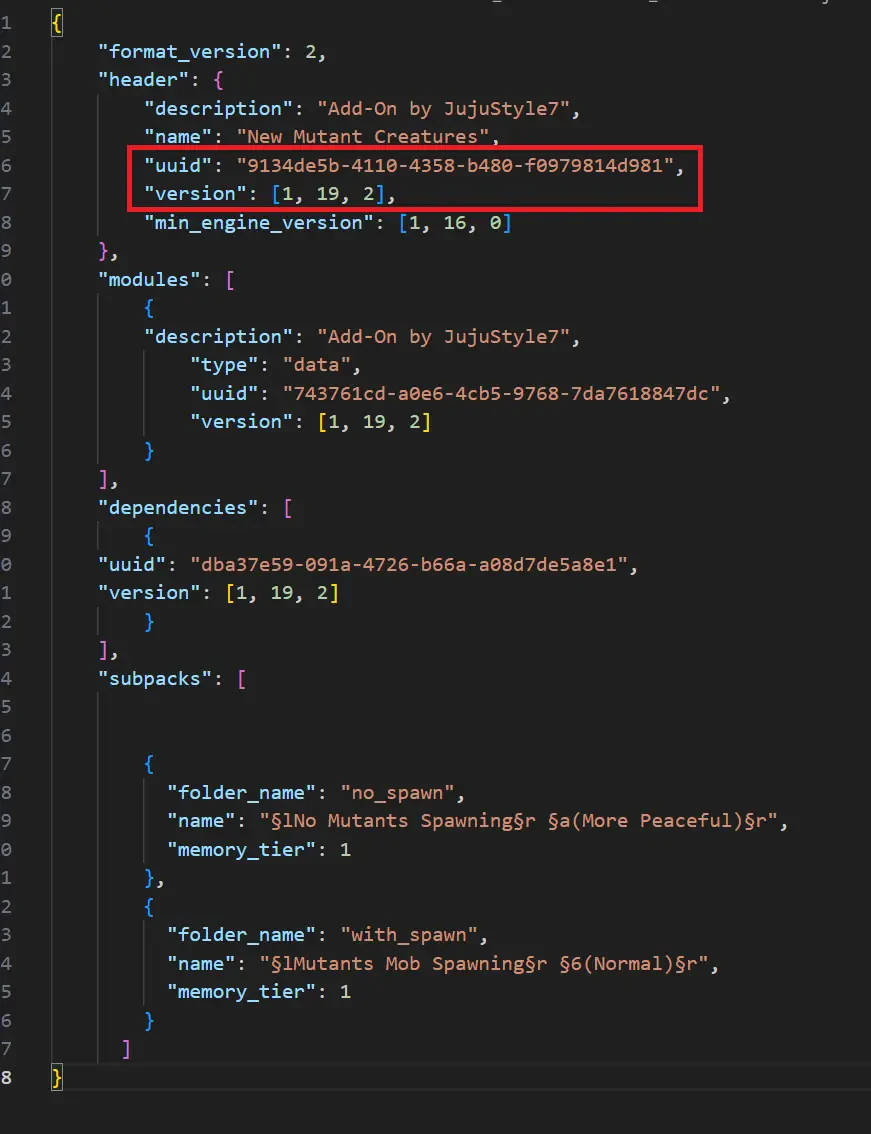
Keep this manifest.json open — you’ll copy its uuid and version values into your world configuration file in the next step.
Step 5: Link the behavior pack to your world
Now open the world_behavior_packs.json file in your world folder. If it is empty, you need to insert a JSON object that references your behavior pack’s UUID and version.
Here is the structure to use in world_behavior_packs.json:
[
  {
    "pack_id": "uuid here",
    "version": [version here]
  }
]
Replace "uuid here" with the uuid value from the behavior pack’s manifest.json, and replace [version here] with the version array (for example [3, 1, 0]). Your file should then look similar to this:
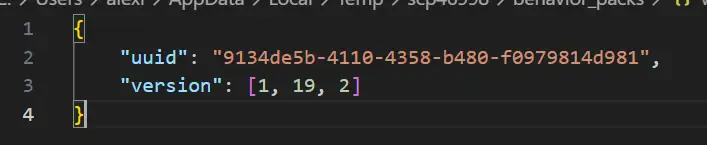
If your world_behavior_packs.json already contains other packs, keep the existing entries and just add a new object to the JSON array with your addon’s pack_id and version.
📝 Note: Make sure your JSON is valid (correct commas, brackets, and quotes). You can quickly check it with an online JSON validator.
Step 6: Link the resource pack to your world
If your addon also includes a resource pack, you must repeat the same process for world_resource_packs.json. Go to the resource pack folder you uploaded earlier (for example, resource_packs/NewMutantC_RES) and open its manifest.json.
Copy the uuid and version values from this manifest, then open world_resource_packs.json in your world folder and add an entry with the following structure:
[
  {
    "pack_id": "uuid here",
    "version": [version here]
  }
]
Again, if the file already contains other packs, just add a new object to the existing array instead of replacing everything.
💡 Tip: Keep behavior and resource packs in sync. If your addon uses both, make sure both JSON files reference the correct UUIDs and versions.
FAQ: Bedrock addons on dedicated servers
Can I install multiple addons on the same Bedrock server?
Yes, you can load several addons at once. Just add a new entry in world_behavior_packs.json and world_resource_packs.json for each pack, making sure every pack_id and version pair matches the corresponding manifest.json.
What happens if my JSON files are incorrect?
If the JSON syntax is invalid or the UUID/version doesn’t match, the Bedrock server will simply ignore the pack. In some cases, the server may fail to start properly. Always validate your JSON and double‑check the copied values.
Do I need to repeat this after every server restart?
No, once the behavior and resource packs are correctly referenced in your world files, they stay active across restarts. You only need to edit the JSON files again when you add, remove, or update an addon.
Conclusion
You now know how to install a Bedrock addon on your server: extract the files, upload the behavior and resource packs, then link them to your world using the correct UUID and version in the JSON files. Once that’s done, you can restart your Bedrock server and enjoy your new content with your players.
If you run into any issues, our support team is available on Discord to help you troubleshoot. And if you don’t have a Bedrock server yet, you can explore our MineStrator hosting offers and launch your server in just a few minutes.

 11 December 2025
  Enjoy 10% off your first month of server with MineStrator using the code ACTU10!