You want to run a custom Minecraft version on your server, even if it does not appear in the Versions tab of the panel? No problem. As long as you have a working server .jar file, you can use it as your startup file and boot any compatible version.
In this guide, you will learn how to install a custom Minecraft version (Paper, Spigot, Purpur, etc.) on your MineStrator server and how to switch versions without losing your world or player data. For example, you can move from 1.21.4 to 1.21.10 in a few minutes while keeping everything intact.
If you prefer video tutorials, you can follow the steps in this YouTube video about installing a custom version alongside this written guide.
Prepare your custom Minecraft server jar
For this tutorial, we will use Paper (an optimized fork of Spigot) in its latest version. However, you can use any Minecraft server .jar file that matches the version you want to run on your server.
The only requirement is to download a server .jar (Paper, Spigot, Vanilla, modded, etc.) from a trusted source. This file will be used as the startup file for your Minecraft server in the MineStrator panel.
Make sure you note the exact name of the .jar file you download. You will need to select this name precisely when changing the startup parameter in the panel.
💡 Tip: Keep your .jar files in a dedicated folder on your PC and include the version in the name (for example
paper-1.21.10.jar) so you can quickly find the right build later.
Upload the custom .jar to your Minecraft server
Once your .jar file is downloaded, the next step is to upload it to your Minecraft server. To do this, you need access to the files of your hosting environment.
You can use an SFTP client such as WinSCP or FileZilla to transfer the file. If you are not familiar with SFTP, follow our guide on managing your server with WinSCP and FileZilla, which explains connection setup and file transfers step by step.
You can also use the built-in WebSFTP in the MineStrator panel, available from the Files tab of your server. This lets you upload your .jar file directly from your browser without installing extra software.
🚨 Important: Always make sure your Minecraft server is fully stopped before uploading or replacing a .jar file. This prevents file corruption and startup errors.
💬 Good to know: You do not need to delete the old server .jar. In the next step you will simply choose which .jar the server should use as the startup file.
Set the custom jar as the startup file
Now that your custom .jar is on the server, you need to set it as the startup file. Open your server in the MineStrator panel and go to the Settings then Hosting tab.
Scroll down to the section called Server startup file. There you will see a dropdown listing all .jar files located in the root directory of your server.
Select the file whose name matches exactly the .jar you uploaded in the first step, then confirm to save your new startup configuration for this Minecraft version.
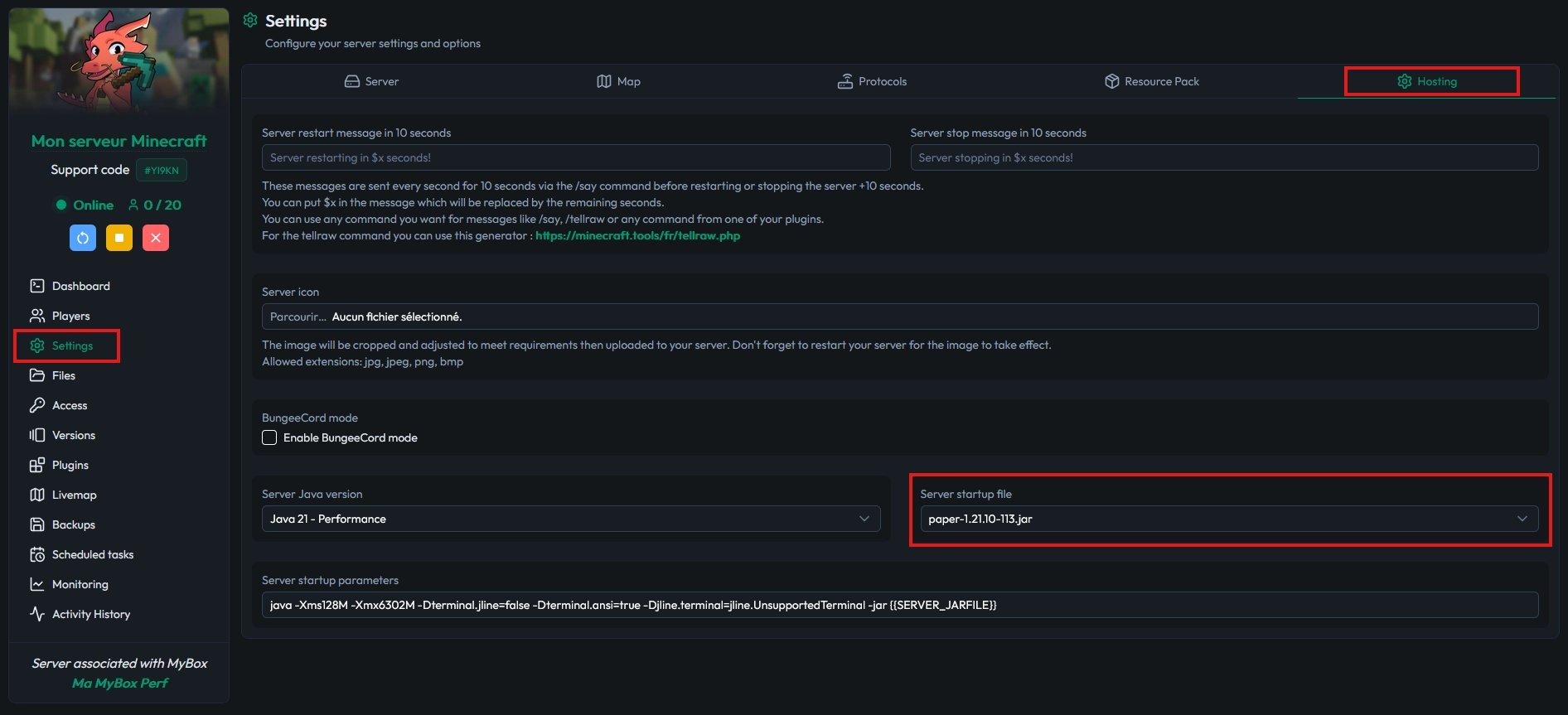
📝 Note: If your .jar file does not appear in the list, check that it is in the root of the server (not inside a subfolder) and that the file extension is correctly set to
.jar.
Match the Java version to your Minecraft version
Depending on the Minecraft version you install, you may need to change the Java version used by your server. Using the wrong Java version is a common reason for a custom Minecraft server to fail at startup.
Here are the recommended Java versions for each range of Minecraft versions:
Minecraft 1.20.5 and above: Java 21
Minecraft 1.17 to 1.20.5: Java 17
Minecraft 1.16 and below: Java 8
To change the Java version, stay in the Settings -> Hosting tab of the panel. Just below the startup file section, find the Server Java version area. Choose the Java version that matches your Minecraft version, then save the changes.
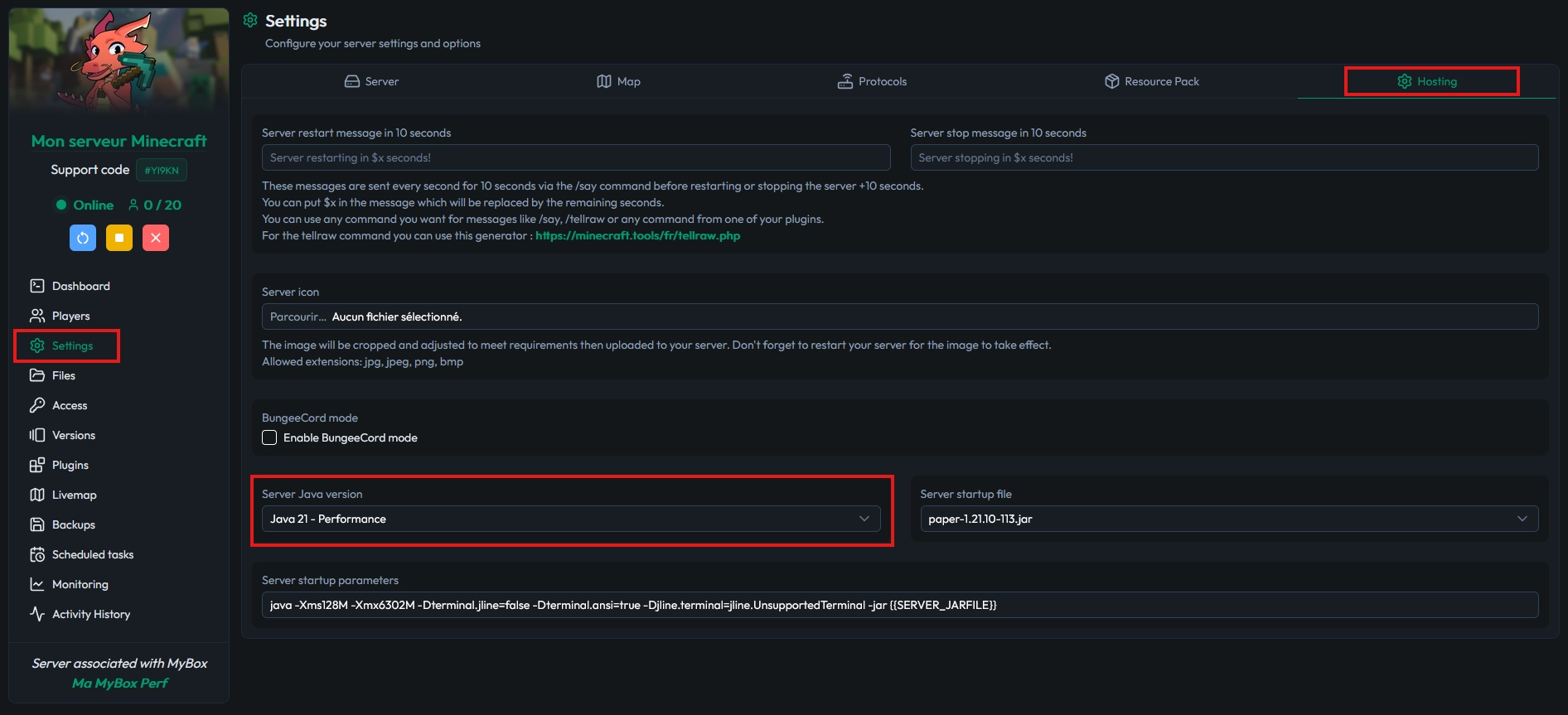
⚠️ Warning: If you use plugins or mods, always check their compatibility with the selected Java version on their official pages (Spigot, Paper, CurseForge, etc.) before restarting your server.
Start your Minecraft server with the custom version
At this point, everything is ready: your custom .jar is uploaded, the startup parameter is set, and the correct Java version is selected. You can now start your Minecraft server from the MineStrator panel.
Watch the console during startup to make sure there are no errors related to the Minecraft version or Java. If the server boots correctly, your custom Minecraft version is now running, and your world and player data remain available as before.
💬 Good to know: You can reuse this method to update your server to a newer version or to test different distributions (Paper, Purpur, Spigot) on the same world without losing your data.
Frequently asked questions
Can I change version without losing my world?
Yes, you can change your Minecraft version while keeping your map, especially for minor updates (for example from 1.21.4 to 1.21.10). For major version jumps (like 1.20 to 1.21), you should always create a full backup of your server before switching the custom version.
What if my server does not start after changing the jar?
First, check that the Java version matches your Minecraft version and the server .jar requirements. Then confirm that the startup file name in the settings is exactly the same as your custom .jar. If the issue persists, read the error messages in the console and contact MineStrator support if you need help.
Where can I find safe .jar files for my server?
Always use official or well-known sources, such as the official PaperMC website for Paper builds or the official Minecraft website for Vanilla server jars. Avoid downloads from untrusted or unofficial sites to reduce the risk of malware or broken files.
Conclusion
By following these steps, you can easily install a custom Minecraft version on your MineStrator server and switch between versions without starting from scratch. All you need is the right .jar file, set it as the startup file, and select the matching Java version in the panel.
Want to test multiple versions or launch a new Paper or modded project without worrying about performance? Check out MineStrator MyBox offers and enjoy optimized Minecraft hosting with an easy-to-use panel and a support team ready to help you at every step.

 18 December 2025
  Enjoy 10% off your first month of server with MineStrator using the code ACTU10!